
Issue
Amazon invoices remain open in QuickBooks even after the settlement is posted in Webgility Desktop, resulting in outstanding balances under the Amazon customer.
Cause
Invoices may remain open for the following reasons:
- Missing or partial payment: The settlement report may not include the payment for an order or may contain only a partial payment.
- Unsupported settlement report format: Manually imported settlement reports may use an unsupported file format. Webgility Desktop requires the Flat V2 format to process payment details correctly.
Note: If an invoice remains open because the settlement report does not include the full payment, wait for Amazon to include the remaining payment in an upcoming settlement report. Once the payment is received in the settlement report, Webgility Desktop will post the payment against the corresponding order and mark the invoice as paid, provided the full payment has been received and processed successfully.
Resolution Steps For Unsupported settlement report format
- Verify the import method: Open the affected settlement in Webgility and check whether it was imported manually or downloaded using Get Settlement.
- Re-import the settlement: If manually imported, download the report in Flat V2 format from Amazon Seller Central and import it again. See How to Manually Import an Amazon Settlement Report.
- Use Get Settlement: Alternatively, retrieve the settlement directly through Webgility's Get Settlement option using the settlement date range or ID. See Download and Post Amazon Settlement Reports.
- Undo the previous sync: If the settlement was already posted incorrectly, use Undo Sync to unpost the transactions before re-importing and reposting the settlement. See How to Unpost Transactions Using Undo Sync.
- Verify in QuickBooks: Confirm that the previously open invoices now have their corresponding payments applied.
Important Note
If Flat V2 is unavailable for an older settlement, use Get Settlement in Webgility. If invoices remain open after reposting, contact Webgility Support with the settlement ID, a sample order number, and the imported file format.
Best Practice
Use Get Settlement as the preferred method for importing Amazon settlement reports to help prevent missing payment details and open-invoice issues.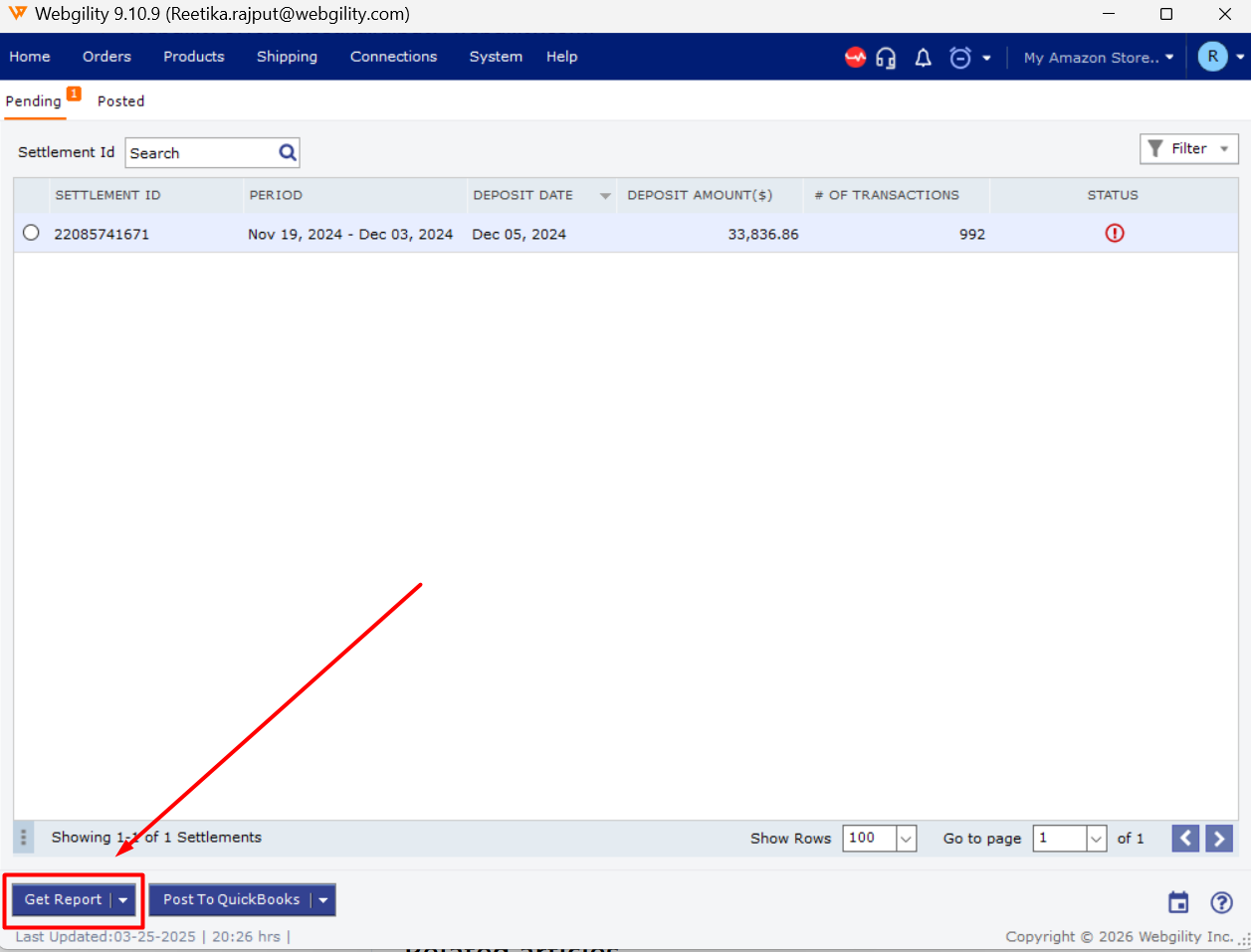
If you need any further assistance, please contact Webgility Support. We’ll be happy to help.