
Overview
You can see your best-selling products in Webgility Analytics and download them as a CSV file to share or analyze in a spreadsheet. This article shows where to find the top-selling products report, how to change the time period, and how to export it.
It applies to anyone with Webgility Analytics and at least one connected sales channel.
Before you begin
The report only shows data that Analytics has already collected, so check these points first.
- Connected channels: Analytics reports on all of your connected sales channels by default. You can narrow the report to one sales channel or store with the filters.
- New connections: If you just connected Analytics or added a channel, the data takes one day to appear in any view.
- Time zone and currency: Data is shown in Pacific Time (PT) and US dollars (USD).
- Refresh timing: The Today view updates about every 30 minutes to 1 hour, and This month updates every 6 to 8 hours. Performance trends updates daily.
Find your top-selling products
Your top sellers appear in the Top Performing Products chart on the Performance Trend tab of the Sales page.
- Analytics page can be accessed by clicking on 'Get more insights with Analytics' under the Home page of Webgility Desktop.
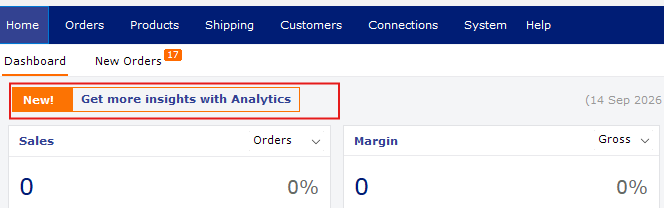
- In Webgility Online, open Analytics in the left menu and select Sales.
- Select the Performance Trend tab. The Sales Channel, Store, Product, Currency and Date Range filters appear above the charts.

- If you sell through more than one channel or store, use Sales Channel and Store to choose which sales to include. Select All to include everything.
- Open Date Range and choose the period you want. Under Relative date you can pick Previous month, This month, Month to date, or the last or next number of months. Select Absolute date range to enter exact dates.
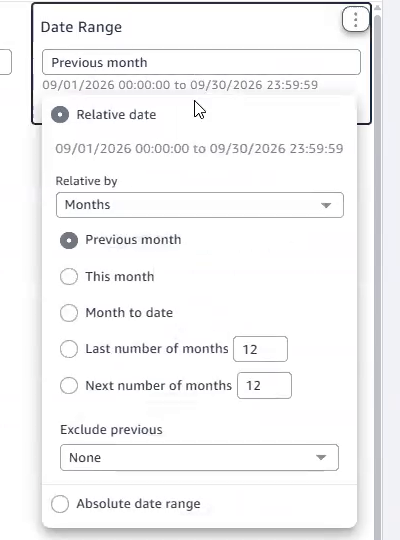
- Optional: use the Product filter and its search box to focus on one product.
- Scroll down to Top Performing Products. Each box is a product, and larger boxes mean higher revenue. Hover over a box to see its SKU, quantity and gross sales.
The chart only labels the larger boxes, so it does not give you a full itemized list. To get every product, export the chart as described below.
Export the full product list to CSV
Exporting gives you every product with its sales and quantity for the date range and filters you chose, so set those first using the steps above.
- Scroll to the Top Performing Products chart, hover over it, and select the ⋮ icon (Menu options) in its top-right corner.
- Select the export option, Export to CSV. The menu also includes View summary data.
- Wait for the message Your CSV is ready. The file downloads to your computer, usually into your Downloads folder. Open it in Excel or Google Sheets to see each product name with its total sales and quantity.

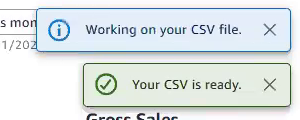
The other charts on this page, such as Gross Sales, have the same menu, so you can export them the same way.
Troubleshooting and tipsMost differences between this report and what you expect come from timing or filters.
- The report is empty or missing a channel. If the connection is new, wait one day for data to populate, then check again.
- Recent orders are missing. Each view refreshes on its own schedule (see Before you begin), so very recent orders can take a few hours to appear.
- Totals look different from your sales channel. Analytics shows Pacific Time and USD, and the Date Range filter decides which orders are counted. Check your Date Range, Sales Channel and Store filters.
- The currency filter did not change the amounts shown. This filter changes which orders are included, but values still display in USD.
- A product is missing from the ranking. Check that the Sales Channel, Store and Product filters are not narrowing the results, and that your date range covers the period you want.
- Sales Reports in Webgility Analytics: every Sales view, chart and filter in detail.
Still stuck? Contact Webgility Support at support@webgility.com and include what you see on screen.