
When WooCommerce orders are visible in your store but Webgility Desktop displays “No more orders” when using Get New Orders or the Scheduler, use the steps below to identify whether the issue is related to order data, download criteria, the store connection, or an integration update.
Before You Begin
Confirm the following:
- The orders are visible in WooCommerce.
- You can access Webgility Desktop and the WooCommerce store.
- You know the order IDs and approximate order dates you are trying to download.
- You have access to WooCommerce logs and, if needed, your WordPress hosting administrator.
Verify the WooCommerce Connection
-
If manual downloads fail, verify your sales channel connection:
- Open Webgility Desktop.
- Navigate to Connections > Sales Channels > Manage Sales Channels.
- Locate your WooCommerce store, click the Action button, and select Edit Connection.
- Click Test Store Connection to confirm that the connection is active.
Test a Manual Order Download
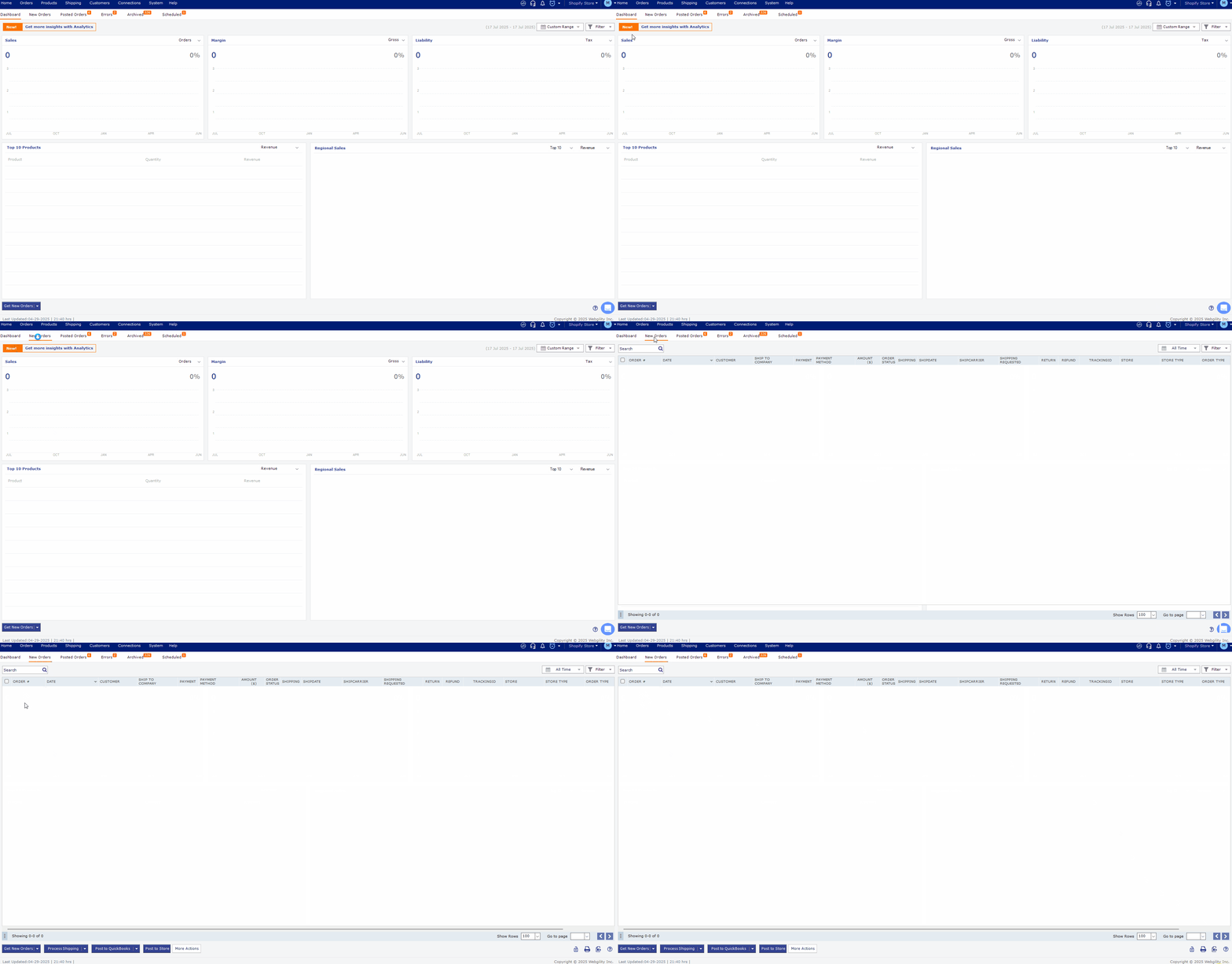
Start by determining whether Webgility can retrieve an individual order.
- Open Webgility Desktop.
- Go to the New Orders tab.
- Use Get New Orders or the option to download an order by Order ID.
- Enter the ID of an order that is visible in WooCommerce.
- Confirm whether the order downloads successfully.
Review Order Status and Date Range
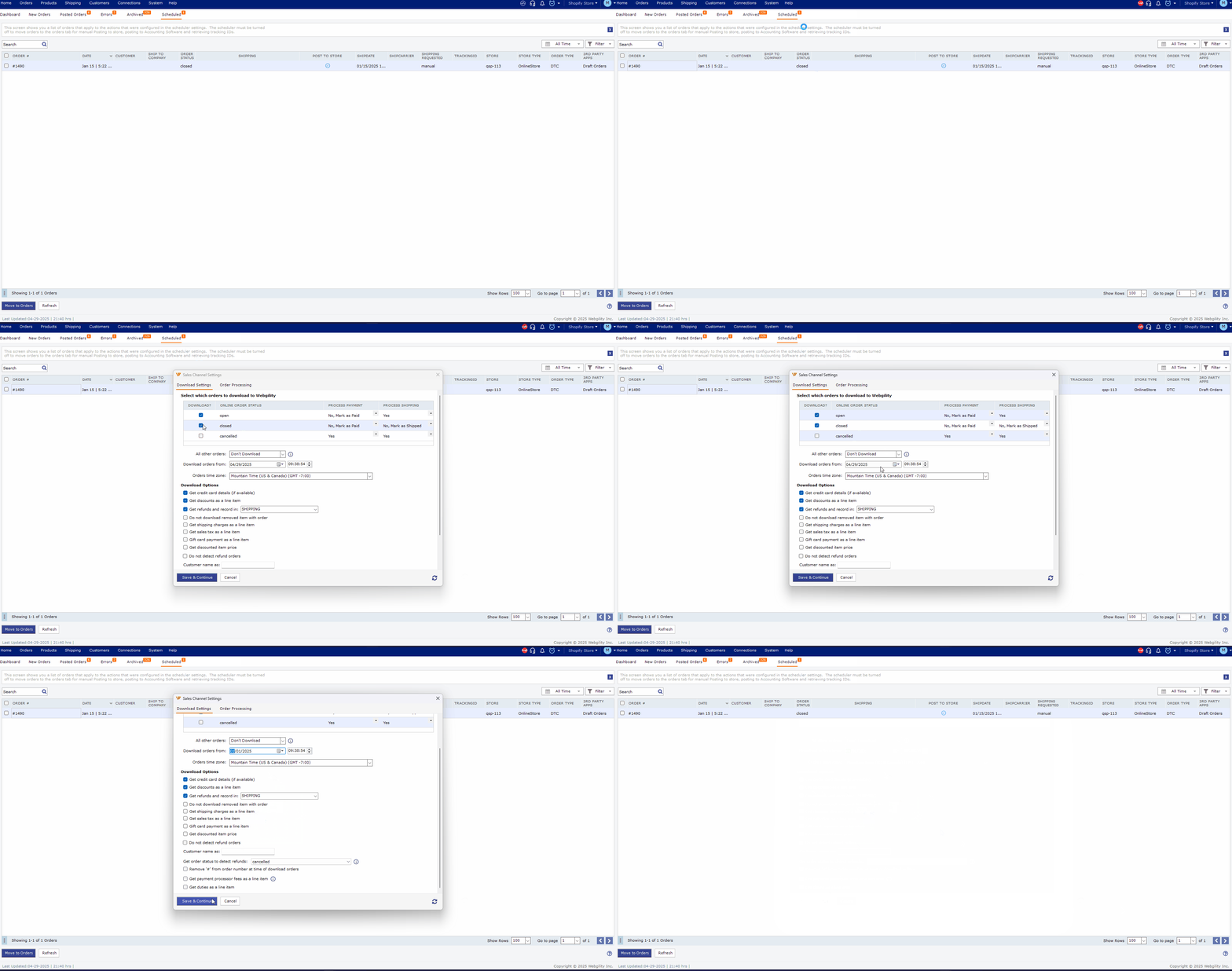
Confirm that the orders meet the criteria configured for downloads.
- In Webgility Desktop, go to Connection, then open Sales Channels and select Settings option.
- Confirm that the correct order statuses are selected.
- Confirm that the order is eligible for download based on your Webgility settings.
Check the Created Date
Review the Created Date for orders that are not downloading.
In some cases, draft WooCommerce orders may not contain a valid Created Date. When this occurs, Webgility may not identify the orders during an automatic download even though downloading by Order ID continues to work.
If the Created Date is missing or invalid:
- Review the affected order in WooCommerce.
- Correct the order data as appropriate.
- Download the orders from a previous date: In Webgility, go to Dashboard > Get New Orders. Click the dropdown arrow next to the Get New Orders button and select Order By Date. Set the required date, click Save, and then download the orders.
- Confirm that the order appears in Webgility Desktop.