
Why Does This Happen?
When Webgility Online downloads an order, it uses the payment information available at that time. If Shopify captures the payment later, Webgility may receive the payment change as an Order Update instead of including it in the original order. Until the update is processed, the order may continue to show as Authorized in Webgility, and the corresponding invoice may remain unpaid in QuickBooks Online.
Note1: Pending order updates must be processed before the related payment information can be reflected in QuickBooks Online.
Steps to Apply Pending Order Updates
-
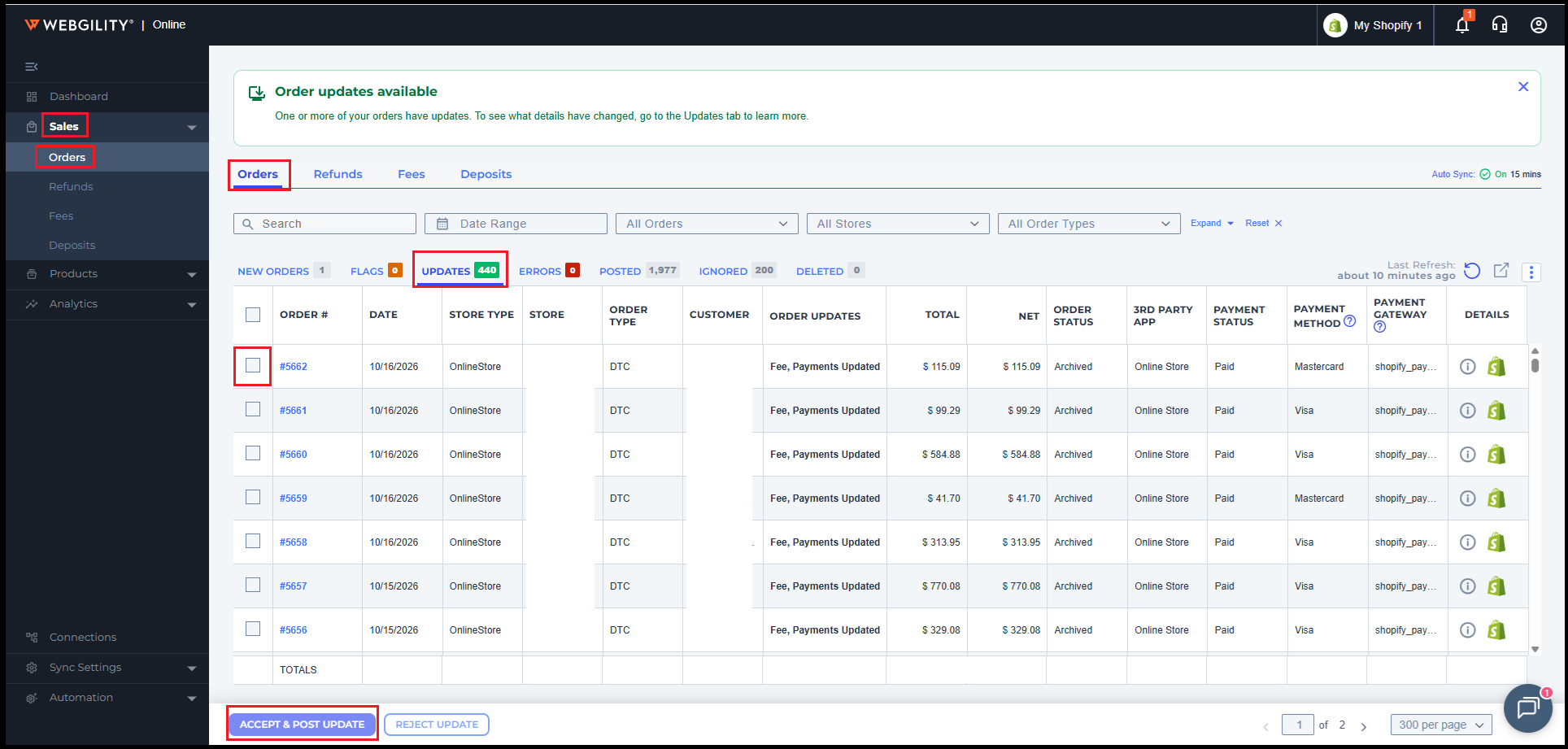
Sign in to Webgility Online and navigate to Sales > Orders tab.
-
Click the Updates tab to view orders with pending changes.
-
Identify the Shopify orders that are marked as paid in Shopify but have open or overdue invoices in QuickBooks Online.
-
Select the relevant orders from the Updates tab.
-
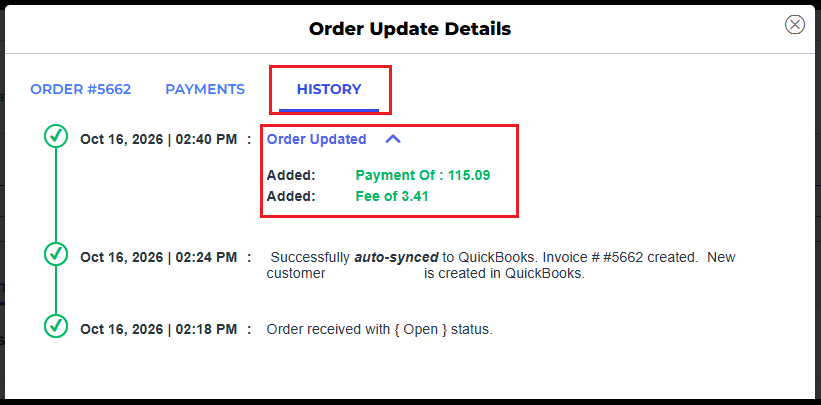
Click Accept Update to apply the updates on the order and its respective transaction in QuickBooks Online. This allows Webgility to process the updated payment information.
-
Once the updates have been processed, open QuickBooks Online and check the corresponding invoice. Verify that the payment has been recorded correctly and that the invoice status reflects the updated balance. If the payment covers the full invoice amount, the invoice should show as Paid.
Note2: Do not manually create another payment without first checking whether the existing payment has already been recorded. This helps prevent duplicate payments.