
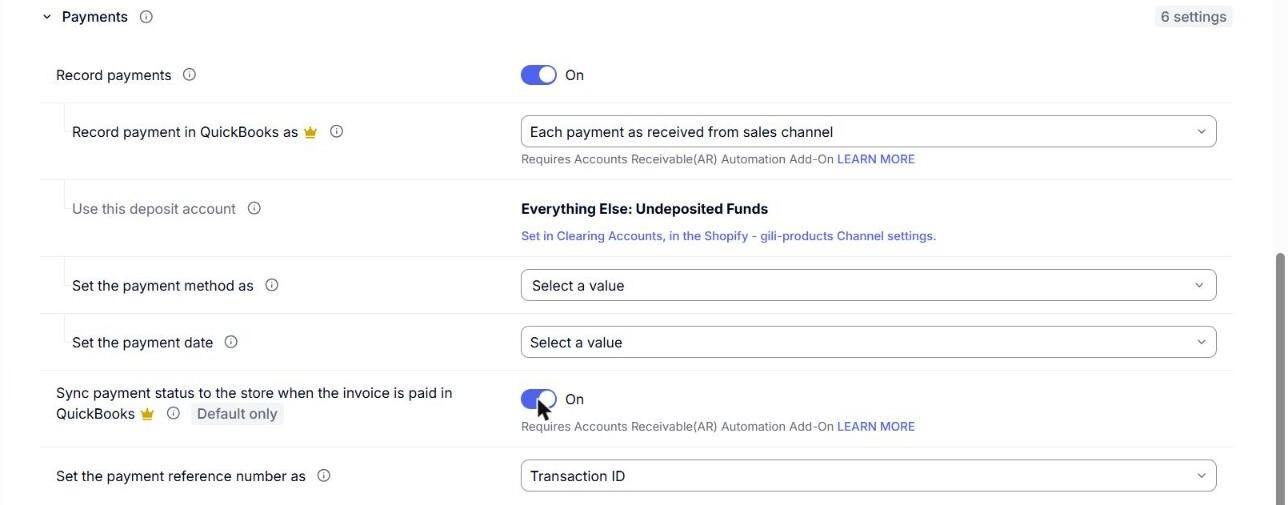
When you post orders as Invoices and your customer pays the invoice later, you record that payment in QuickBooks Online. With Sync payment status to the store when the invoice is paid in QuickBooks turned on, Webgility i then marks the order as Paid in your store, so you do not have to update it by hand.
Note: This setting works only for Shopify sales channels, and only for orders posted as Invoices.
Note: This setting is part of the Accounts Receivable(AR) Automation Add-On. Without the add-on, you can see the setting, but you cannot turn it on.
Steps:
- Go to Setup > Workflows.
- On the Orders to accounting card, find your Shopify sales channel and click its Default row. The Default's screen opens.
- Under Then, click Transaction to open it, and check that Post all orders as this type of transaction is set to Invoices.
- Click Payments to open it.
- Turn on Sync payment status to the store when the invoice is paid in QuickBooks.
- Click Save the Default.
Note: This setting is marked Default only. Only the Default sets it, and a rule cannot change it. Every order on the sales channel follows the value on the Default, whichever rule posted it. This is because Webgility i acts on it when QuickBooks Online reports the payment, not when the order posts.