
When to Use This Guide
Follow these steps if:
- Product prices in your online store are being overwritten during scheduled Webgility Desktop syncs.
- You want to sync inventory quantities without updating product prices.
- Price-sync options elsewhere in the product settings are disabled, but prices continue to change during Scheduler runs.
Why Does This Happen?
Webgility Desktop Scheduler has a separate Product Sync type setting that determines which product information is updated during scheduled runs.
When the setting is configured as Both quantity and price, the Scheduler pushes both inventory quantities and prices from Webgility Desktop either to your online store or Quickbooks as per the master data configured. This setting operates independently of the price-sync options available under main Product Module i.e. Products > Settings > Sync Settings.
To prevent the Scheduler from pushing prices during scheduled runs, change the Product Sync type to Quantity only.
Note: If a product has a negative quantity in QuickBooks and its quantity in the online store is already 0, the product may not sync because the quantities are considered matched. The processing log may display Already matched up. This is expected behavior and is separate from the price-sync configuration.
Steps to Set Scheduler Product Sync to Quantity Only
Step 1: Open Scheduler Settings
Right-click the Webgility Desktop Scheduler icon in the Windows system tray and select the option to open Scheduler settings.
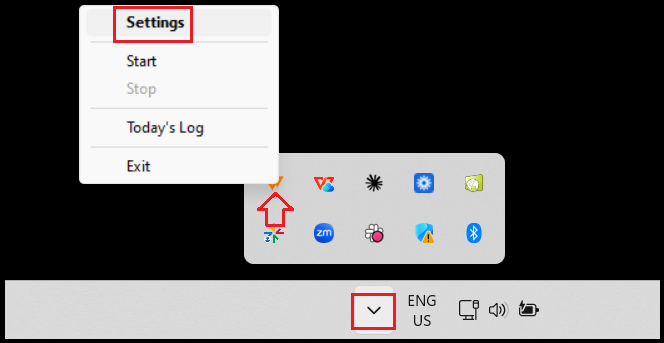
For detailed instructions, refer to Scheduler Configuration in Webgility Desktop.
Step 2: Navigate to Product Sync
Open the Product Sync section and locate the dropdown that controls which product information the Scheduler syncs.
Step 3: Select Quantity Only
Change the Product Sync type from Both quantity and price to Quantity only.
Save the changes.
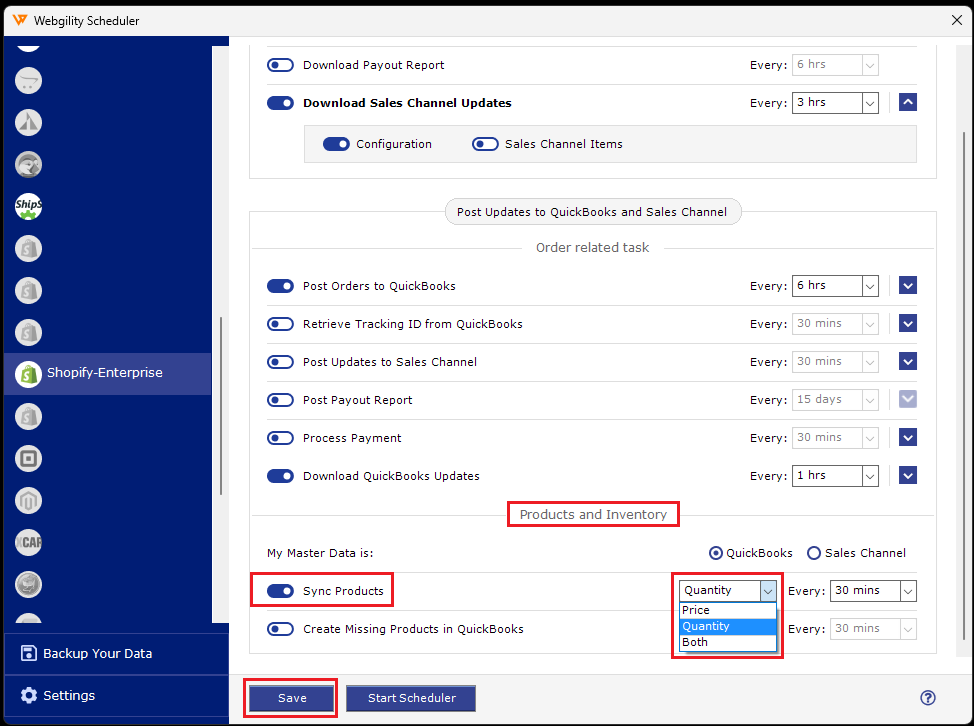
Step 4: Restart the Scheduler
Restart the Scheduler to apply the updated configuration to subsequent scheduled runs.
Step 5: Verify the Results
After the next scheduled run completes:
- Review the processing log for the product sync results.
- Verify that inventory quantities have updated as expected.
- Check your online store or Quickbooks (whichever is your slave data)to confirm that product prices are no longer being overwritten by scheduled syncs.
For additional details, refer to Product Sync Setup in Webgility Desktop.