
Note: This article is mainly for Shopify Channel
Understanding Available vs. On Hand Inventory
Before configuring this setting, it is important to understand the difference between these two inventory quantities in Shopify.
- Available: The quantity of inventory that can currently be sold to customers.
- On Hand: The total physical inventory available at the location, including quantities committed to existing orders.
For example, suppose you have 100 units of a product in stock, and 20 units are already committed to open orders.
| Inventory Type | Quantity |
|---|---|
| On Hand | 100 |
| Committed to Orders | 20 |
| Available | 80 |
If Webgility Online updates the On Hand quantity to 100, Shopify automatically calculates the Available quantity as 80.
This helps prevent inventory discrepancies when stock is already committed to customer orders.
How to Change the Shopify Inventory Sync Setting
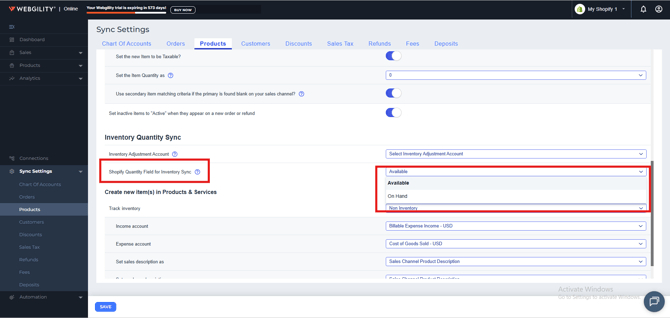
Follow these steps to choose which inventory quantity Webgility Online should update:
- Log in to Webgility Online.
- Navigate to Sync Settings.
- Open the Product section.
- Locate Shopify Quantity Field for Inventory Sync.
- Choose your preferred inventory quantity field:
- Available: Updates the Available inventory quantity in Shopify. This is the default setting.
- On Hand: Updates the On Hand inventory quantity, allowing Shopify to calculate the Available quantity after accounting for committed inventory.
- Save your changes.
- Review the confirmation prompt and confirm the change to proceed with the inventory re-sync.
What Happens After Changing the Setting?
When you change the Shopify inventory quantity field, Webgility Online performs a one-time product re-sync after you confirm the change.
This ensures that the updated inventory synchronization setting is applied to your products.
Note: Review the confirmation prompt before proceeding, as changing this setting triggers a one-time inventory re-sync.
Which Option Should You Choose?
The appropriate option depends on how you manage inventory in Shopify.
- Choose Available if you want Webgility Online to continue updating the quantity available for sale. This is the default behavior.
- Choose On Hand if you want Shopify to account for inventory already committed to open orders when calculating the Available quantity.