
Overview
Webgility Desktop can send you an email every time it downloads new orders from your sales channels. The alert is off by default, so if you want to be notified the moment orders arrive, you turn it on under Notification Settings and add the email addresses that should receive the alert.
When This Applies
Use this if you are not seeing any new-order email from Webgility, or if you want a second person (an owner, a bookkeeper, a warehouse teammate) to get the same alert.
What You'll Need
Access to Webgility Desktop on the main machine where orders are downloaded, and the email address or addresses that should receive the alert.
Steps to Enable New Order Email Alerts
-
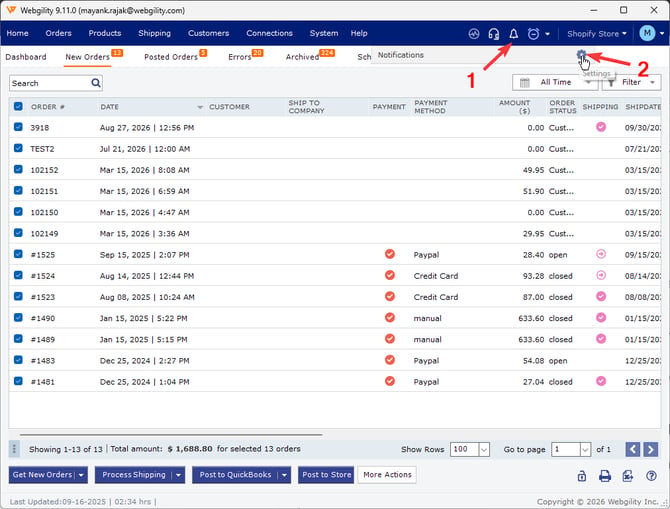
Step 1: In Webgility Desktop Dashboard, Click on the Bell Icon > Notification >> Settings.
-
Step 2: Find the New Order Download row and turn the alert on.
-
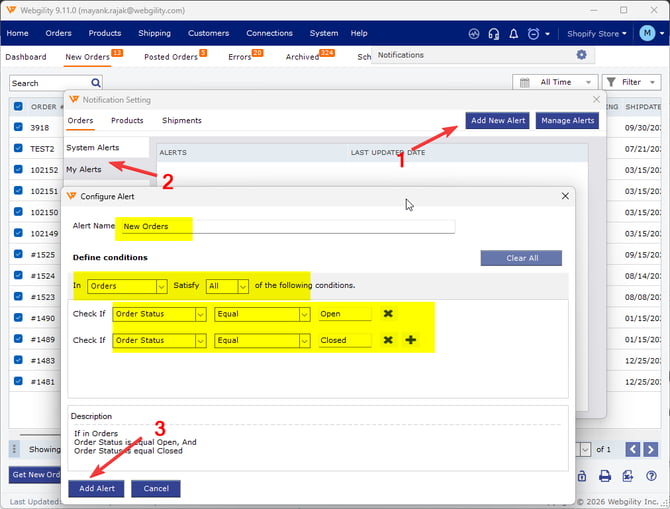
Step 3: Click My Alerts >> Add Ne Alert, Define the conditions as shown in the screenshot below, if you have any other order statuses to add click on the + sign & create another rule & click on Add Alert.
-
Step 4: Once done alerts will be sent to the Primary Email address of Webgility Desktop.
-
Step 5: On the next Scheduler cycle that pulls new orders, confirm the email arrives in each recipient's inbox (check the spam folder on the first run if the sending domain is new to that mailbox).
Key Recommendation
Keep the recipient list short and current — leaving old teammates on the list means every order download still pings them, which is the most common reason customers turn alerts back off instead of fixing the recipient list.
Feel free to reach out to support@webgility.com.