
Overview
While Webgility Desktop communicates with QuickBooks Desktop to perform operations such as order posting, inventory synchronization, or payout posting, you may encounter the following error message:
"A modal dialog box is showing in the QuickBooks user interface. Your application cannot access QuickBooks until the user dismisses the dialog box."
Note: This case is mainly for the Payout Posting scenario
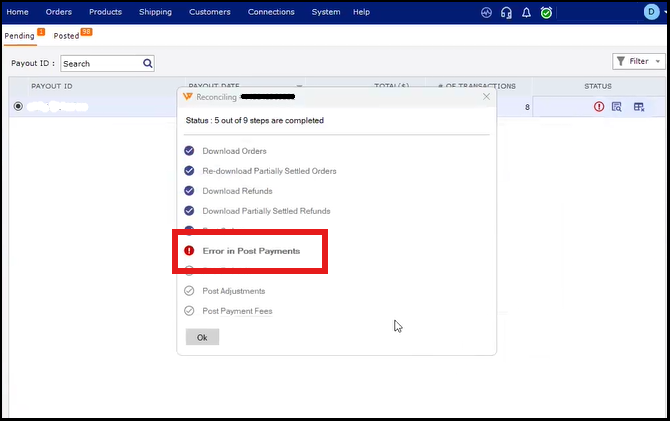
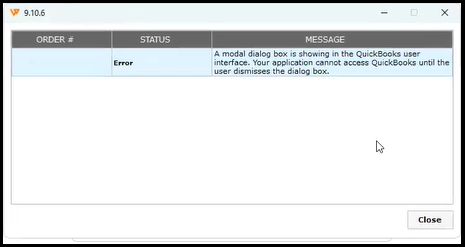
This error occurs when a pop-up window, confirmation message, or dialog box is open in the QuickBooks Desktop application. While the dialog box remains open, QuickBooks prevents Webgility Desktop from accessing the company file and communicating with the application.
As a result, the ongoing operation may fail, remain stuck, or be unable to proceed until the open dialog box is dismissed.
This article explains why this error occurs and how to resolve it.
Why Does This Error Occur?
Webgility Desktop relies on communication with QuickBooks Desktop to perform various accounting and synchronization activities.
However, QuickBooks Desktop cannot process external application requests while a modal dialog box is open and awaiting user input.
For example, this can happen when:
- A confirmation message or notification is waiting for your response.
- A QuickBooks warning or error message is displayed.
- A pop-up window requires you to confirm or dismiss an action.
- A previous operation in QuickBooks has triggered a dialog box that remains open in the background.
Until the dialog box is closed, Webgility Desktop cannot resume communication with QuickBooks. Consequently, operations such as order posting, inventory synchronization, and payout posting may remain stuck or fail.
How to Resolve the Issue
Follow these steps to dismiss the open dialog box and restore communication between Webgility Desktop and QuickBooks.
Step 1: Navigate to QuickBooks Desktop on the computer where Webgility Desktop is installed and running.
Step 2: Review the QuickBooks Desktop interface and check whether any pop-up windows, confirmation messages, warning notifications, or dialog boxes are open. If a dialog box is open in the background, bring it to the foreground so you can review it.
Step 3: Dismiss the Dialog Box. Review the message displayed in QuickBooks and take the appropriate action.
- If it requires confirmation, select the appropriate option.
- If it is a notification or warning that has already been addressed, dismiss or close it.
- If it requires additional information, complete the required action before closing it.
Step 4: Once all open dialog boxes have been dismissed, return to Webgility Desktop.
Step 5: Navigate to the relevant section in Webgility Desktop and retry the operation that was previously stuck or failed. In this case it is Payout Posting
Now the payout should post successfully.