
Root Cause
This error usually occurs when the Cost Code selected in Webgility Desktop is outdated or is no longer available in Stamps.com.
If a Cost Code has been added, renamed, or removed in Stamps.com, the Cost Code list in Webgility Desktop may not be up to date. As a result, Webgility Desktop may try to use a Cost Code that Stamps.com no longer recognizes.
Steps to Resolve
- Open Webgility Desktop.
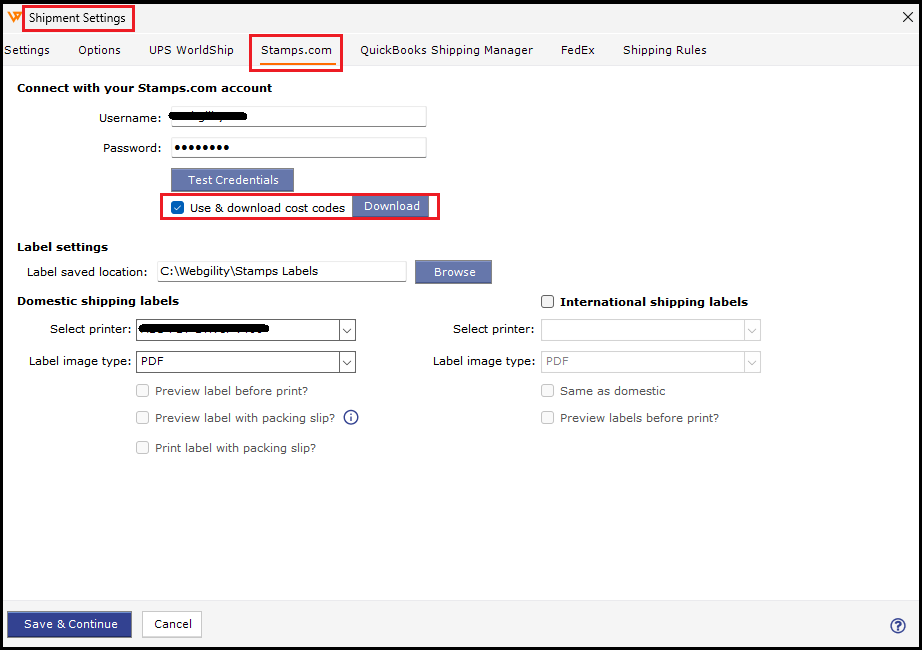
- Go to Stamps.com Settings.
- Select Download Cost Codes to refresh the Cost Code list from Stamps.com.
- Once the list is refreshed, select the correct and currently available Cost Code.
- Try generating the shipping label again.
The shipping label should generate successfully once a valid Cost Code is selected.
Tip: If you add, rename, or remove a Cost Code in Stamps.com, download the Cost Codes again in Webgility Desktop to keep both systems synchronized.