
Step 1: Verify the Refund Discrepancy within the Payout
-
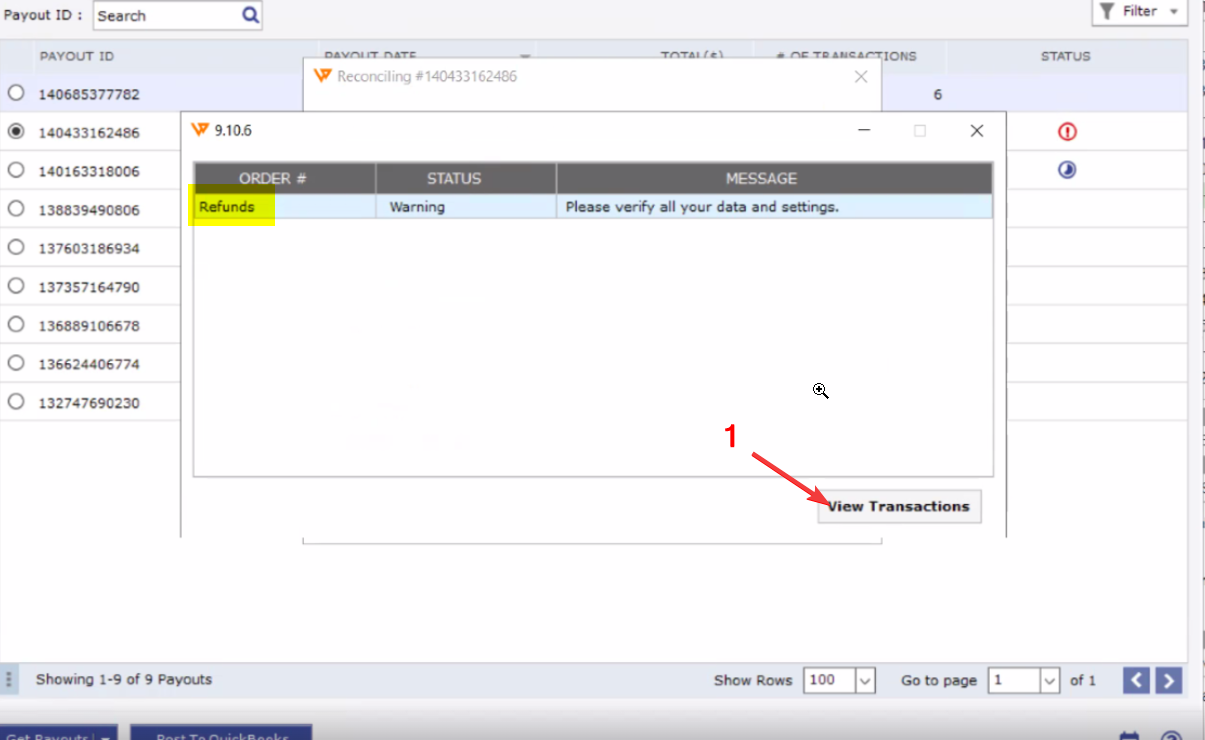
In Webgility Desktop, while posting the Payout user will get the following prompt, click on View Transaction to find the order number.
-
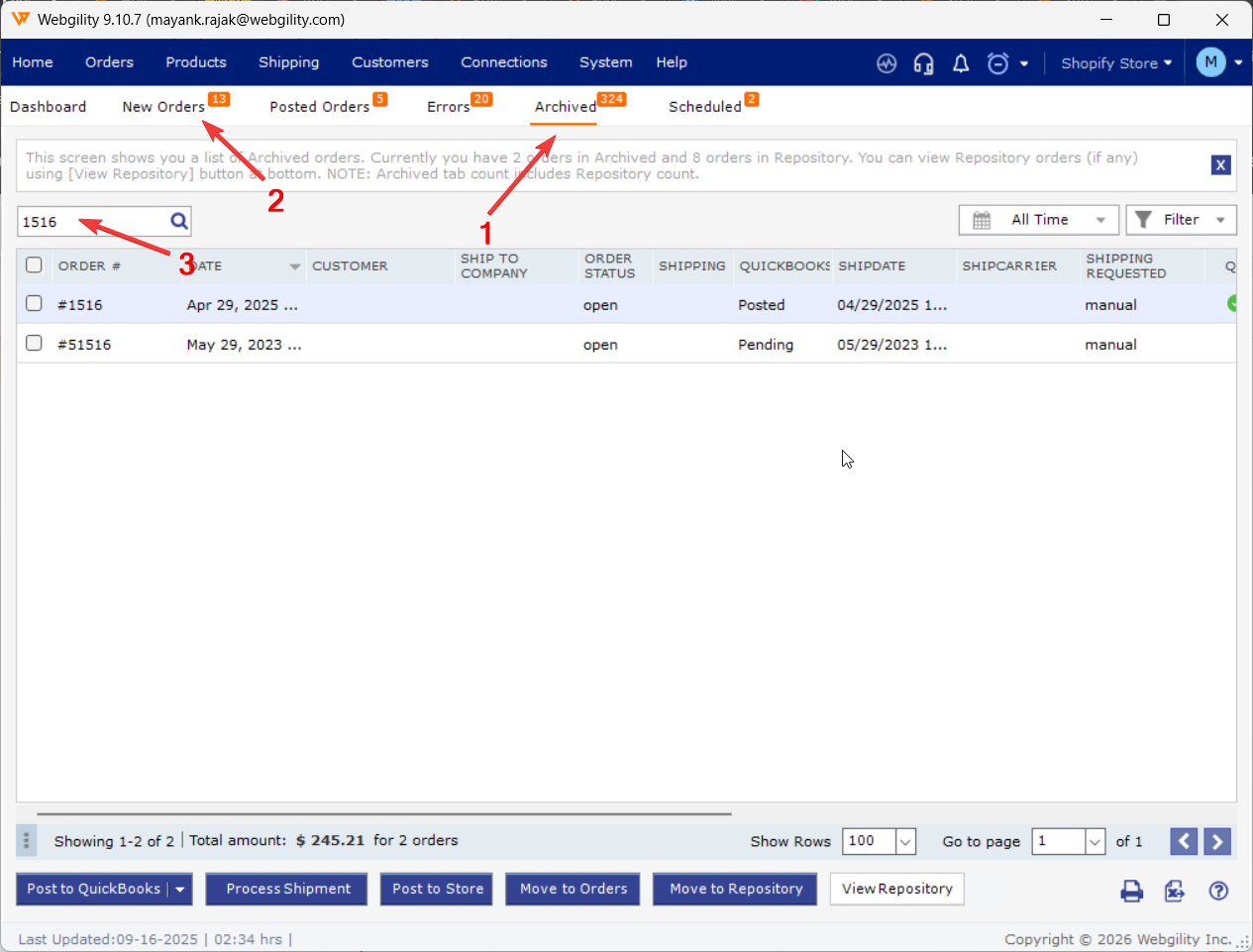
Go to the Posted Orders or Archive Orders tab.
-
Locate the affected order by searching the order# in the search bar and open its details by double clicking on the order.
-
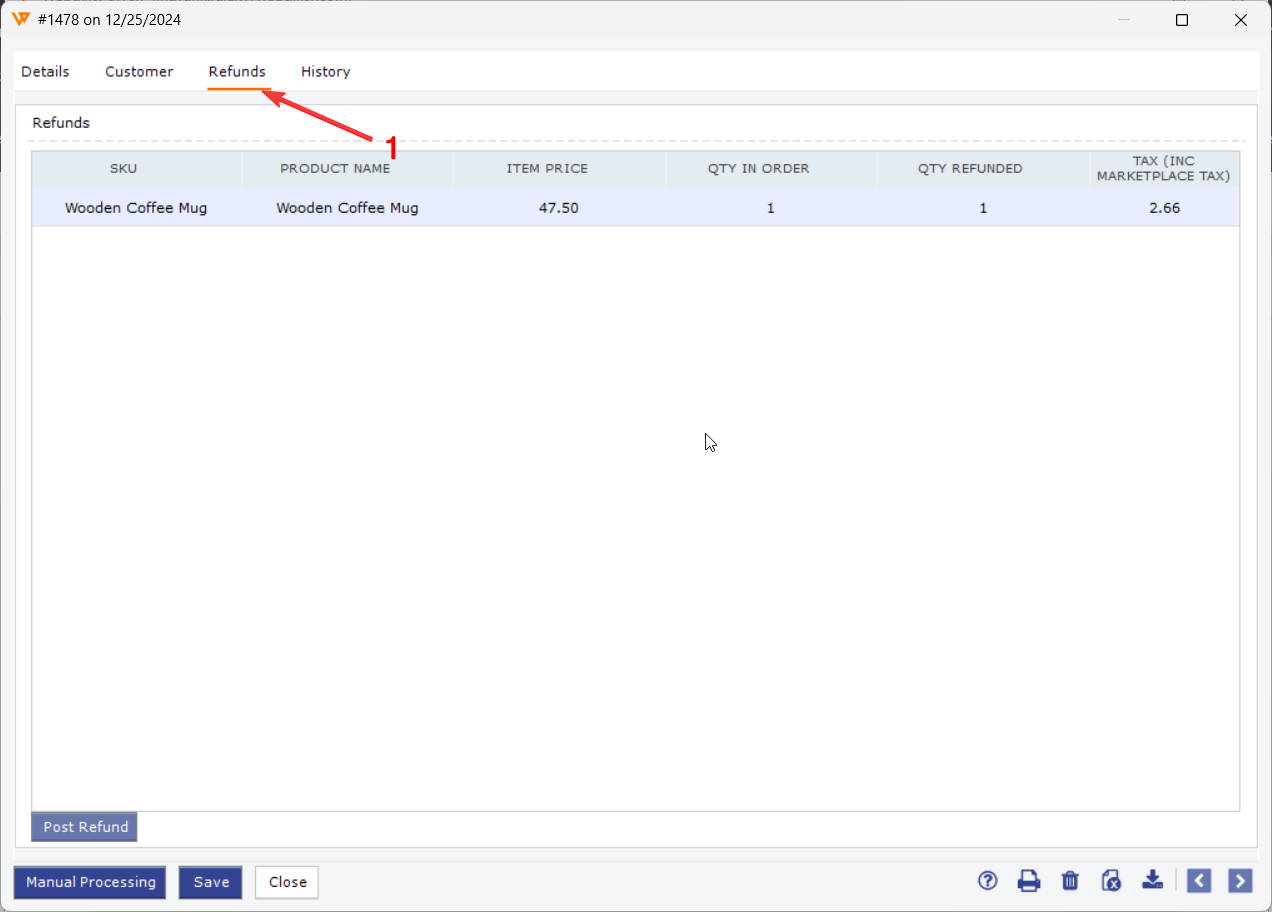
Compare the refund amount in Webgility with the refund shown in your Shopify store. You can copy the same order# from Webgility and paste it in the Shopify's Global Search Bar
Step 2: Undo the Order Sync
-
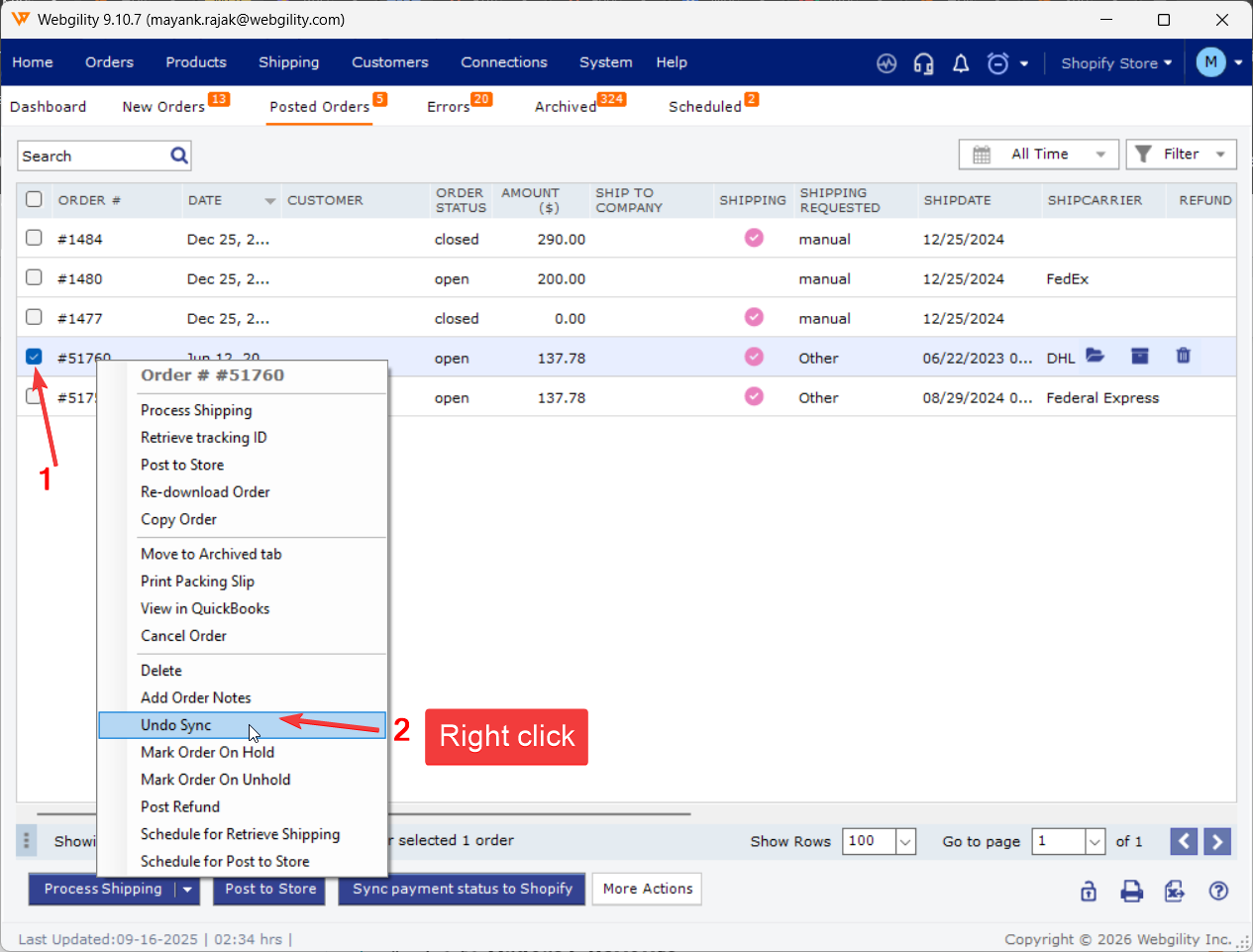
Select the order, Right-click and choose Undo Sync.
Step 3: Re-download the Order
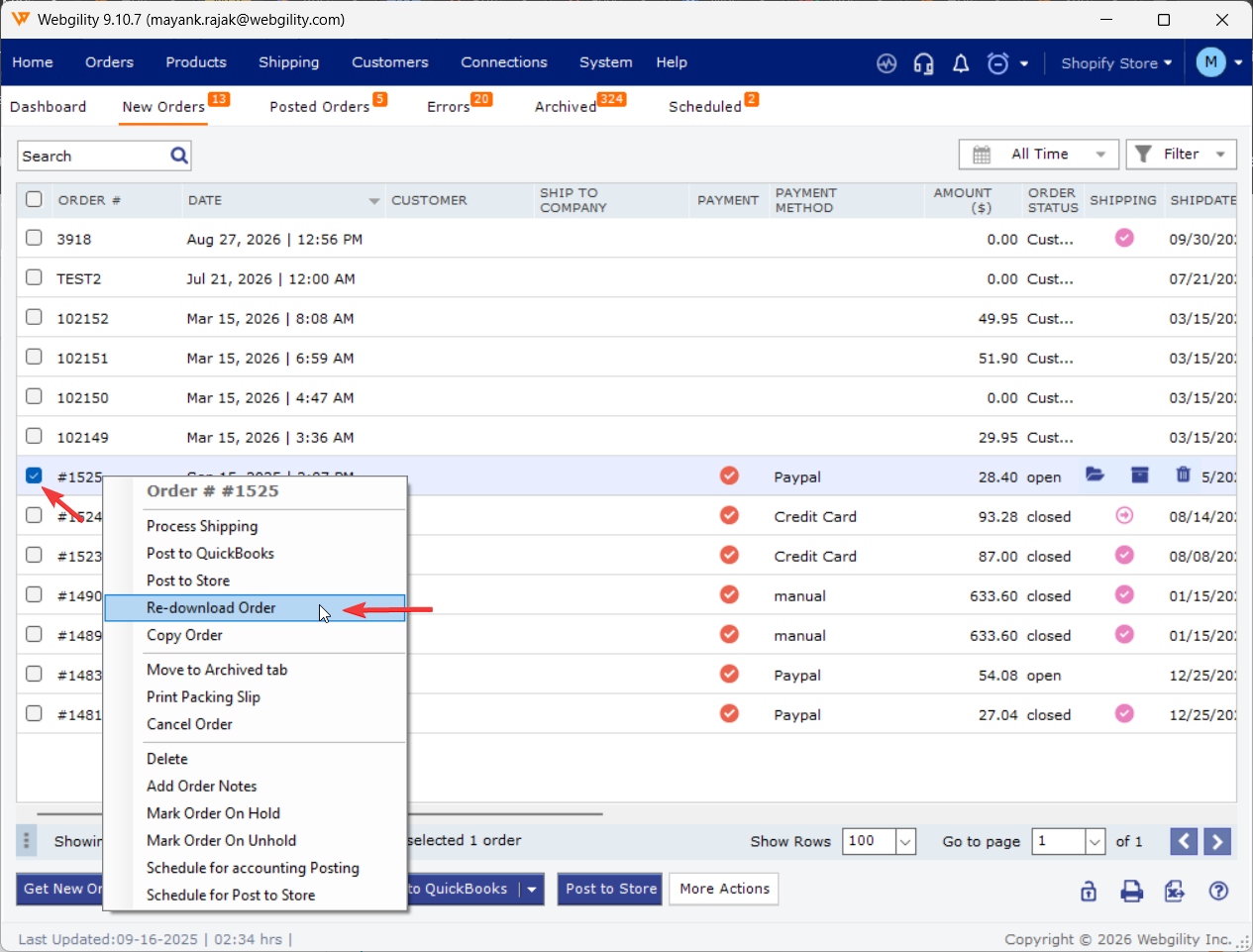
- Once unsynced from QuickBooks, the order will move to the New Orders Tab Right-click the same order.
-
Select Re-download to pull the latest order data from Shopify.
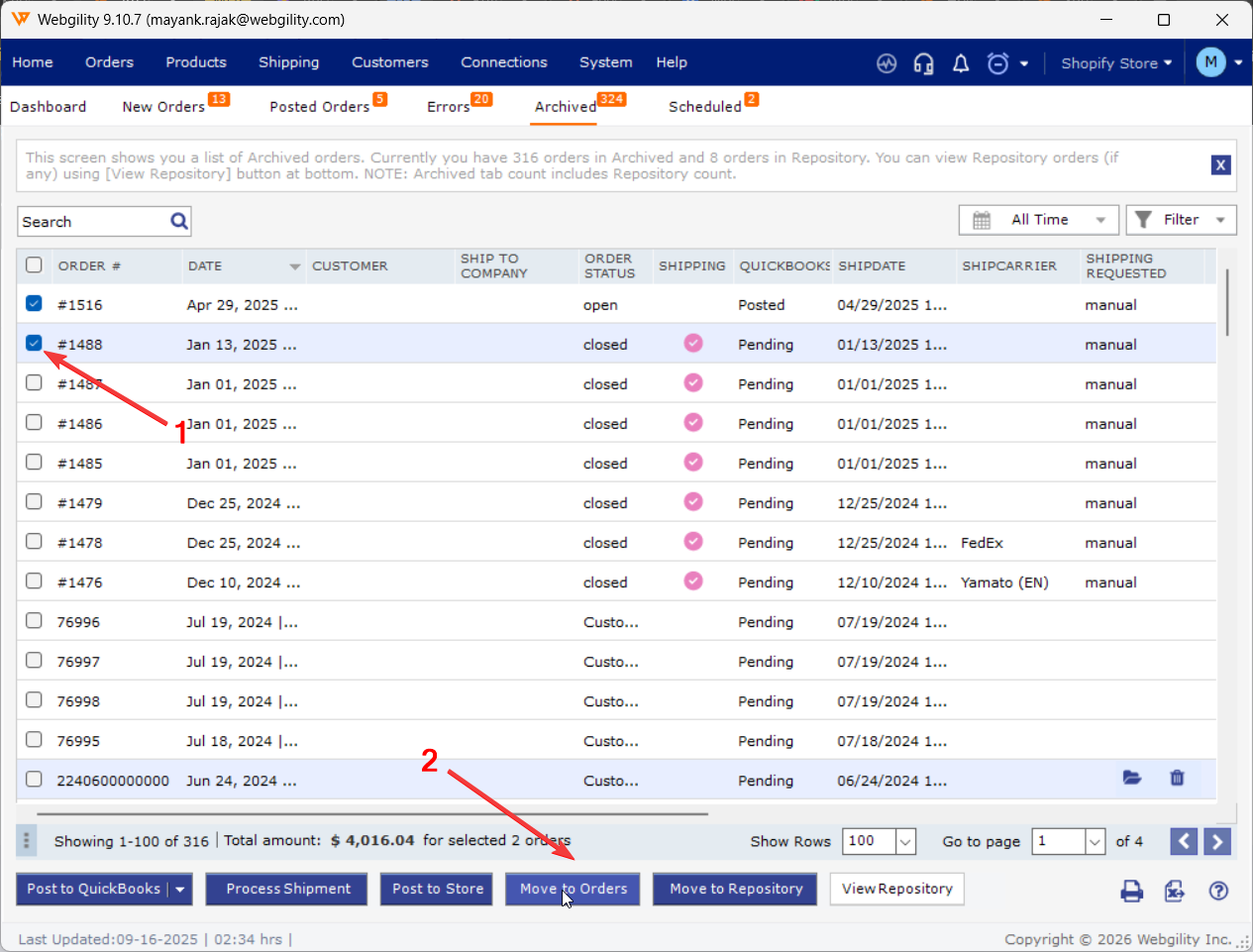
- If the order is in archive then we need to move the order.
Step 4: Refresh Payout Information
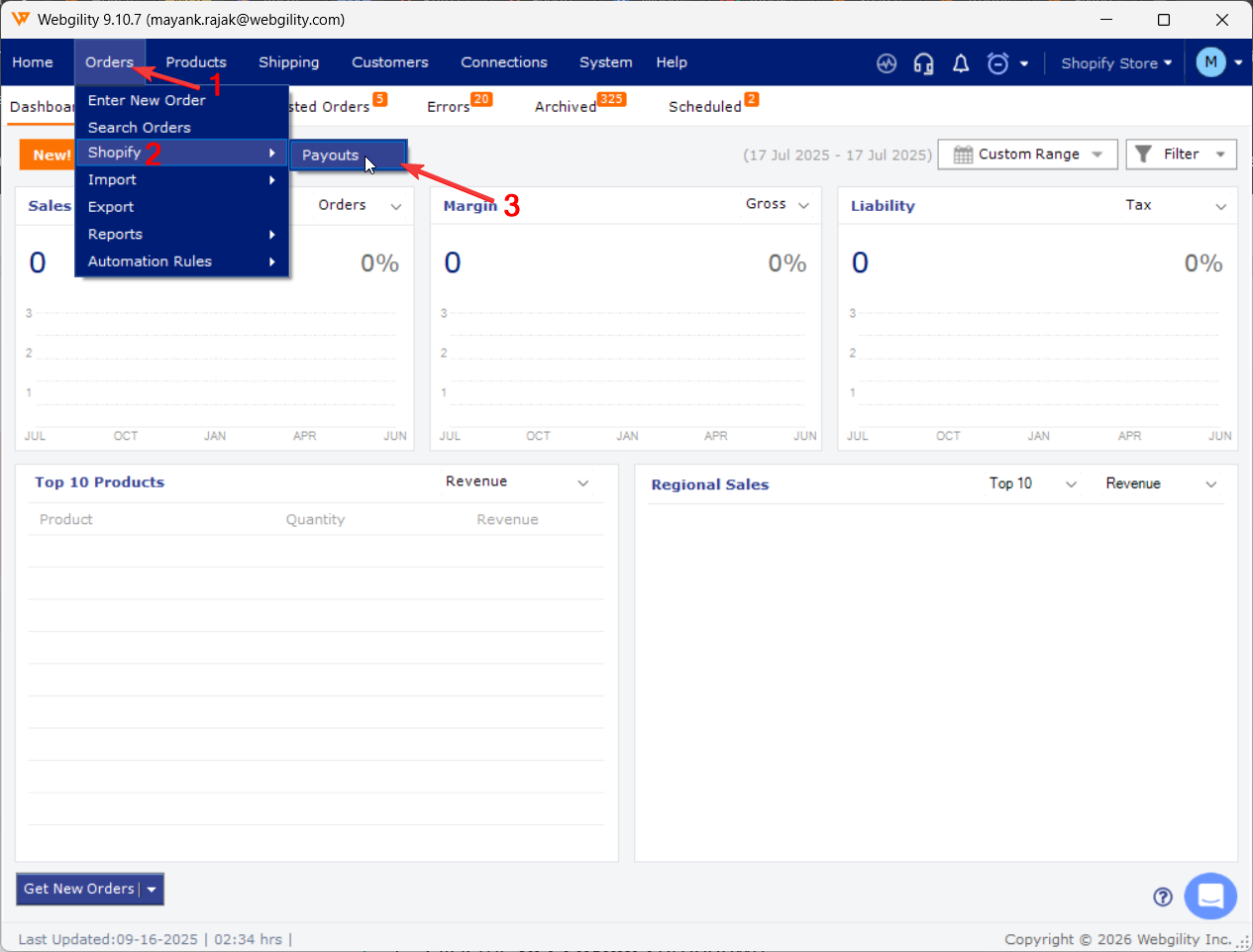
- Go to Orders, then Shopify and Payout
-
Find the related payout for the refunded order.
-
If the payout was partially posted, when you select the payout choose Undo Partially Posted will be shown beside Post To QuickBooks.

- Once usynced, click on Remove icon under Status Column.
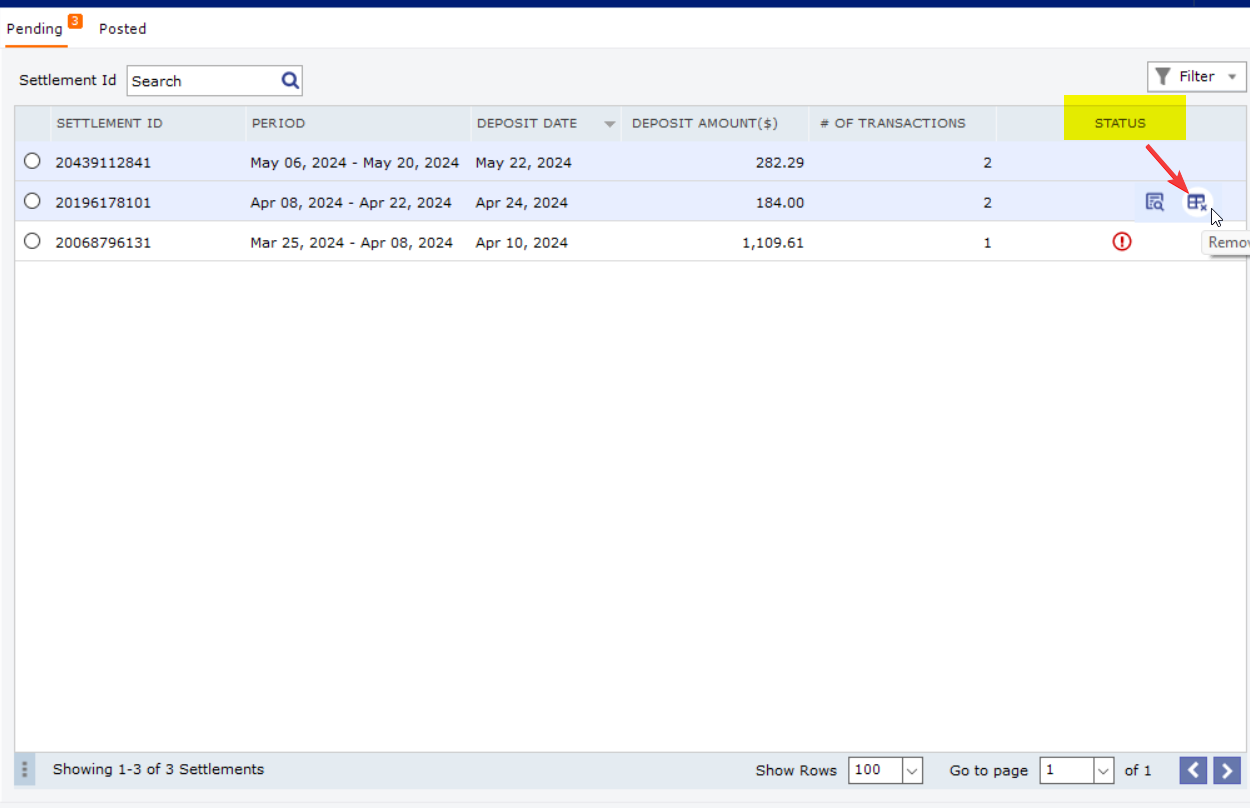
- Then Re-download to fetch the most up-to-date payout data.
Step 5: Confirm and Post
-
After redownloading the payout, ensure the payout amount correctly reflects both the refund and the original payment.
-
Post the payout.
The order will automatically post during the payout posting process. Once complete, the mismatch should be resolved, and the data will reflect accurately in QuickBooks.
Feel free to reach out to support@webgility.com.