
Root cause
This Issue usually occurs while posting Amazon Settlement Reports via Webgility Desktop, there are scenarios where some refund orders may appear as missing or partially settled from Amazon. You may also see a “No Data Found” message when reviewing or posting the affected settlement report.
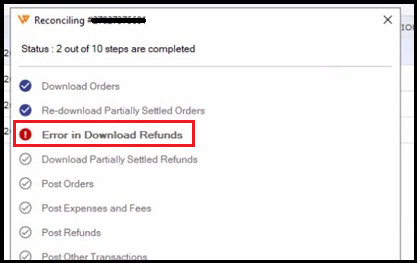
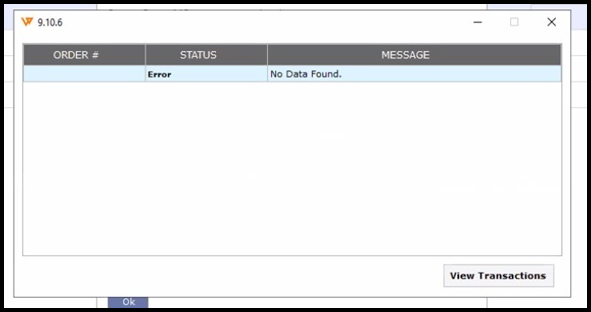
Steps to Resolve
- Make sure Webgility Desktop is updated to the latest available version.
- Go to Orders > Amazon > Settlement Report.
- Select View Details on the affected settlement report to identify the missing or partially settled refund orders.
- Go to New Orders or Posted Orders and locate the affected orders.
- Redownload the affected orders to retrieve the latest order information.
- If the orders have already been synced and cannot be redownloaded, unsync the affected orders and then download them again.
- After the orders are successfully redownloaded, return to the Amazon Settlement Report.
- Post the settlement report using Post to QuickBooks. Avoid manually posting the individual orders, as the settlement report should be used to post the settlement information to QuickBooks.
If the Issue Persists
Check the Credit Memo setting:
1. Go to Connections > Accounting POS > Sync Settings.Retry posting the affected Amazon Settlement Report and it should post successfully.
2. Select Expenses and Fees > Setup.
3. Verify that the Credit Memo option is enabled.
4. Try posting the affected Amazon Settlement Report and it should now post successfully.