
When to Use This Article
Use these steps if:
- You no longer use a sales channel connected to Webgility Desktop.
- A sales channel is inactive and should no longer be available in Webgility.
- You want to clean up old or unused sales channel connections.
Steps to Delete a Sales Channel:
- Open Webgility Desktop, navigate to Connections, go to Sales Channels.
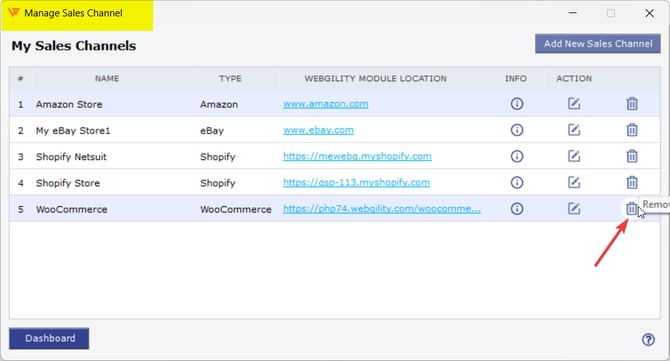
- Click on Manage Sales. Under Manage Sales Channels, for the inactive sales channel click on the Delete Icon.
- Click OK to remove the sales channel from Webgility Desktop. Once the Sales Channel is removed, it's non-recoverable.
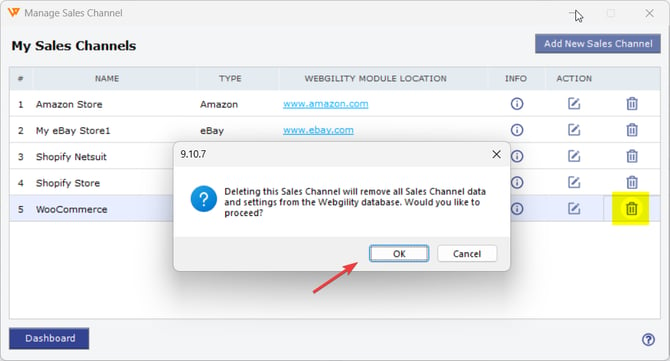
Important: Deleting or removing a sales channel from Webgility Desktop will permanently remove all data associated with that store from the Webgility database. This data cannot be recovered once the sales channel has been deleted. Please make sure you have a backup of any required data before proceeding.
Note: Removing a sales channel from Webgility will not affect the data already posted to QuickBooks. Any orders, payments, or other transactions that have already been posted to QuickBooks will remain intact in QuickBooks.
Feel free to reach out to support@webgility.com