
Symptoms
This issue may occur when:
- Square orders no longer download into Webgility Online.
- The order download process returns a "Cis exception" error.
- You have already attempted to reconnect Square, but the error persists.
Root Cause
Square sales channels connected several years ago may have been authorized using an older set of permissions. Following updates to Webgility Online's Square authentication process, these connections may lack the permissions required to retrieve order data.
As a result, the connection may appear active, but order download requests can fail and return a Cis exception error.
Reauthorizing the affected Square sales channel allows Webgility Online to request the permissions required by the updated connection process.
Solution: Reconnect Your Square Sales Channel
-
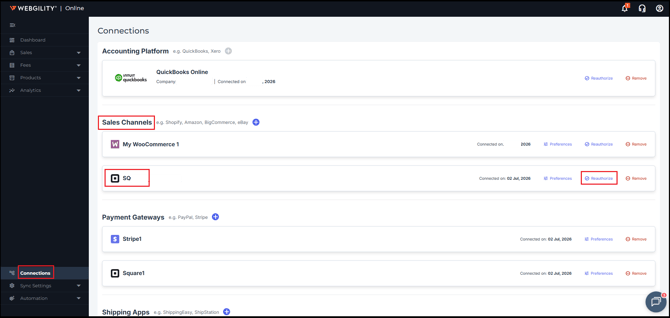
In Webgility Online, navigate to Connections > Sales Channels.
-
Locate your Square sales channel that is experiencing the download error.
-
Click on Reauthorize,
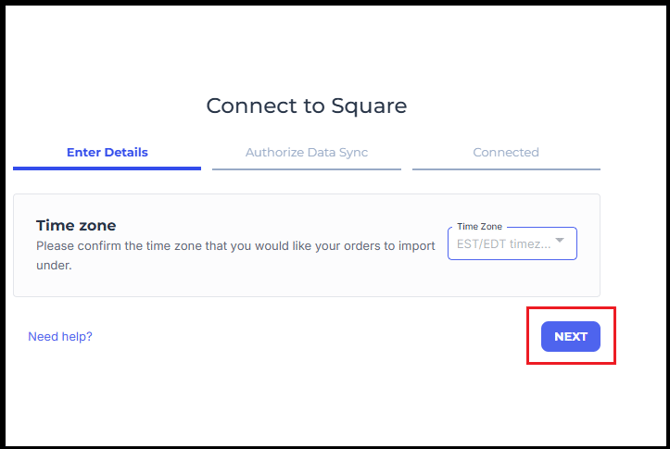
- Click Next under Enter Details in the popup window.
- Then click Next under Authorize Data Sync
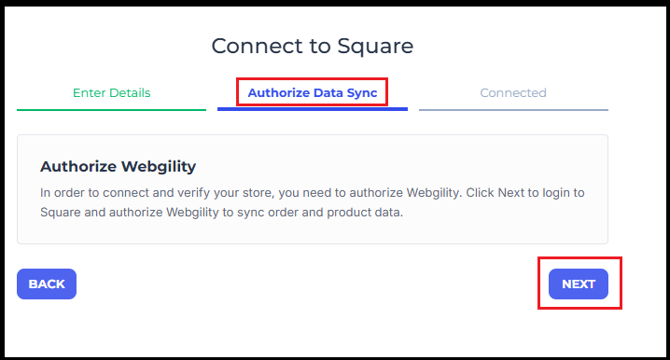
- Then it will redirect you to login into your Square channel admin login window.
- So complete the Square sign-in process.
- Review and authorize the requested permissions, if prompted.
- Return to Webgility Online after completing the authorization process.
For additional guidance, refer to How to Reauthorize a Sales Channel in Webgility Online.
Now try to download new orders
- In Webgility Online, open the New Orders tab.
- Click refresh.
- Check whether your Square orders download successfully.