
You can reactivate your subscription from your Webgility account, if you have canceled the services at the end of your subscription term or if it was canceled due to failed billing. Please make sure that you are using the email that was linked to your Webgility subscription. Please log in to your Webgility account by visiting portal.webgility.com
Steps to Reactivate Your Webgility Subscription
-
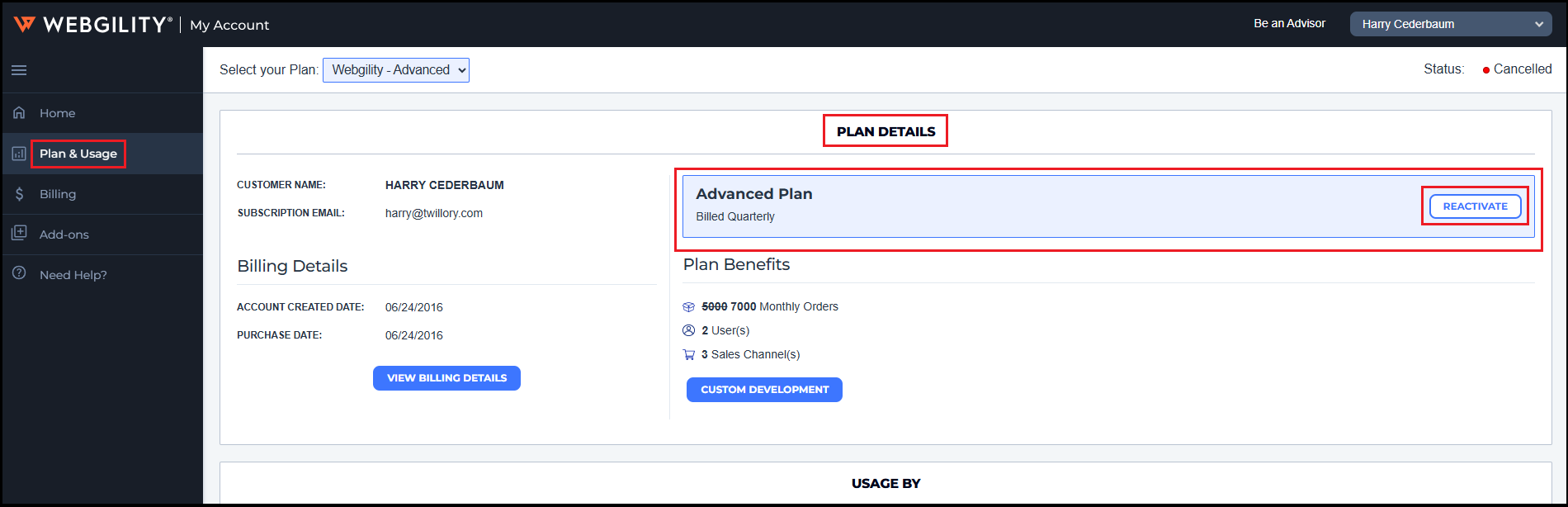
Once you logged in to your Webgility Portal account navigate to Plan & Usage and then click on Reactivate under Plan Details.
2. Once you click Reactivate, it will take you to the Webgility pricing page.
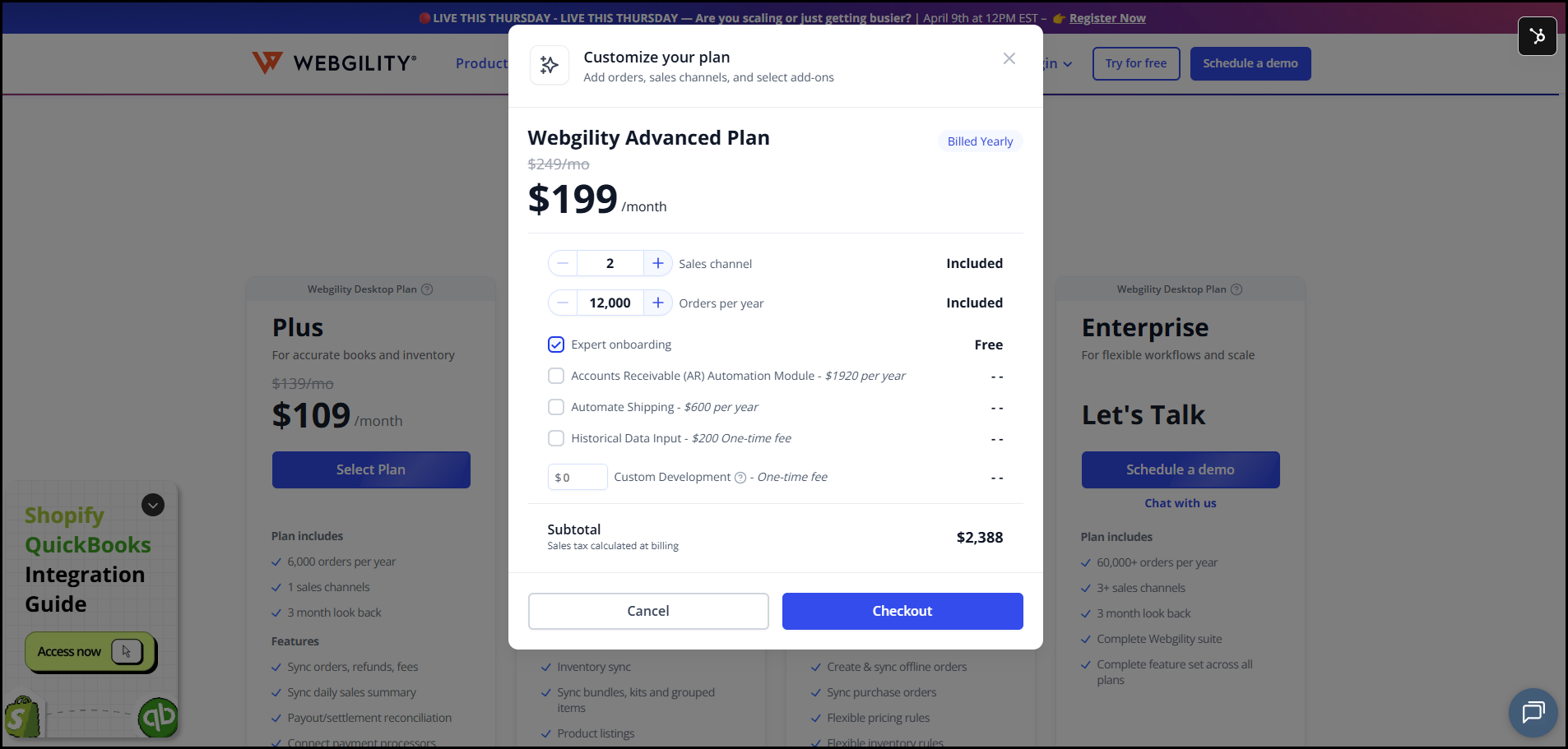
3. Decide on the plan that fits your needs, then Click on Choose Plan and update the payment method to reactivate the subscription.
4. Once done then you can login back and start using your Webgility Online application.