
You can either prevent $0 orders from being downloaded entirely or download them into Webgility while preventing them from being posted.
Option 1: Do Not Download $0 Orders
Choose this option if you do not need $0 orders in Webgility.
- Open Webgility Online.
- Go to Sync Settings > Connections > Preferences.
- Locate the “Download zero amount orders?” setting.
- Disable the toggle setting.
- Save the changes.
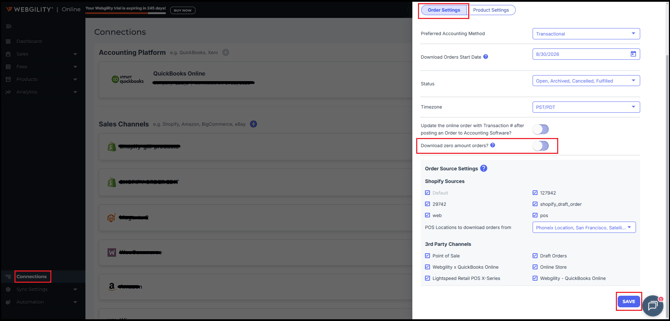
With this option, orders with a total value of $0 will not be downloaded into Webgility and therefore will not be available for review or posting.
Option 2: Download but Do Not Post $0 Orders
Choose this option if you want to keep $0 orders visible in Webgility but do not want them posted to your accounting software.
- Open Webgility Online.
- Go to Sync Settings.
- Under Orders > Advance Options, locate the “Do not post orders with value of $0?” setting.
- Enable the toggle setting.
- Save the changes.
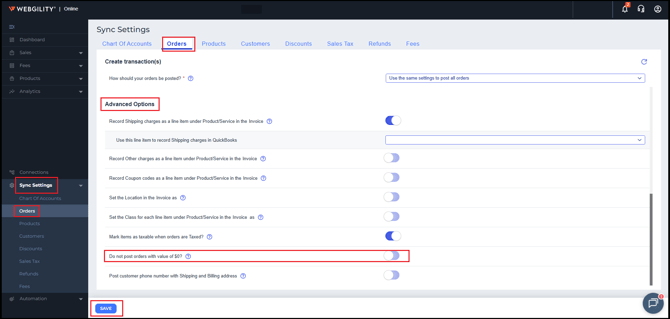
With this option, $0 orders will continue to download into Webgility. When you attempt to post them, they will be moved to the Ignored tab instead of being posted to your accounting software.
Which Option Should I Choose?
- Do not download $0 orders — Use this if you do not need $0 orders in Webgility at all.
- Download but do not post $0 orders — Use this if you want to retain the orders in Webgility for visibility or review while preventing them from posting.
After updating the setting, test it with a $0 B2B order to confirm that the order follows the expected workflow.