
Part of How to Set the Payment Terms of Your Invoices in Webgility i.
How to map your Shopify payment terms
When Set the payment terms as is set to Sales channel payment terms, a Map payment terms button shows beside it. The map belongs to the sales channel: there is one map for the whole channel, and every Default and rule that uses Sales channel payment terms reads it.
- Click Map payment terms. The Map payment terms window opens with the line "Choose which QuickBooks terms to map to your sales channel payment terms".
- Each row is a payment term of your Shopify store. For each one, select the QuickBooks Online term invoices should take, or leave it on Not mapped.
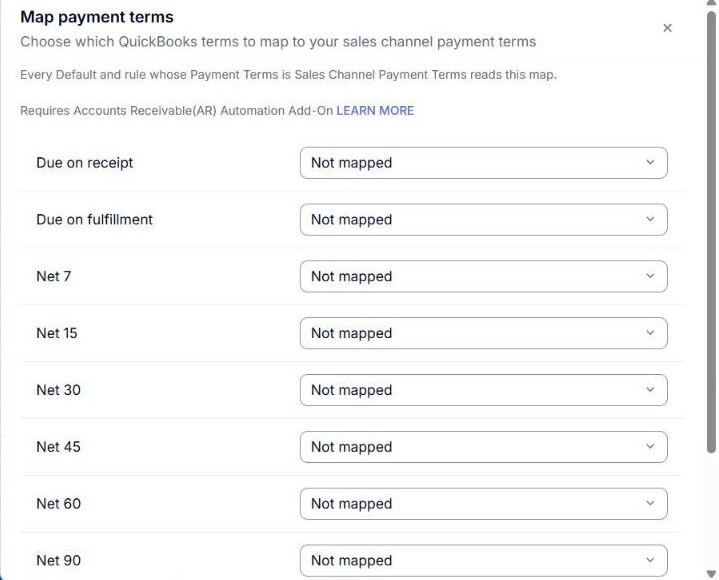
- Click Save. To close the window without saving, click Cancel.
Note: Saving the map saves only the map. The other changes you made on the Default or rule stay on the screen, unsaved, until you save it.
Note: If Webgility i has not read any payment terms from your Shopify store yet, the window says "Webgility has no Shopify payment terms for" your channel "yet." In that case, pick another option in Set the payment terms as.