
Overview
When posting Shopify B2B orders to QuickBooks Online, Webgility Online uses configured customer-matching criteria to identify the corresponding customer in QuickBooks.
If the customer information received from Shopify does not meet the configured matching criteria, Webgility may assign the order to the default customer instead of the intended business customer.
This article explains why this happens and how to configure the default customer setting.
Why Are Shopify B2B Orders Assigned to the Default Customer?
Webgility Online uses the customer-matching preferences configured under Sync Settings > Customers to identify the appropriate QuickBooks Online customer.
The available matching criteria are:
Shopify:
- Company
- Company, Location
- Shipping Address Company
- Billing Address Company
QuickBooks Online:
- Customer Name
- Parent and Sub Customer
For successful customer matching, the information received from Shopify must satisfy the selected matching criteria in QuickBooks Online.
For example, if the matching criteria are set to Company in Shopify and Customer Name in QuickBooks Online, the company information received from Shopify must match the corresponding customer name in QuickBooks Online.
If the required information is missing or does not match, Webgility cannot identify the intended customer.
For example:
- Shopify company name: ABC Retail's Store
- QuickBooks customer name: ABC Retails Store
In the given example there is a difference in the name due to a special character which is apostrophe
How Does the Default Customer Setting Work?
Webgility Online provides an option to use a predefined customer whenever the customer details from Shopify cannot be matched with an existing QuickBooks Online customer.
To configure this option:
- Log in to Webgility Online.
- Navigate to Sync Settings > Customers.
- Locate the option If the customer details are not found, then use this Default Customer.
- Enable the option and select the appropriate QuickBooks Online customer.
- Save your changes.
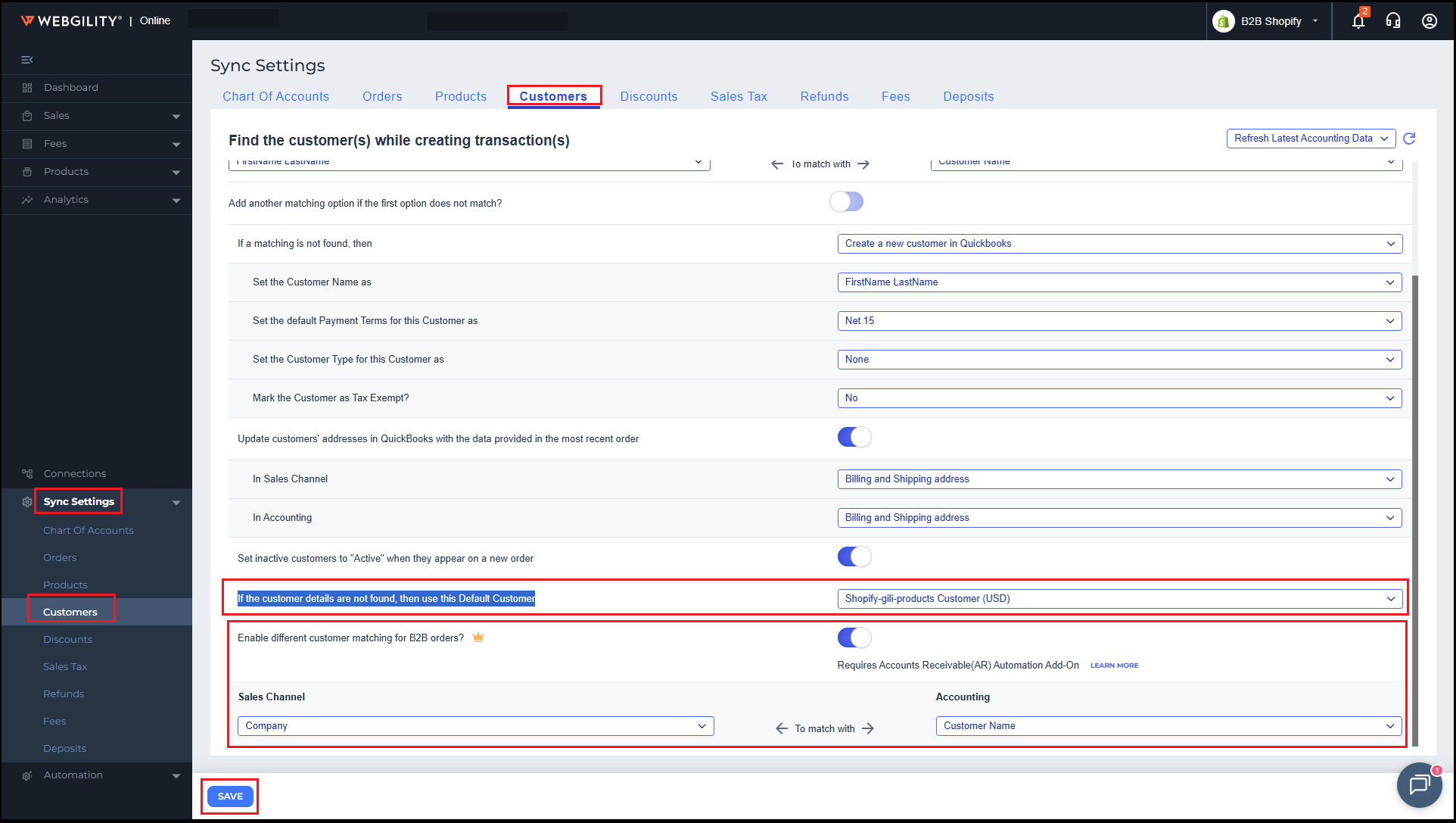
Once enabled, Webgility will use the selected default customer for orders where the configured customer-matching criteria are not fulfilled.
Note: This setting acts as a fallback. It does not resolve the underlying customer-matching mismatch. If you want orders to post under their actual business customers, verify that the Shopify customer information meets the configured matching criteria in QuickBooks Online.