
Step 1: Check Your Windows Account Permissions
- On the computer where Webgility is installed (the add-on computer), open the Control Panel.
- Go to User Accounts > Manage Accounts (Windows 10) or search User Accounts in the Start menu (Windows 11)
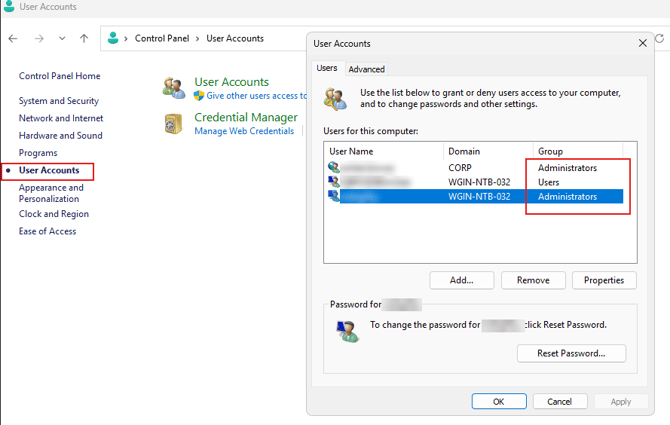
- Make sure your account shows as Administrator.
- If it doesn’t, contact your IT administrator to be granted Administrator rights, or log in with a Windows account that already has Administrator access before continuing.
Step 2: Run QuickBooks as Administrator
- Close QuickBooks if it’s open.
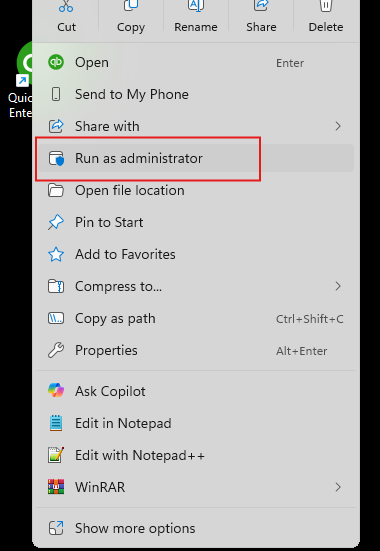
- Right-click the QuickBooks Desktop shortcut.
- Click Run as administrator.
- Open your company file as usual.
Step 3: Run Webgility with Elevated Permissions
- Close Webgility if it’s running.
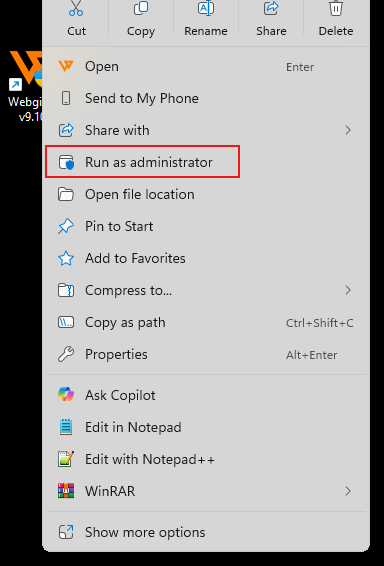
- Right-click the Webgility shortcut.
- Choose Run as administrator.
💡 **Tip:** To make this permanent so Webgility always launches with elevated permissions,
- Right-click the shortcut again and choose Properties
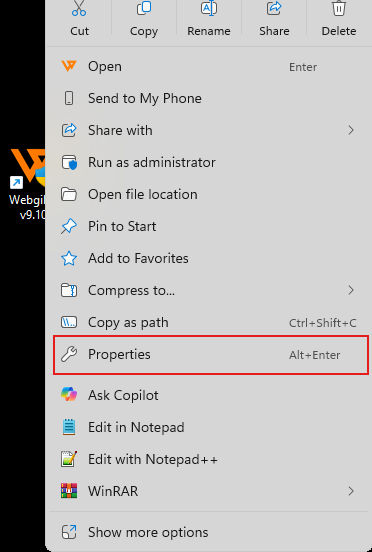
- Go to the Compatibility tab
- Check Run this program as an administrator
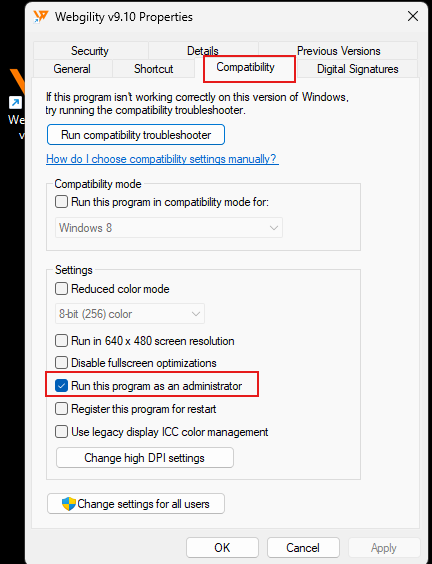
- Click Apply and OK
Step 4: Test the Connection
- Open Webgility Desktop.
- Start the QuickBooks connection process or refresh the accounting sync.
- Webgility Desktop will now connect to QuickBooks successfully. If you still see an error, contact Webgility Support for further assistance.