
When This Applies
Follow these steps if:
- Your Shopify orders are downloading into Webgility Online without any issues.
- Returns and refunds created in Shopify are not appearing in Webgility Online under Refunds Tab.
- The issue affects an older Shopify connection.
Why Does This Happen?
Older Shopify connections may not have all the permissions (scopes) required by Webgility Online to retrieve returns and refunds through Shopify's current API.
As a result, Webgility Online may continue downloading orders successfully while being unable to retrieve the associated return and refund information.
Reauthorizing your Shopify connection refreshes its permissions. It does not change your existing product or customer mappings, previously downloaded orders, or transactions already posted to QuickBooks.
Steps to Reauthorize Your Shopify Connection
Step 1: Log in to Webgility Online and navigate to Connections > Sales Channels.
Step 2: Locate the Shopify store you want to update and click the Reauthorize option for that connection.
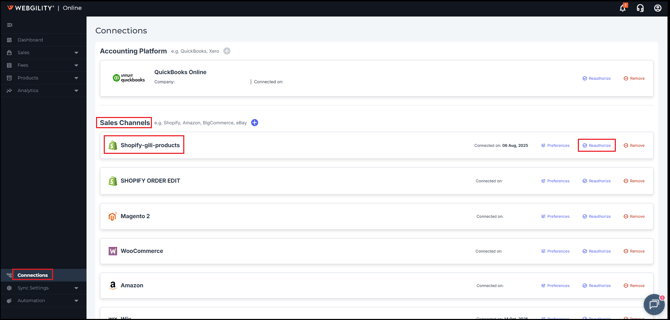
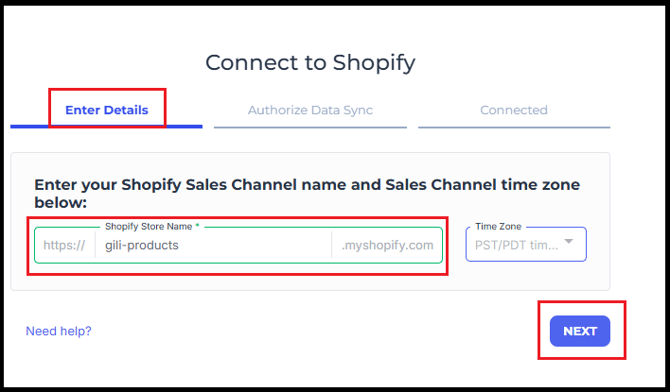
Step 3: This will open a pop so verify your Shopify URL and click on Next
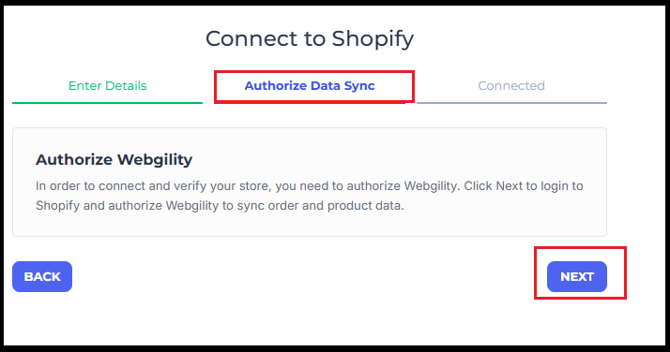
Step 4: Now click on Next again under the Authorize Data Sync.
Step 5: Now this will open another popup asking you to login with your Shopify Admin username and password.
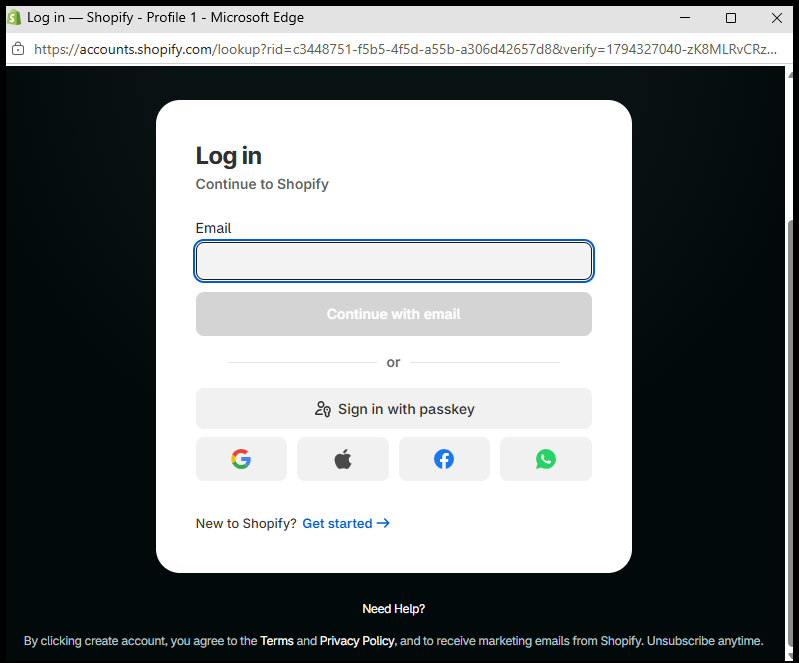
Step 6: After loggin in you will need to review and approve the updated permissions requested by Webgility Online.
Step 7: Once the authorization is complete, wait for the next automation cycle.
Step 8: Navigate to the Refunds tab in Webgility Online and check whether the expected return and its associated refund information have been downloaded.
Note2: If you have multiple Shopify stores connected to Webgility Online, reauthorize each affected connection individually. Older connections may have different permission sets, even if order downloads are working normally.
Note1: Refreshing the permissions helps ensure Webgility Online can access the Shopify data required for supported features.