
Symptoms
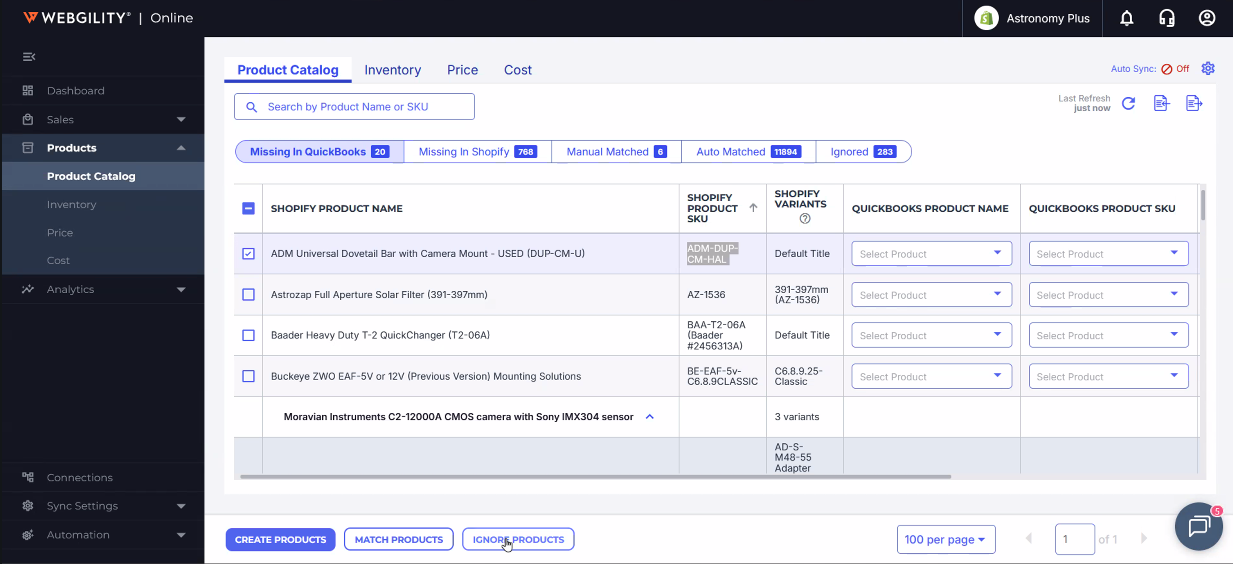
• Products stay under Products > Product Catalog > Missing in QuickBooks in Webgility Online.
• Webgility Online shows 1 Item(s) successfully created (or similar), but no new item appears in QuickBooks Online.
• Re-downloading the accounting data in Webgility Online doesn't change anything.
• In QuickBooks Online, an inactive item exists with the same SKU, and its name ends in (deleted).
Why this happens
QuickBooks Online never fully removes a deleted product. It marks the item inactive, adds (deleted) to its name, and keeps its SKU.
When you click Create Products, Webgility Online finds that inactive item with the same SKU and treats the product as already existing, so it doesn't create a new one. Because the item is inactive, Webgility Online also can't match it. The product stays under Missing in QuickBooks.
The success message in this case is misleading. Our team is improving it so it tells you an inactive item with the same SKU is blocking creation. Until then, please ignore the success message for these products.
How to fix it
For each affected product, use one of these options in QuickBooks Online. Then sync Webgility Online.
Option 1: Reactivate the old item
Use this if you want to keep the item's history in QuickBooks.
1. In QuickBooks Online, go to Sales > Products and services.
2. Open the filter and choose to show inactive items.
3. Find the product by its SKU or name.
4. Click Make active.
5. Edit the name to remove (deleted), then save.
Option 2: Create a new item
Use this if you want a fresh item and plan to leave the old one inactive.
1. In QuickBooks Online, create a new product.
2. Enter the Shopify SKU in the SKU field, exactly as it appears in Shopify.
3. Give it a unique name. QuickBooks doesn't allow two items with the same name, even if one is inactive.
Then, in Webgility Online
1. Re-download your accounting data.
2. Go to Products > Product Catalog > Missing in QuickBooks.
3. Check that the products are gone from the list. They should now match automatically by SKU.
Avoid this next time
• Before deleting a product in QuickBooks Online, check whether it's still active in Shopify. Deleting it there leaves an inactive item that blocks Webgility Online from creating a new one.
• Make sure every Shopify product has a SKU. Products with no SKU can't be matched until you add one in Shopify.