
When launching Webgility, users may encounter the following alert:
A network-related or instance-specific error occurred while establishing a connection to SQL Server. The server was not found or was not accessible. Verify that the instance name is correct and that SQL Server is configured to allow remote connections. (provider: SQL Network Interfaces, error: 26 - Error Locating Server/Instance Specified)
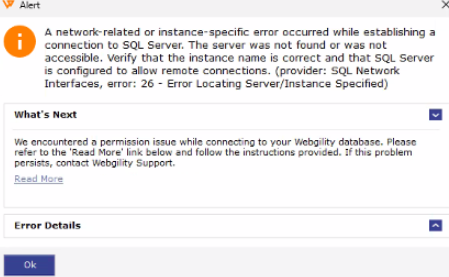
The alert also displays a "What's Next" note indicating a permission issue while connecting to the Webgility database.
This error prevents Webgility from launching or syncing properly, as it is unable to establish a connection to its underlying SQL Server database.
Root CauseError 26 typically occurs when Webgility is unable to communicate with its SQL Server database because the connection is being blocked or obstructed by the Windows Firewall (or a similar security/antivirus application) on the machine.
Since Webgility relies on a local or network SQL Server instance to store and retrieve data, any interruption in that communication path — most commonly caused by firewall rules blocking the required ports/instance — results in this "server not found" error, even though the SQL Server itself may be running correctly.
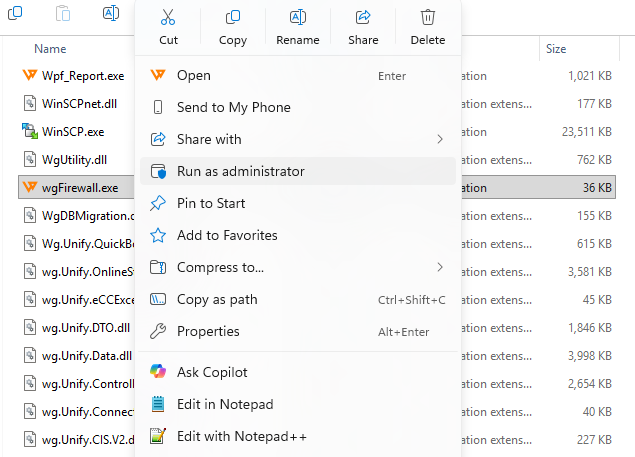
Solution: Run the WG Firewall Utility as AdministratorWebgility includes a dedicated utility (wgFirewall.exe) that configures the necessary firewall rules to allow Webgility to communicate with SQL Server. Running this tool as an administrator typically resolves Error 26.
Steps to Resolve
- Close Webgility completely if it is open (check the system tray and task manager to ensure it isn't running in the background).
- Open File Explorer and navigate to the following location on your system drive:
C:\Webgility\Unify Enterprises- Locate the file named
wgFirewall.exein this folder. - Right-click on
wgFirewall.exe. - From the context menu, select "Run as administrator."
- If prompted by User Account Control (UAC), click Yes to allow the changes.
- If prompted by User Account Control (UAC), click Yes to allow the changes.
- Allow the utility a few moments to complete — it will configure the required firewall exceptions/rules for Webgility's SQL connection.
- Once completed, relaunch Webgility.
- Confirm that Webgility opens without the Error 26 alert and that it connects successfully to the database.
Additional Notes
-
Administrator rights are required to run this utility, as modifying firewall rules requires elevated permissions. If you don't have admin access on the machine, contact your IT administrator to run this step.
-
If a third-party antivirus or security suite is installed (in addition to Windows Firewall), it may also need to be configured to allow Webgility and SQL Server traffic. Running
wgFirewall.exeaddresses Windows Firewall rules, but third-party security software may require manual whitelisting.-
SQL Server services are running (check via Services.msc for
SQL Server (WEBGILITY)or the relevant instance name). -
The SQL Server Browser service is running, as it helps resolve named instance connections.
-
The correct SQL instance name is configured in Webgility's database connection settings.If the error persists after running the utility, verify the following:
-
If the issue still isn't resolved after these steps, please reach out to Webgility Support or Chat Support for further assistance, as there may be a deeper network or SQL configuration issue involved.