Why Are Archived Shopify Orders Missing?
Webgility Online downloads orders based on the order statuses selected in your Shopify store's Preferences.
When Shopify marks an order as Archived, Webgility Online may skip the order if the Archived status is not selected in the download preferences.
As a result, an order can be paid and fulfilled in Shopify but remain unavailable in Webgility Online.
Steps to Download Archived Shopify Orders
Step 1: Open Your Shopify Store Preferences
- Log in to Webgility Online.
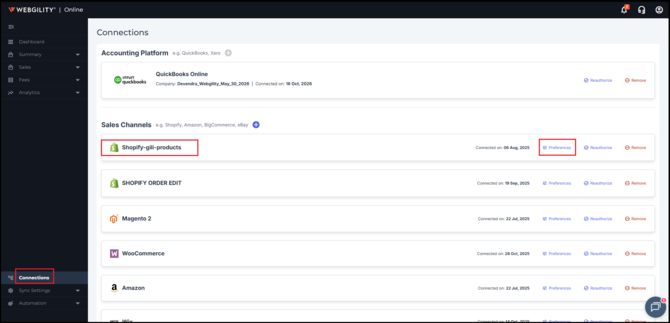
- Navigate to Connections > Sales Channel.
- Locate your connected Shopify store.
- Open the store's Preferences.
Step 2: Enable the Archived Status
- Locate the Status section in the store's Preferences.
- Find the Archived status.
- Select the checkbox next to Archived, keeping your other required order statuses selected.
- Save the changes.
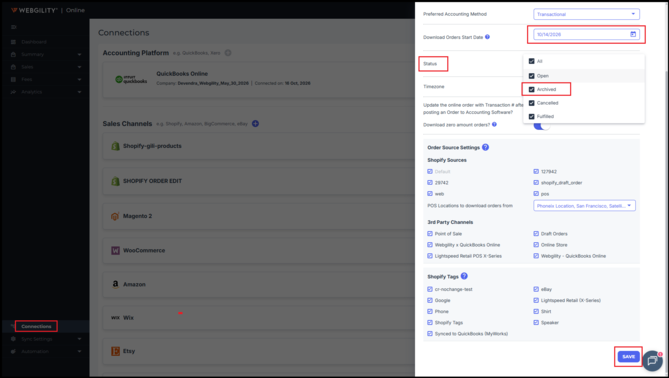
Enabling this status allows Webgility Online to include archived Shopify orders in its order download process.
Step 3: Download the Orders Again
- Start a manual order download or wait for the next scheduled download.
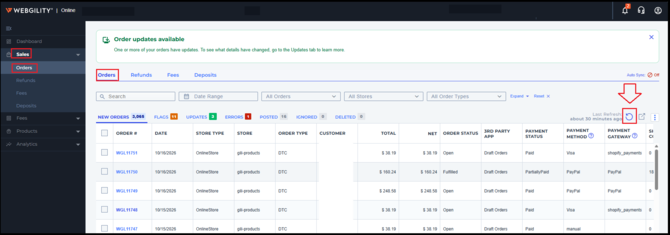
- For downloading the orders manually in Webgility Online, navigate to Sales > Orders > click on Refresh.
- Once the process is complete then search for the affected order numbers to confirm that the orders have been downloaded.