
How does partial payment synchronization work?
When a customer makes multiple payments toward a single sale in Lightspeed, Webgility Online downloads each payment along with the order.
When the order is posted to QuickBooks as an Invoice, Webgility Online applies the individual payments to the Invoice. Any remaining unpaid balance continues to appear as the amount due.
This helps ensure that the payment information in QuickBooks reflects the transactions recorded in Lightspeed.
Example: Understanding partial payment synchronization
Suppose a customer places an order for $1,000 and makes two partial payments through Lightspeed.
| Transaction | Amount |
|---|---|
| Total order amount | $1,000 |
| First payment | $400 |
| Second payment | $300 |
| Total amount paid | $700 |
| Remaining balance | $300 |
When Webgility Online synchronizes the order with QuickBooks:
- An Invoice is created for $1,000.
- The first payment of $400 is applied.
- The second payment of $300 is applied.
- The remaining balance of $300 appears as due on the Invoice.
How to enable partial payment synchronization
To download and apply Lightspeed payments in QuickBooks, make sure you are using the Invoice posting workflow.
Follow these steps:
- Log in to Webgility Online.
- Navigate to Sync Settings.
- Open the Order settings.
- Locate Payments > Record Payments in QuickBooks as.
- Select Each Payment as Received from Sales Channel.
- Save your settings.
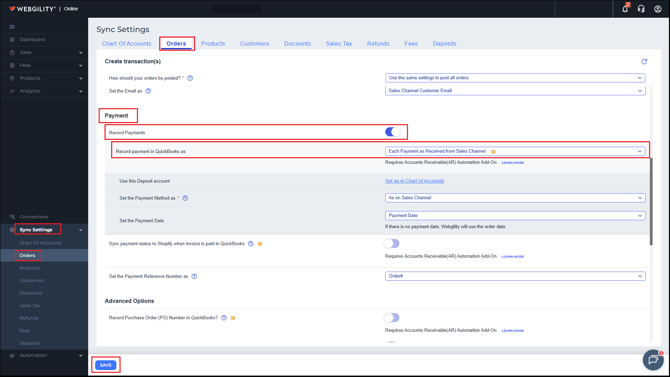
Once configured, Webgility Online will download the payments associated with Lightspeed sales and apply them individually to the corresponding QuickBooks Invoices.
What about orders that have already been posted?
If you have already posted an order to QuickBooks before this enhancement was enabled, you will need to refresh the order to retrieve its payment information.
Follow these steps:
- Locate the affected order in Webgility Online.
- Unpost the order.
- Redownload the order to download the latest information from Lightspeed. Refer How to Re-download Orders into Webgility Online
- Post the order again using the Invoice workflow.
- Verify that the payments have been applied correctly in QuickBooks.
Note: Review the existing QuickBooks transactions before reposting to avoid duplicate accounting entries or unintended changes.
Important considerations
- This functionality applies to Lightspeed X-Series orders synced as QuickBooks Invoices.
- The posting setting must be configured to Each Payment as Received from Sales Channel.
- Individual payments are applied to the QuickBooks Invoice, and any outstanding amount remains due.
- This functionality does not apply to Sales Receipts.