
Overview:
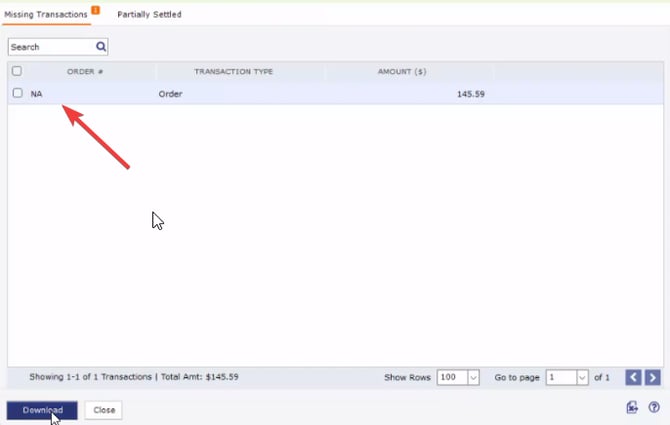
Amazon settlement reports can include older orders, refunds, or transactions connected to orders that are no longer available in Amazon Seller Central. When an order is archived or falls outside the historical order download range, Webgility Desktop can download orders up to 500 days old from the current date.
Steps to follow:
- First we need to verify on Amazon Seller Central when was the affected order placed check the Order Date
- In Webgility Desktop, navigate to Connections, then go to Sales Channels, and click Advanced Settings.
- Under Do not download orders older than change the number of days (500 days is the maximum limit).
- Click Save to apply the setting.
- Navigate to Orders, then go to Amazon, and click Settlement Report.
- Retry downloading the settlement report, go under Status column for the affected report and click on the Remove Settlement Icon and select Re-downlaod.
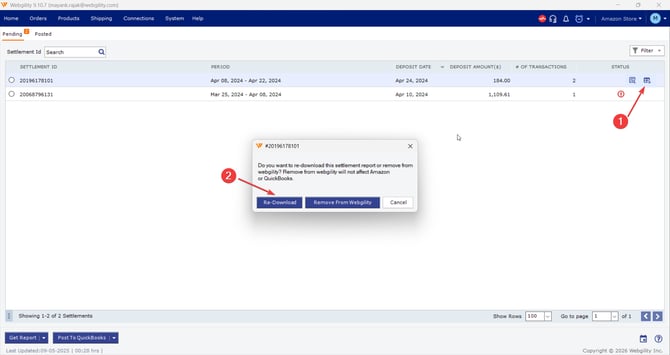
- Once re-downloaded select Post to QuickBooks
- If the same “Order not found” or “N/A” message appears, confirm the order ID shown in the message then it's a possibility Amazon itself has Archived the order on Seller Central (if the order is over 2 years old then Amazon automatically archives the orders)
- If Amazon has archived the order or the order predates the Webgility license start date, contact Webgility Support at support@webgility.com, we will take care from there.