
TroubleShooting Steps:
- Open Webgility Desktop, go to the Scheduler Settings as shown in the screenshot below.
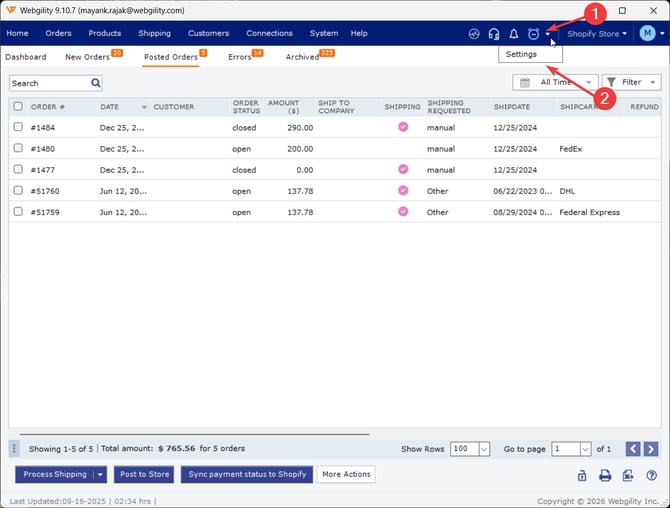
- In Scheduler settings, click on Settings and Disable Run on startup
- Click Save & Close, Save your changes and start the automation.
After these changes, Webgility Desktop, Shceduler should no longer open automatically when your computer starts or restarts. The automation service will remain available for manual launch when needed.
Feel free to reach out to support@webgility.com