
Skip to content
  • There are no suggestions because the search field is empty.

How to Create an addon user for Webgility Desktop via Webgility Customer Portal account 

This article helps Webgility Desktop users create an Add-On user via the Webgility Customer Portal. It provides step-by-step instructions for logging in, navigating to the Add-ons section, and entering new user credentials.

Log In:

1. Go to the URL https://portal.webgility.com and log in with your registered email ID and password.
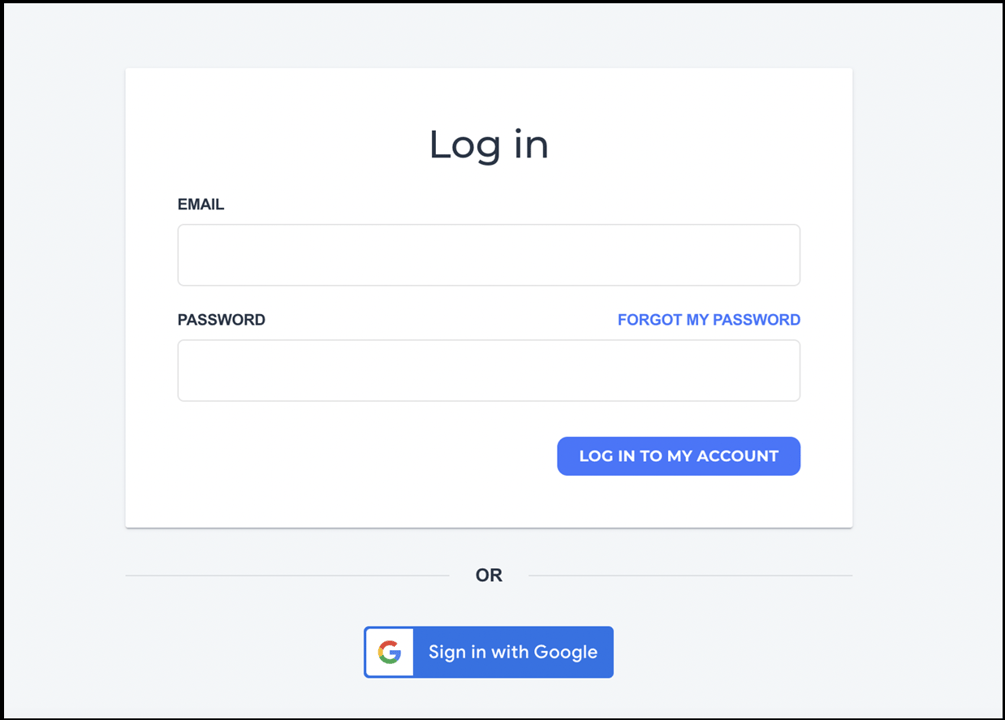
https://helpcenter.webgility.com/hs-fs/hubfs/image-png-Mar-02-2026-03-26-58-8547-PM.png?width=1005&height=720&name=image-png-Mar-02-2026-03-26-58-8547-PM.png

Create User:

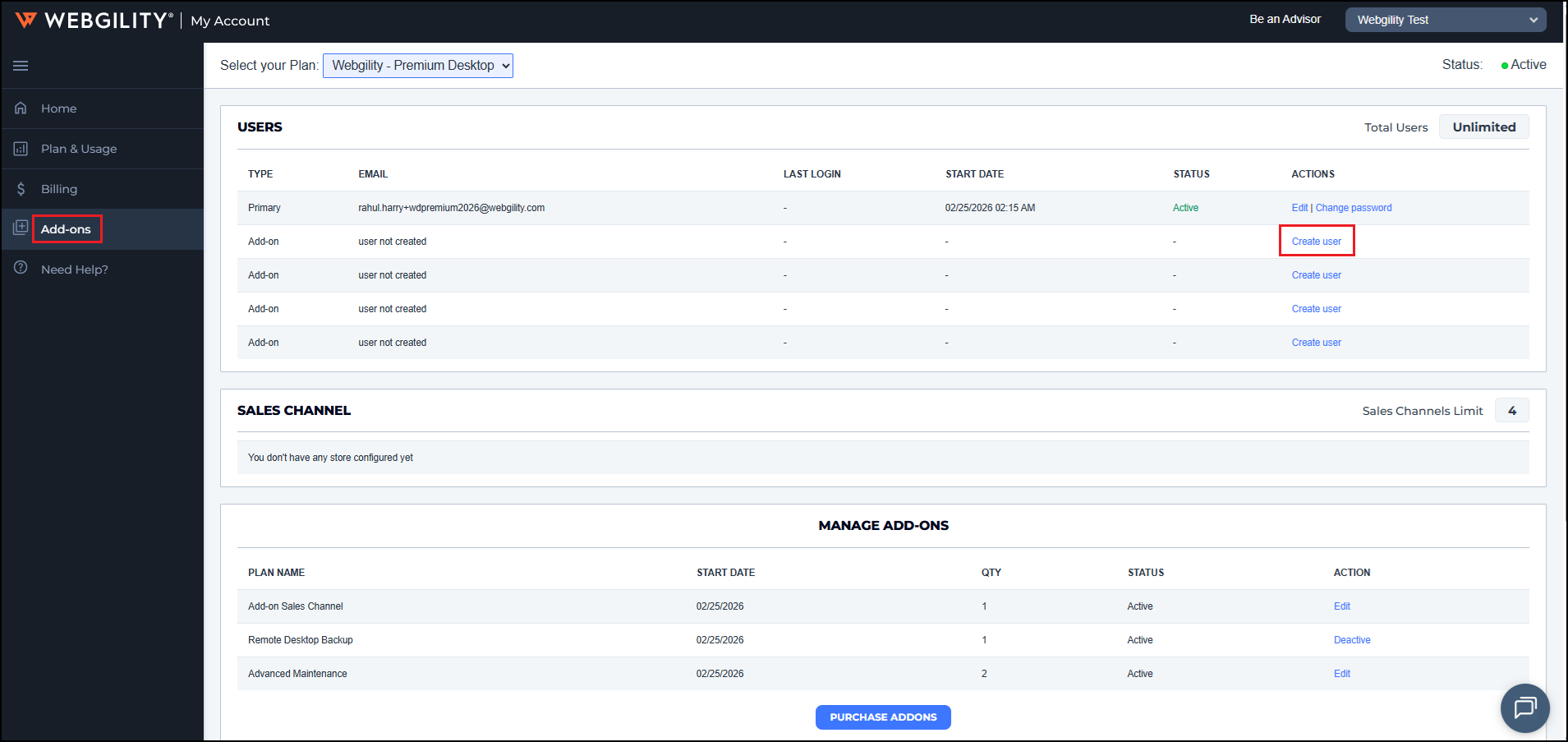
2. Click on the Add-ons option on the left panel and then Users click on Create User for the available Add-ons
 

3. Update the add-on user's Email address, Password (you want to keep), same password under the Confirm Password field and then click on Ok.
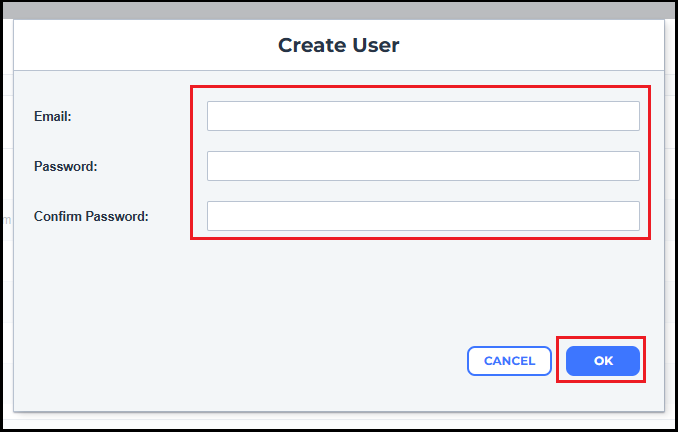
Once done it will activate the Add-on user for your Webgility Desktop application. Now you can try to login as add-on with this newly setup Email and password.