
1. Why Is My Bank Account Missing from Deposit Mapping?
Webgility Online filters the available bank accounts based on the currency selected in the deposit mapping.
To review your settings, navigate to Sync Settings > Chart of Accounts > Deposits.
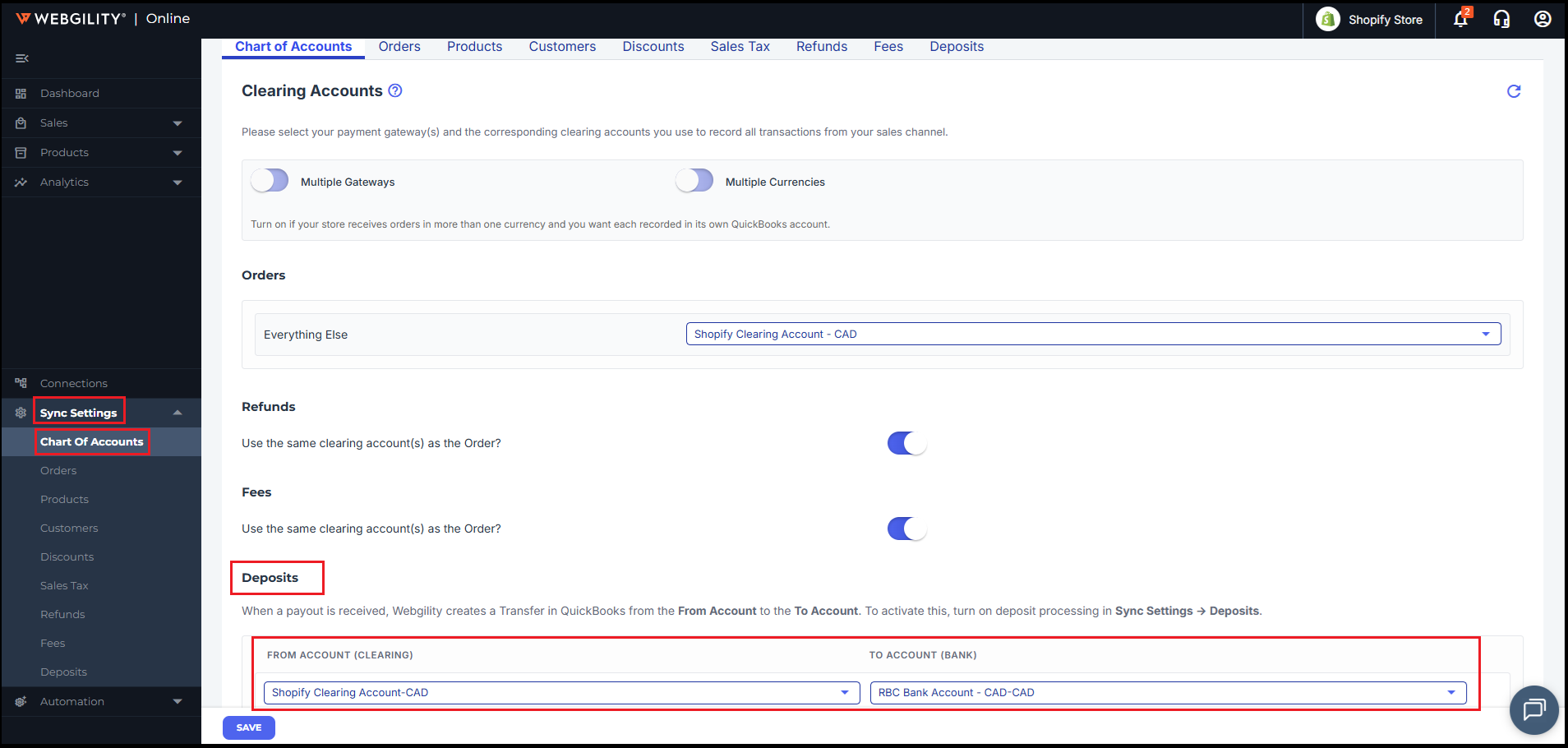
Each currency has its own mapping row with two fields:
- From Account (Clearing): The account used to record the payout before it reaches your bank.
- To Account (Bank): The bank account where the payout is deposited.
For example, selecting CAD displays eligible CAD bank accounts, while selecting USD displays eligible USD bank accounts. If you change the selected currency, a previously selected bank account in a different currency may be cleared.
Note: Webgility Online does not support mapping a payout directly to a bank account in a different currency.
2. Confirm the Currency of Your Shopify Payouts
The currency your customer pays in may differ from the currency Shopify sends to your bank. Before changing your deposit mapping, confirm the actual payout currency.
Follow these steps:
- Review the payout details in Shopify.
- Check the corresponding deposit in your bank account.
- Identify the currency in which the funds were received.
- Use that currency when configuring the deposit mapping in Webgility Online.
Example: If customers pay in USD but Shopify converts the payments and deposits the funds into your bank account in CAD, configure the deposit mapping for CAD payouts using the appropriate CAD clearing and bank accounts.
If the expected bank account is still unavailable after selecting the correct currency, verify the account's currency in QuickBooks. If the currencies match, contact Webgility Online Support for further assistance.
You do not need to enable QuickBooks Multi-Currency solely to change deposit mapping when all your payouts are received in a single currency. If your business receives payouts in multiple currencies or requires cross-currency transfers, consult your accountant and Webgility Online Support before changing your accounting setup.
3. Why Does a Rounding Adjustment Appear on My Orders?
When Shopify converts an order or payment into another currency, the converted product amounts, shipping charges, and taxes may not add up exactly to the final converted payment due to rounding differences.
Webgility Online may add a Rounding Adjustment line to account for this difference and balance the order in QuickBooks.
Changing the deposit mapping will not remove this line because deposit mapping and order-level rounding are separate processes.
The recommended approach is to configure deposit mapping correctly and ensure that rounding adjustments are associated with an appropriate QuickBooks item and account.
4. Configure a Dedicated Rounding Adjustment Item
Before creating or changing a QuickBooks account, consult your accountant to confirm the appropriate account classification and posting treatment.
If your accountant approves the setup, follow these steps:
- Create or confirm the QuickBooks account. The support recommendation in this case was a dedicated Other Current Asset account named Currency Rounding Adjustments. Confirm that this classification is appropriate for your accounting requirements before using it.
- Create a QuickBooks item. Create a Non-inventory or Service item with the following details:
- Name: of your choice (ex. Rounding Off Adjustment)
- SKU : of your choice
- Account mapping: The account approved by your accountant.
- Refresh the item list in Webgility Online. Refresh your QuickBooks item list so Webgility Online can recognize the new item.
- Verify item matching. If your Webgility Online configuration matches items by SKU, ensure that the SKU matches exactly:
ROUND-OFF.
If QuickBooks does not allow the proposed item and account combination, contact your accountant and Webgility Online Support before proceeding.
5. Verify Your Configuration
After updating the deposit mapping and rounding-adjustment setup, post a fresh Shopify order and its corresponding payout and then review if further.
Confirm that:
- The payout is mapped to the correct bank account in the payout currency.
- The Rounding Adjustment line matches the intended QuickBooks item and approved account.
- The order total agrees with the payment amount, accounting for any applicable rounding adjustments.
- The payout can be reconciled with the corresponding bank deposit.