
Change the payment-collection dropdown on the Orders tab so Webgility Desktop creates one payment equal to the invoice total, which matches the net invoice and clears the error.
When This AppliesYou see the error "You cannot pay more than the amount due" when Webgility Desktop posts an order to QuickBooks, the invoice stays past due even though the shopper paid in full, and the same order posts fine when it is included in the sales-channel payout.
Why This HappensYour sales-channel profile is set to record the payment processor fee as a line item, so the fee shows on the invoice as a negative line and the invoice total is already net of the fee. The same profile is set to record each payment as the sales channel sends it, so Webgility Desktop tries to create a payment for the full amount the shopper paid. QuickBooks rejects the payment because it is larger than the invoice total.
Important Note: "This fix is only for the settings where you have not configured the payout posting configuration. Posting through the payout already deducts the fee before applying payment, so optiong for Payout posting settings automatically clears this error without this change."
Steps to Clear the Error
Step 1: At the top of Webgility Desktop, use the sales channel selector to switch to the affected store.
Step 2: Go to Connections > Accounting/POS/ERP > Sync Settings > Orders > Posting rules > Invoice.
Step 3: Find the Record Payment from Sales Channel as dropdown, and change the selection from Each payment as received from the Sales Channel to either Mark Invoice paid with a single payment equal to the Invoice total or Mark Invoice paid with a single payment equal to the Order total.
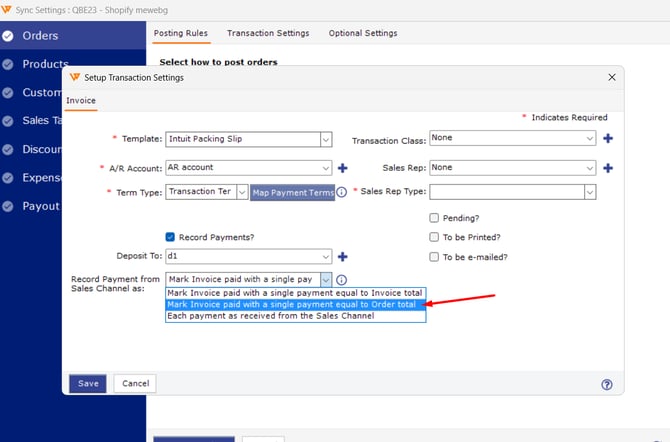
Step 4: Save the change, then unsync, re-download, and re-post the affected orders.
Key RecommendationKeep this setting consistent with how the fee is recorded. If the fee is posted as a line item on the invoice, the per-payment option will always mismatch, so pick one of the single-payment options instead. If a shopper splits a payment across methods (such as card plus cash), the single-payment option records it as one combined payment in QuickBooks rather than one payment per method.
If you need separate payments per method and you want to keep the line-item fee, contact Webgility Support — a configuration customization can take the fee off each payment at download time so each payment matches the invoice. For a related settlement-side error that looks similar, see "Applied To Txn Add" payment amount has an invalid value — You can't pay more than the amount due.
Additional SupportIf the error still appears after the setting change and a re-download, email support@webgility.com with the sales channel name, one affected order number, a screenshot of your current Record Payment from Sales Channel as selection, and the invoice total versus the payment amount Webgility is sending.