
You are seeing: "The order fails to post from Webgility Desktop to QuickBooks and the error says the same tax item cannot be used in both the line items and the tax field, and the tax amount that does post lands at the customer's default rate rather than the rate the sales channel calculated."
When This AppliesFollow this when Webgility is configured to post sales tax as a line item AND the tax item that line item is mapped to is the same tax item already set as the customer's default on the customer profile. QuickBooks rejects the order with the message "you cannot use the same tax item".
Root CauseQuickBooks does not allow the same sales tax item to sit on an order's line items and in the order's bottom tax field at the same time. When Webgility writes the tax from the sales channel as a line item and the tax item it maps to matches the customer's default tax item, QuickBooks sees the same tax item twice and rejects the order.
Steps to Clear the Customer's Default Tax
Step 1: Open QuickBooks Desktop and sign in to the company file Webgility posts to.
Step 2: Open the Customers menu and choose Customer Center.
Step 3: Find the customer whose order failed and double-click the name to open Edit Customer.
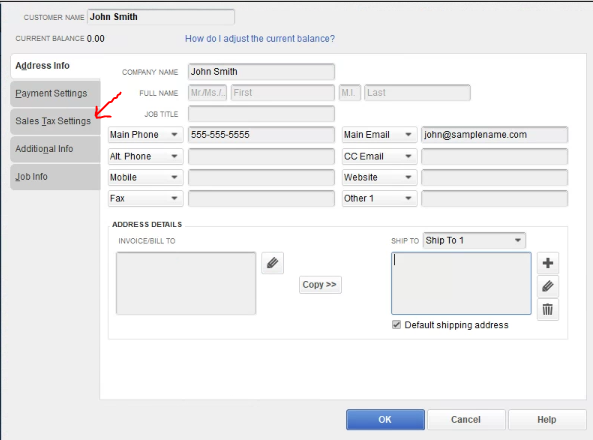
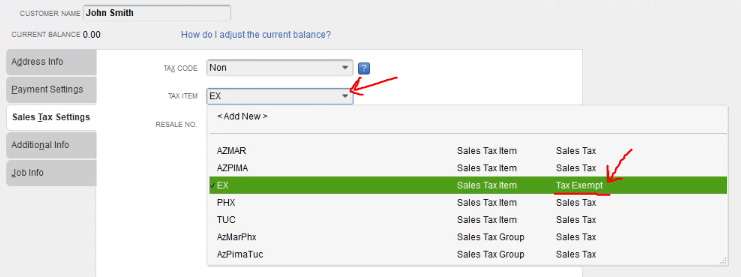
Step 4: Switch to the Sales Tax Settings section (shown as Additional Info on older QuickBooks releases) and change Tax Item to a zero-rate tax item so QuickBooks no longer applies a tax of its own to the bottom tax field.
Step 5: Click OK to save the customer, return to Webgility Desktop, and re-post the order to confirm it writes with the correct tax amount from the sales channel.
Key RecommendationCreate one dedicated zero-rate tax item in QuickBooks named something clear such as "Tax Handled by Sales Channel" and use that same item for every customer whose tax comes from a sales channel through Webgility. Keeping all these customers on one shared zero-rate item means a future adjustment is one change in one place, and it makes the reason for the zero rate obvious to anyone reviewing the customer list.
Additional SupportIf the order still fails after the customer's default tax is set to a zero-rate item, write to support@webgility.com with the sales channel name, the customer name, and the exact error text QuickBooks returned so Support can confirm the tax item change took and look for any posting rule that still forces the duplicate item.