
Overview
When Webgility Desktop fails to post an order with the error Unable to find the specified AR account, the cause is almost always that someone changed the Accounts Receivable account on the QuickBooks side (renamed it, archived it, replaced it per currency), and the per-currency AR mapping stored under Webgility's Multi-currency settings no longer points to a valid account. Re-selecting the AR account on that panel and saving restores the posting.
When This AppliesUse these steps when a Webgility Desktop order fails to post with an error that reads Unable to find the specified AR account, and your QuickBooks file is multi-currency enabled with one or more non-base currencies configured (for example, USD orders posting to a QuickBooks file whose base currency is CAD, or vice versa).
Why This HappensWebgility stores one AR account per enabled currency under Sync Settings > Customers > Multi-currency settings. When the QuickBooks account used for a given currency is renamed, archived, replaced (for example, moved from a single AR account to a split ARUSD / ARCAD setup), or re-mapped by someone in your accounting team, Webgility still holds the old reference and raises this error on the next post for that currency.
Important Note: "The fix must be repeated for every currency row whose AR account was changed. One re-selection fixes one currency; if orders in several currencies throw the same error, re-select the AR account on each affected row before closing the panel."
If Multi-Currency Is Not Enabled
If your QuickBooks file is single-currency and the Multi-currency settings section does not appear under Sync Settings > Customers, the AR account for Webgility posts is held in a different place — under Sync Settings > Orders > Posting Rules > Invoice Setup. The same error with the same cause (QuickBooks-side rename, archive, or replacement of the AR account) is fixed by re-selecting it there instead.
-
Open Connections > Accounting/POS/ERP > Sync Settings, click the Refresh button so Webgility pulls the latest chart of accounts from QuickBooks, open the Orders tab, select Posting Rules, scroll to the Invoice Setup section, re-select the correct A/R account from the dropdown, and click Save. Then repost the failing order.
Steps to Update the AR Account Under Multi-Currency Settings
Step 1: Close the error dialog in Webgility Desktop so the main window is active.
Step 2: Open Connections > Accounting/POS/ERP > Sync Settings and select the Customers horizontal tab.
Step 3: Click the Refresh button on the Sync Settings at the bottom right, so Webgility pulls the latest chart of accounts from QuickBooks; without this, the renamed or newly created AR account will not appear in the dropdown.
Step 4: Expand Multi-currency settings and click Set up multi-currency to open the per-currency mapping panel.
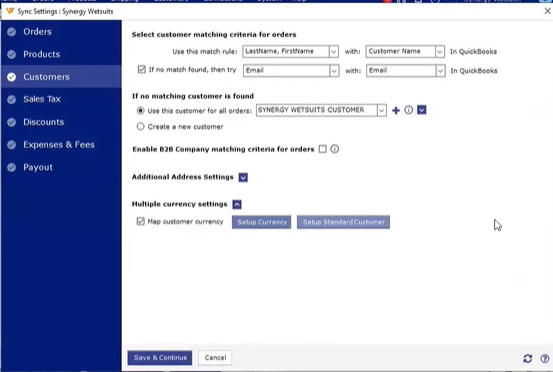
Step 5: Locate the row for the currency named in the failing order (for example, USD), re-select the correct AR account from the dropdown, and click save on that row.
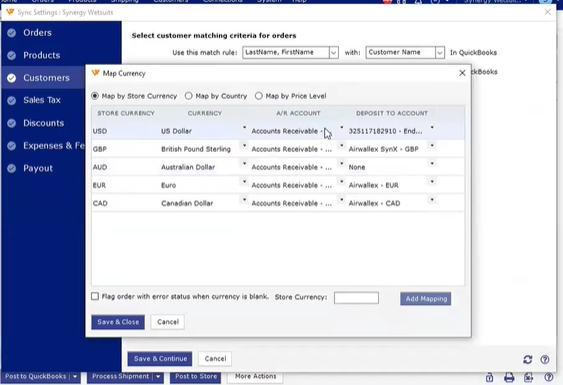
Step 6: Repeat Step 5 for any other currency row whose AR account was changed on the QuickBooks side, then click Save and continue and close the Sync Settings window.
Step 7: Return to the Orders tab and repost the failing order to confirm the posting completes without the AR account error.
Key RecommendationWhenever your accounting team renames, archives, or splits the AR account on the QuickBooks side (common after a chart-of-accounts cleanup or a move to per-currency AR), open Sync Settings > Customers > Multi-currency settings the same day and re-save every currency row so Webgility's mapping stays current. A short QuickBooks-side change often costs hours of posting errors on the Webgility side if the mapping isn't refreshed in parallel.
Additional SupportIf the error persists after Step 6, contact Webgility Support at support@webgility.com with the exact error text, the currency of the failing order, a screenshot of your Sync Settings > Customers > Multi-currency settings panel showing the per-currency AR mappings, and the name of the QuickBooks AR account you expect to be used so support can trace the mapping on your account.