
Overview
When a Shopify or marketplace payout fails with the error “Order already posted in accounting, but we are not able to find the transaction memo,” it may indicate that an order was re-downloaded after being posted to QuickBooks without first using Undo Sync.
Follow the steps below to correct the affected transactions and repost the payout.
Resolution StepsStep 1: Identify the affected orders
Open the failed payout in Webgility Desktop and note the order numbers associated with the error.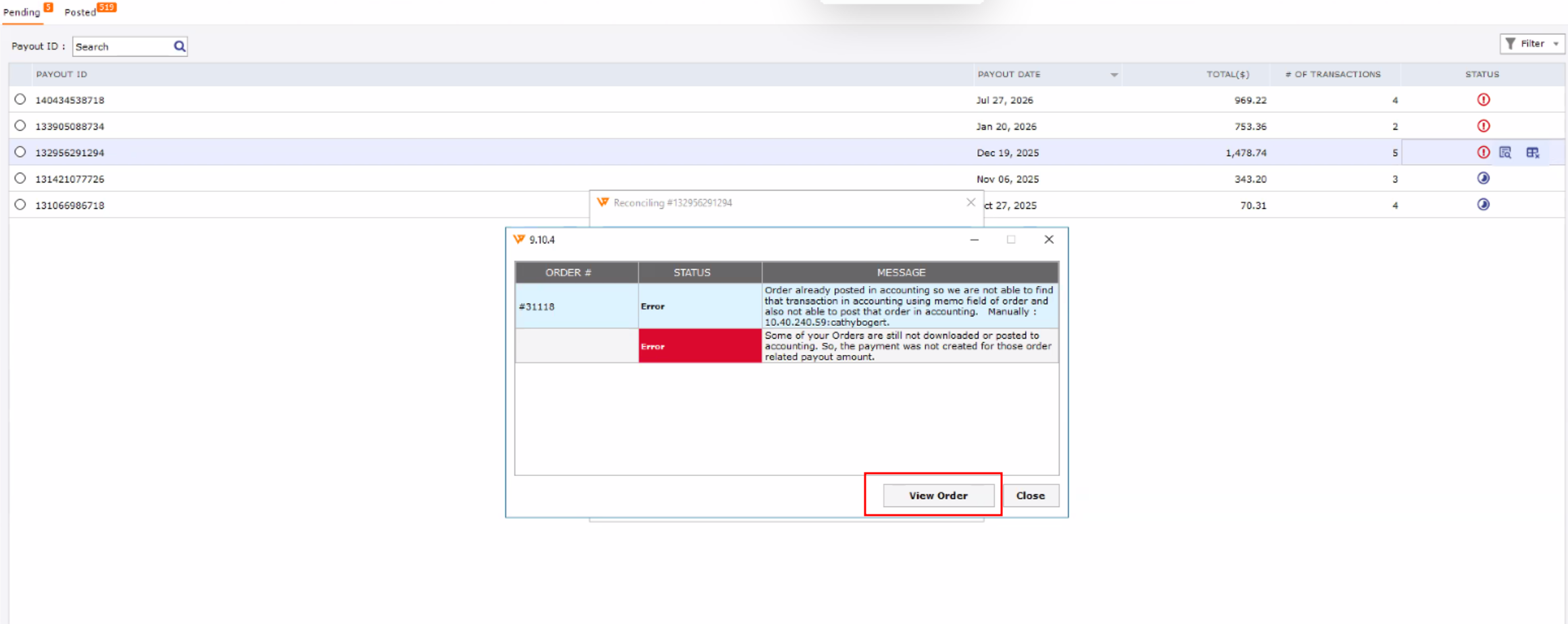
Step 2: Run Undo Sync
Locate each affected order in Webgility Desktop and use Undo Sync to remove its existing sync link.
For instructions, see How to Unpost Transactions from Webgility Desktop with Undo Sync.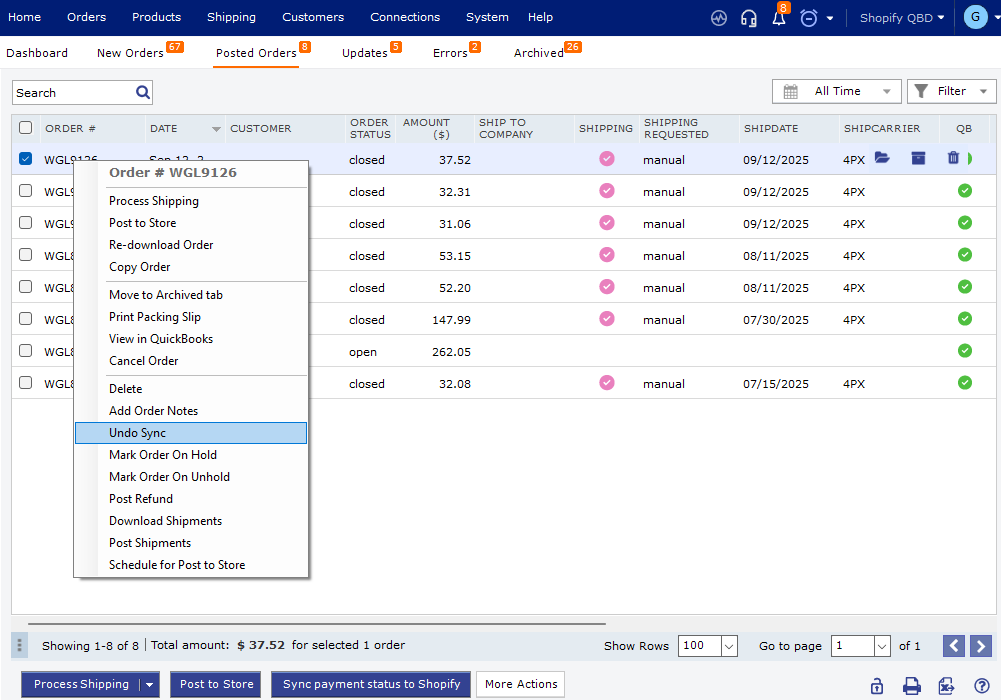
Step 3: Remove the remaining QuickBooks transactions
In QuickBooks, locate the corresponding invoices and delete any transactions that remain after Undo Sync. Verify that you have selected the correct invoices before deleting them.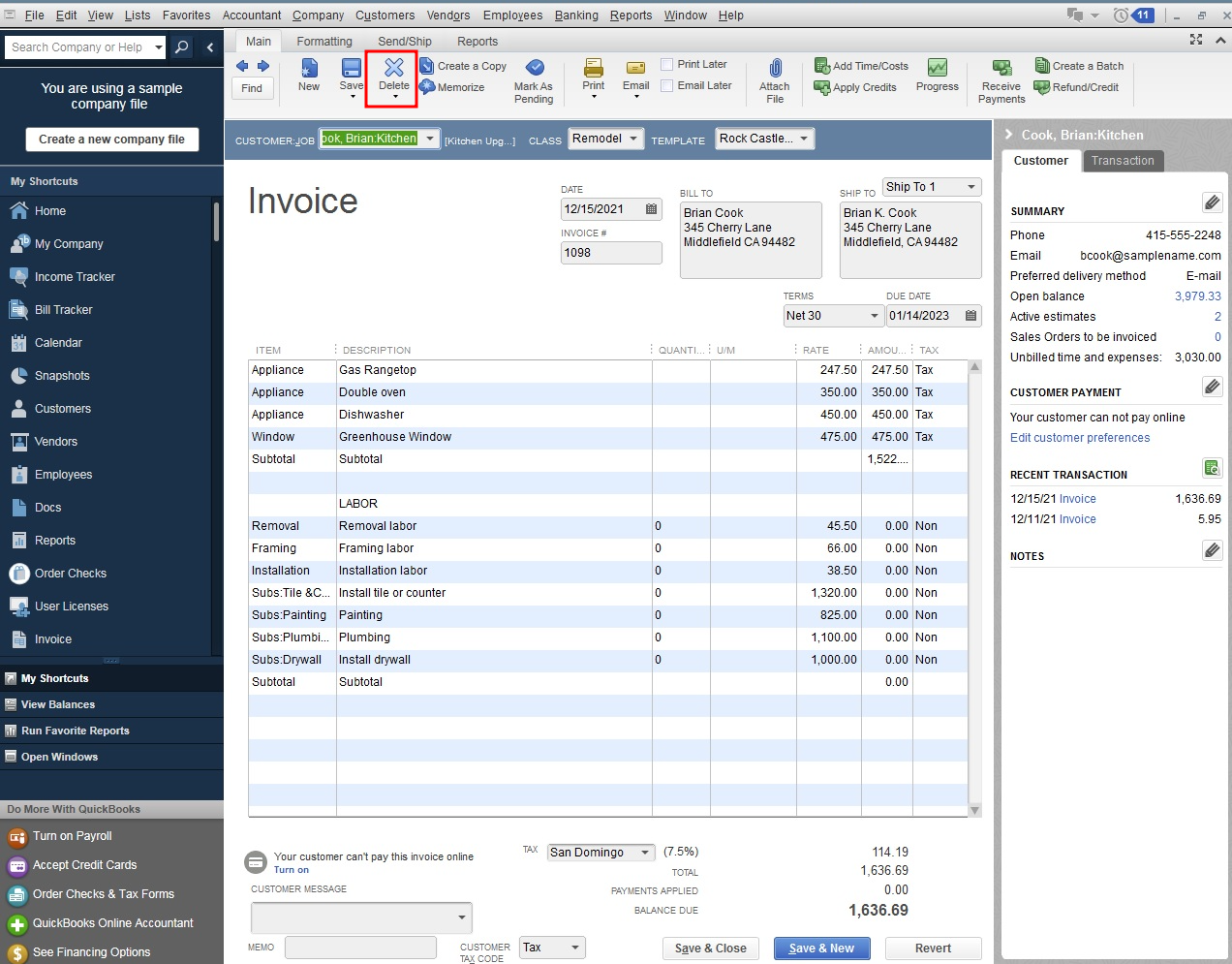
Step 4: Repost the orders and payout
Return to Webgility Desktop and post each affected order individually. Once the orders post successfully, try posting the payout again.
Step 5: Verify the results
Confirm that the payout status changes to Posted and that the corresponding QuickBooks deposit reflects the expected payout amount.
Important Note
Always run Undo Sync before re-downloading an order that has already been posted to QuickBooks. Undo Sync can affect accounting records and does not reverse payments or reconciliations, so verify the transaction status before proceeding.
If you have any questions or need more help, please contact our support team.