
Overview
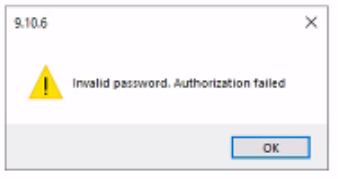
You can see new orders in WooCommerce, but Webgility Desktop shows an authentication error when you try to download them. Start by checking the store connection, especially if your WooCommerce admin password recently changed.
How to get your orders downloading again- Check your WooCommerce connection. In Webgility Desktop, open Edit Connection for your WooCommerce store. Verify the Webgility Extension URL and enter your current WooCommerce admin username and password. Select Test Store Connection. Find and test your WooCommerce connection
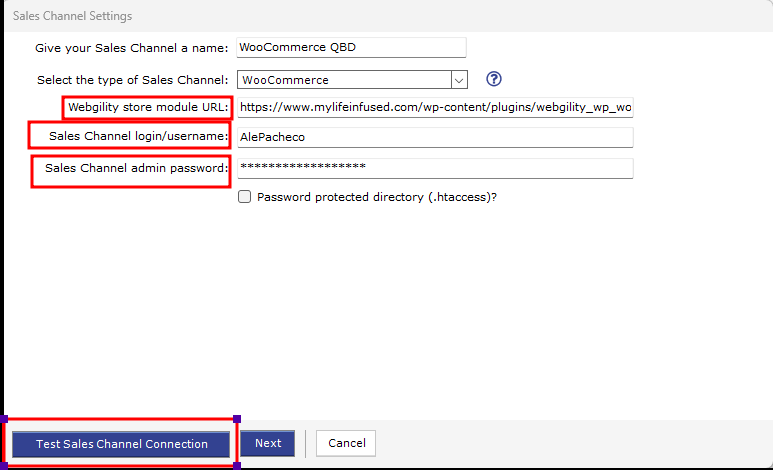
- Try the download again. Once the connection test passes, select Get New Orders and check New Orders to confirm the orders came through. Learn how to manually download orders
If you have any questions or need more help, please contact our support team.