
You are trying to post an Amazon (or other channel) settlement report to QuickBooks and it fails, even though the individual orders in the settlement look fine. When this happens, one of the orders inside the settlement has been moved to the Archived tab — Webgility cannot post a settlement whose underlying orders are archived.
Why this happens. The Archived tab hides orders from the main grid but keeps them in the database. If an order in an Amazon settlement was archived (manually or by an automation rule) before the settlement was posted, the settlement post fails because it cannot reconcile the archived line. Unarchiving the order, unsyncing it, then resyncing it clears the block and lets the settlement post cleanly.
- In Webgility Desktop, open the Orders grid and switch the view filter to Archived — this shows only the orders that have been moved out of the main view. Locate the order that belongs to the failing settlement (the settlement error message names the affected order).
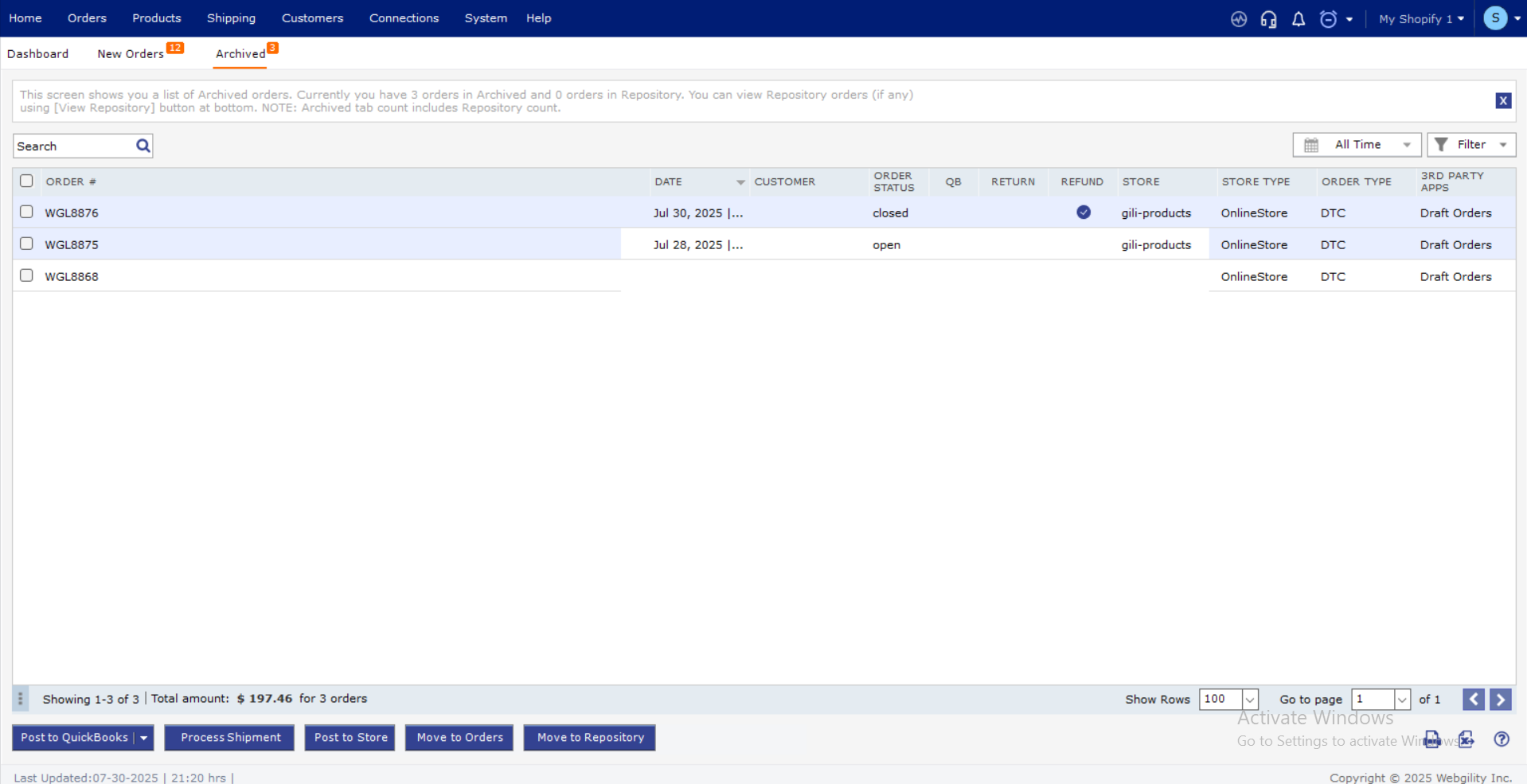
- Right-click the order and choose Unarchive — the order moves back to the main Orders grid.
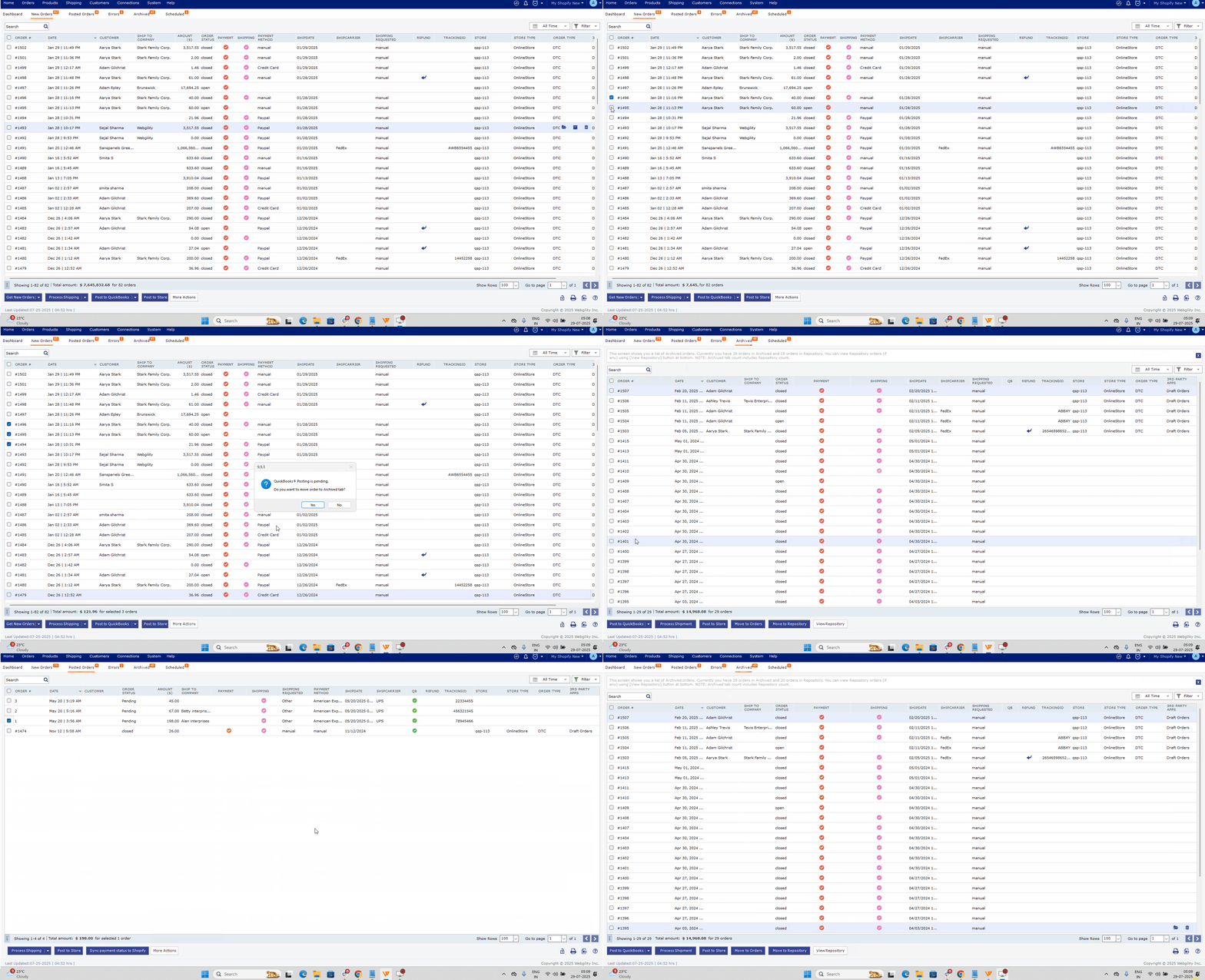
- Switch the view filter back to the main grid, find the newly unarchived order, right-click it and choose Undo post. Wait until the sync status column clears.
- Right-click the same order and choose Post to Quickbooks, then post the settlement report again from the Settlements screen.
If the settlement still fails after the order is unarchived and resynced, contact Webgility Support with the settlement report ID and the affected order number.