
Overview
When orders are posted together in a consolidated batch, an individual order may later need to be posted separately as part of a settlement report. If a payment has already been deposited against the consolidated transaction in QuickBooks, Webgility Desktop may be unable to undo the sync for that batch.
In this scenario, remove the related deposit in QuickBooks, undo the sync for the consolidated batch, and then re-download and post the affected order separately.
Steps to Resolve
1. Remove the related deposit in QuickBooks
In QuickBooks, locate and delete the deposit associated with the consolidated transaction containing the affected order.
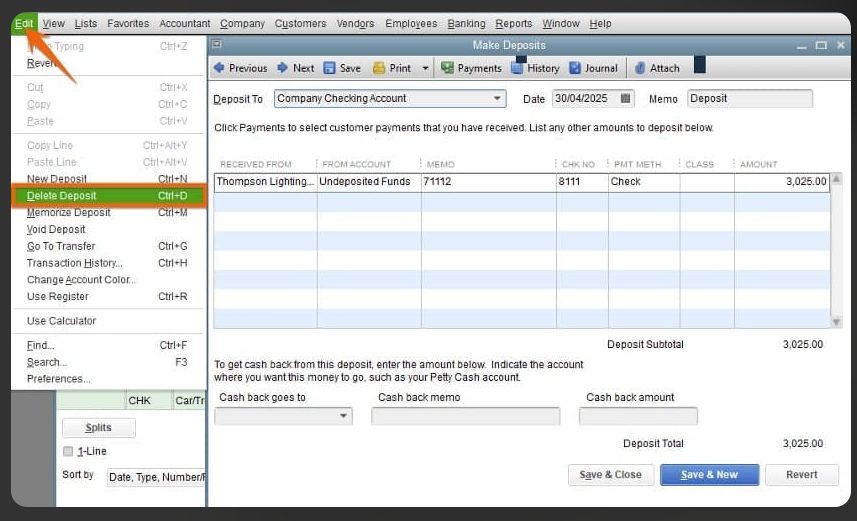
2. Undo Sync for the consolidated batch
In Webgility Desktop, go to Orders > Reports > Consolidate Report.
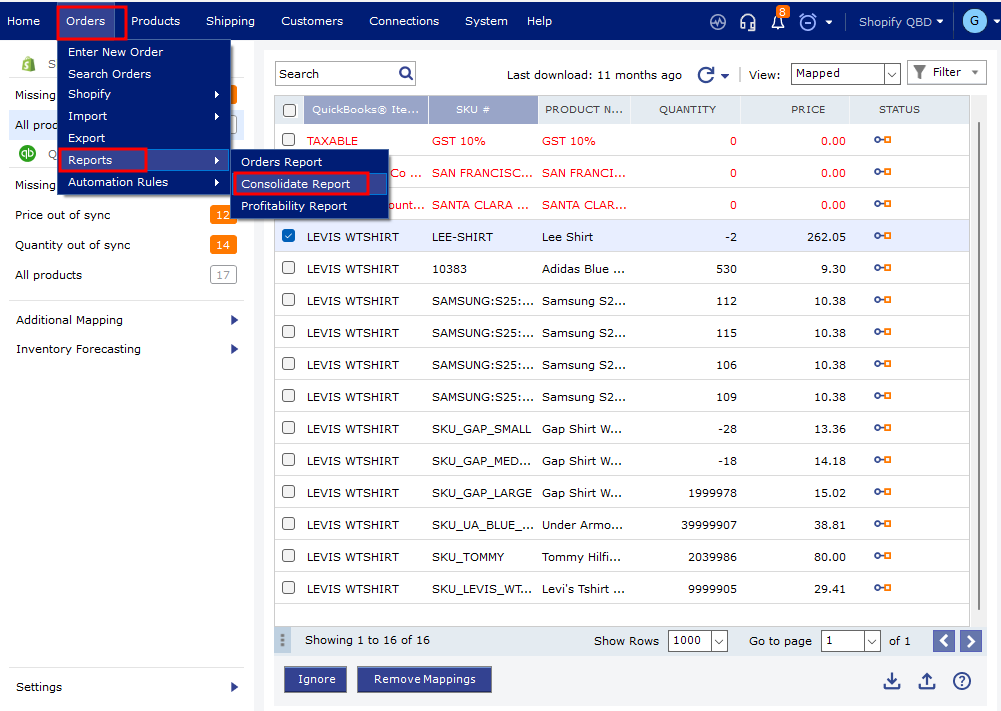
Locate the consolidated transaction and click the Undo Sync icon.
For detailed instructions, see How to Unpost Transactions from Webgility Desktop with Undo Sync.
3. Re-download and post the affected order
Re-download the affected order and post it to QuickBooks separately from the consolidated batch.
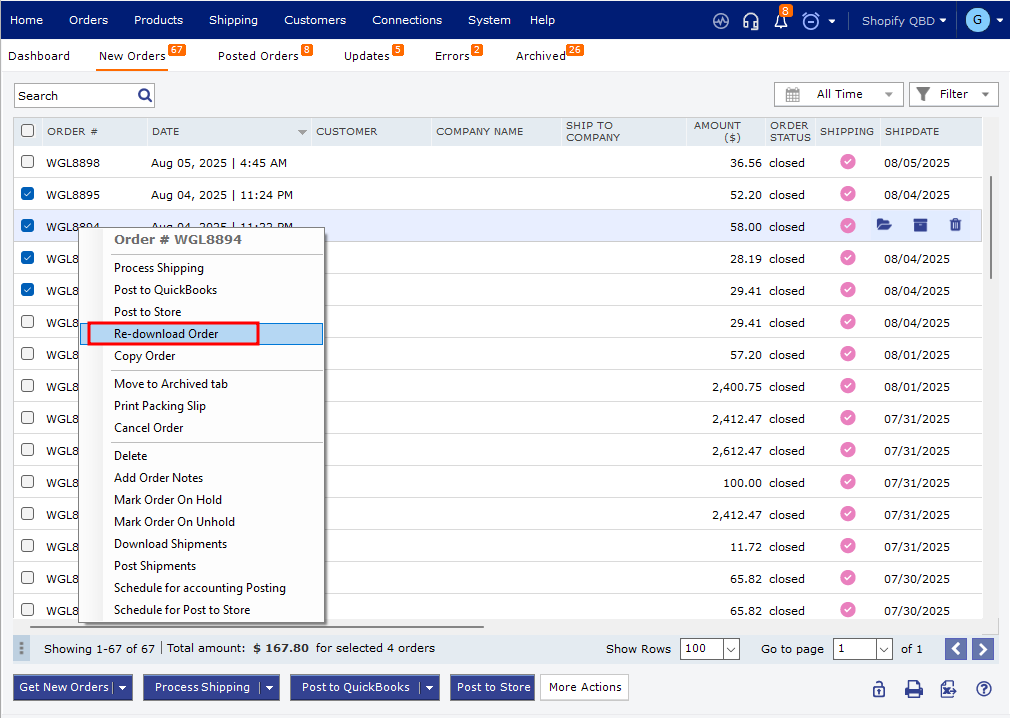
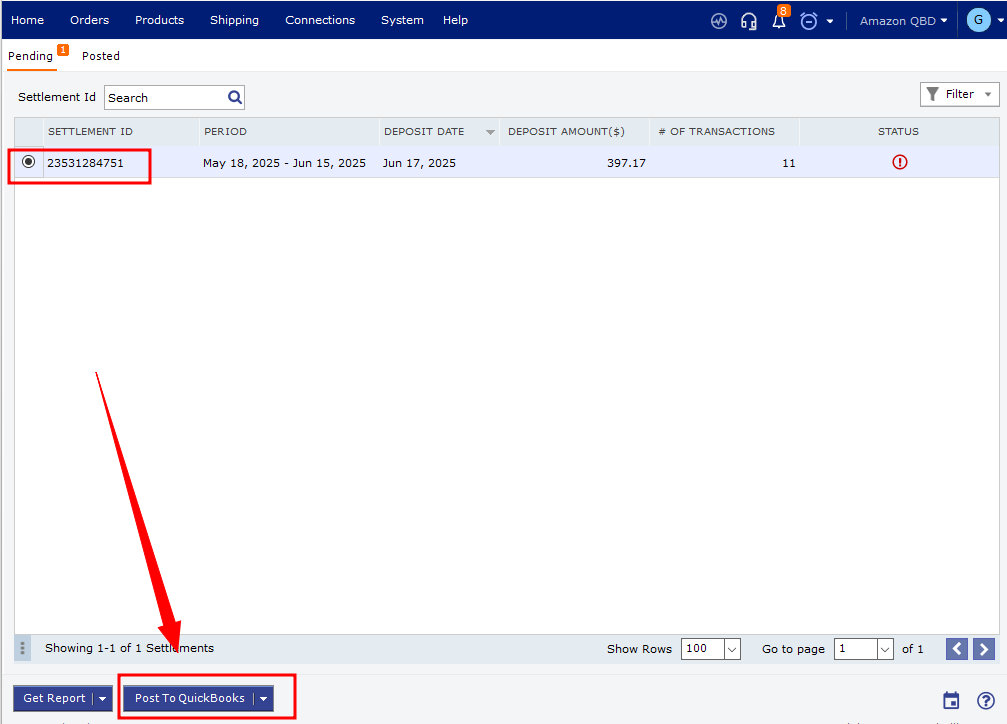
4. Post the settlement report
Open the settlement report and post it again. The settlement should now process because the affected order is no longer part of the consolidated transaction.
Important: Use caution when deleting deposits or using Undo Sync, as these actions can affect transactions and balances in QuickBooks.
If you have any questions or need more help, please contact our support team.