
Overview
When Webgility Desktop tries to post a Shopify or sales-channel order to QuickBooks, you may see this error on the order:
"There is an invalid reference to QuickBooks Item '<tax item name>' in the SalesReceipt line. QuickBooks error message: You cannot use the same tax item in both the line items and the txn tax."
Webgility posts the sales tax from your sales channel as its own line on the QuickBooks invoice or sales receipt. If the customer the order is for has that same sales tax item set as their default Tax Item on the Edit Customer screen, QuickBooks blocks the post. This article shows you how to clear that collision on the customer record so the order posts.
When This AppliesUse these steps when an order sits in the Errors tab in Webgility Desktop with the "same tax item" message. Your sales tax is set to download as a line item from the sales channel, and the customer on that order has a specific sales tax item saved on their QuickBooks customer record.
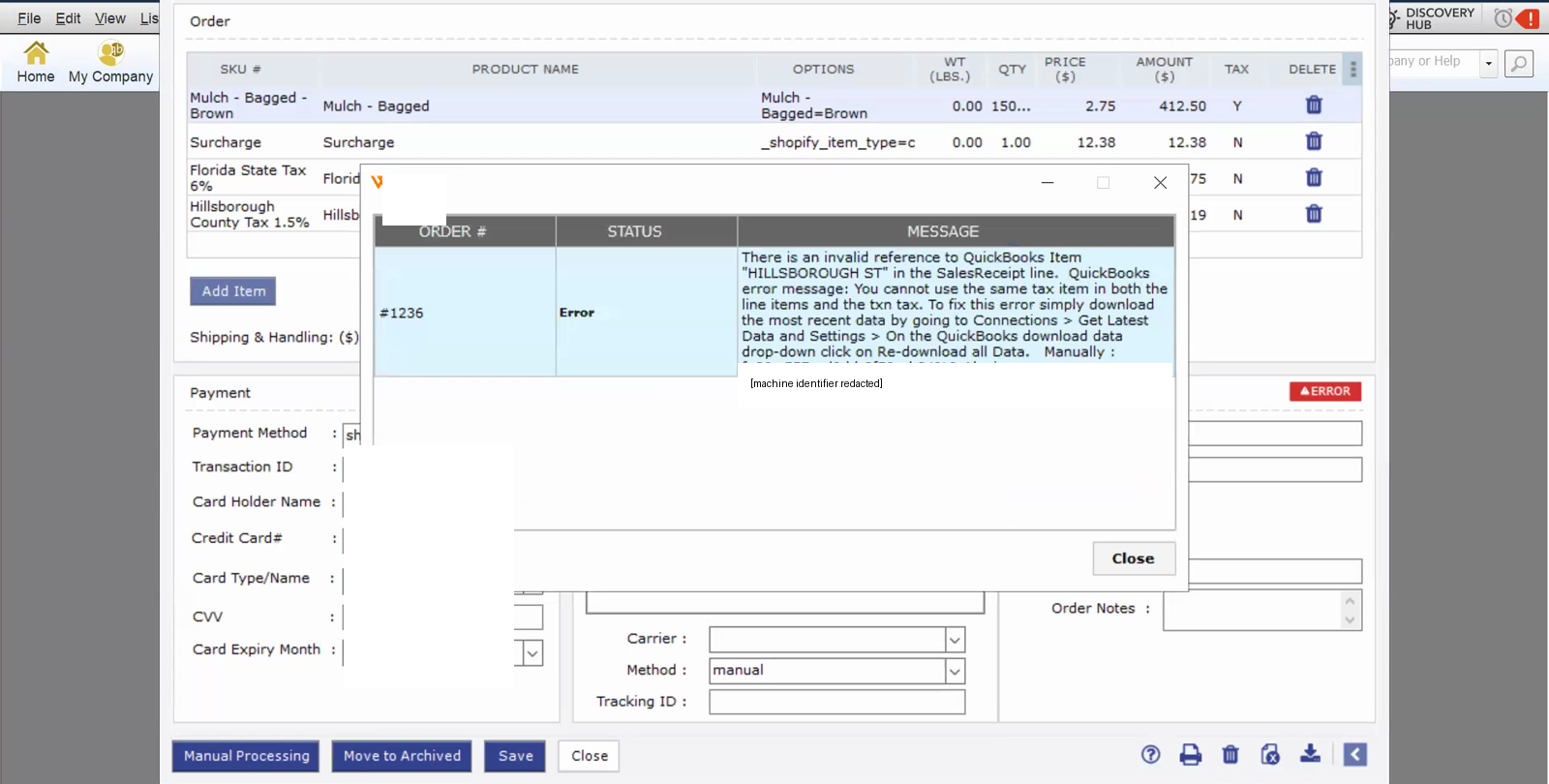
The Webgility error dialog carries the QuickBooks message verbatim. The sales tax item named in the message is the item that sits on both the sales tax line and the customer's default — that is the collision this article fixes.
Why This HappensIn Webgility Desktop's sales tax posting settings, Webgility sends the channel's sales tax amount as a line item on the transaction and places a zero-rate sales tax item in QuickBooks' bottom-right tax field so QuickBooks does not add its own address-based tax on top. QuickBooks will not let the same sales tax item appear both on a line and in the transaction's tax field — that would double the tax. When a customer record carries that same sales tax item as its default Tax Item on the Sales Tax Settings pane, QuickBooks pulls it into the bottom-right tax field automatically and the post fails.
Important Note: "This fix is for customers whose default Tax Item on their QuickBooks record is a non-zero sales tax item. If your Webgility Sync Settings are pointing the taxable and non-taxable sales tax dropdowns at the same QuickBooks item, fix that first in Connections > Accounting/POS/ERP > Sync Settings > Sales Tax — set the non-taxable dropdown to a 0% sales tax item different from the taxable one — then retry the order."
Steps to Clear the Customer's Default Tax Code
Step 1: In QuickBooks Desktop, open the Customer Center from the top menu and find the customer named on the failing Webgility order.
Step 2: Double-click the customer to open Edit Customer, then click the Sales Tax Settings tab in the left-hand list.
Step 3: Leave the Tax Code dropdown on Tax. Open the Tax Item dropdown — this is the field that QuickBooks sends to the bottom-right tax field on the transaction — and select a sales tax item whose rate is 0% (for example POS Sales Tax). Click OK to save.
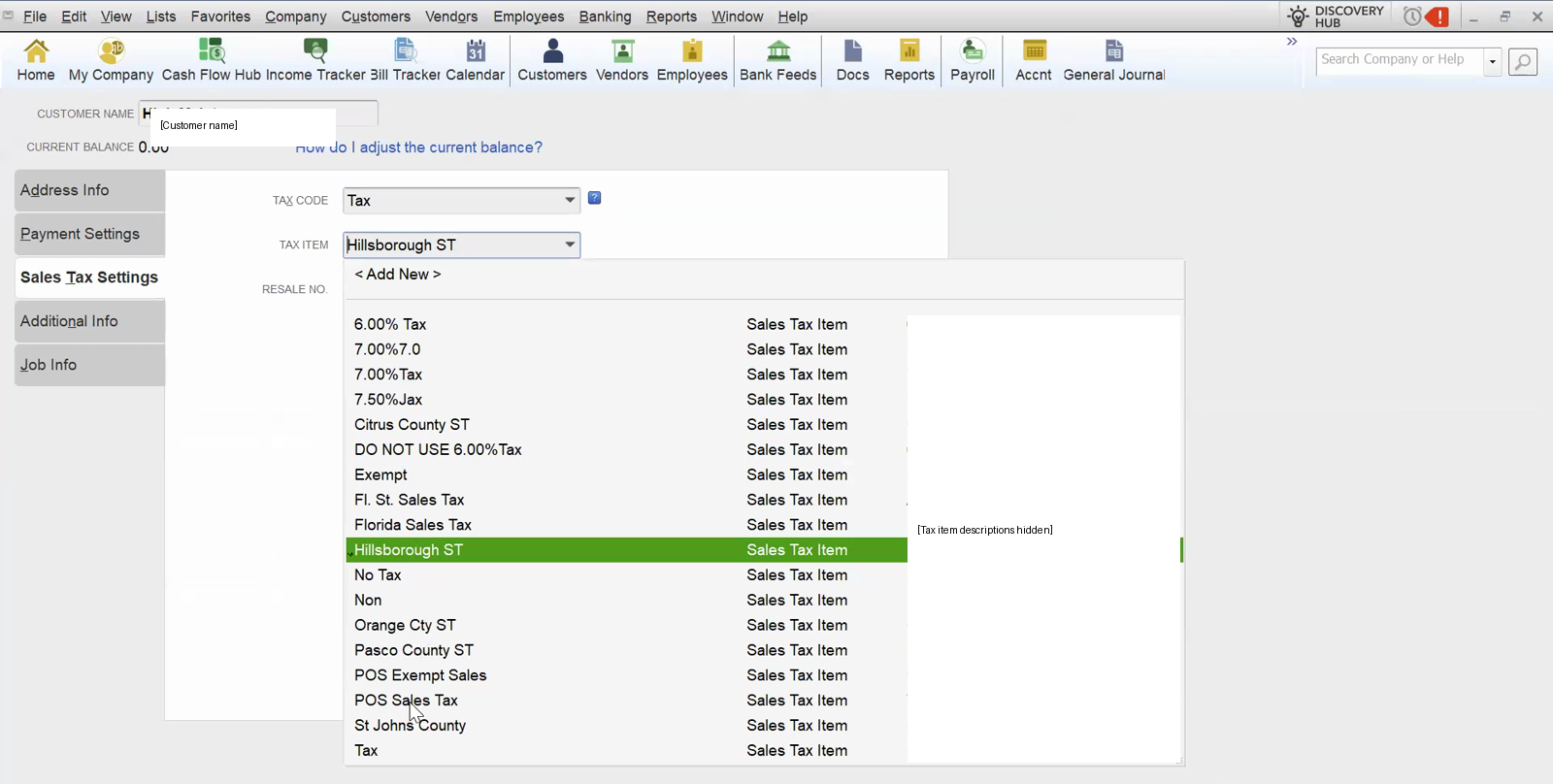
The Sales Tax Settings tab on the Edit Customer window. The Tax Item dropdown is open on the customer's current sales tax item (the one QuickBooks flagged); pick a 0% item like POS Sales Tax instead.
Step 4: If your file does not have a 0% sales tax item yet, open Lists > Item List, add a new Sales Tax Item with the Rate set to 0, name it clearly (for example "Out of State" or "POS Sales Tax"), save, then come back to Step 3 and select it in the Tax Item dropdown.
Step 5: Switch to Webgility Desktop, open the Errors tab, select the failed order, and click Post. QuickBooks accepts the post because the customer's bottom-right tax field no longer carries the same item that Webgility placed on the sales tax line.
Key RecommendationIf several customers in your QuickBooks file carry a non-zero default Tax Item and you post their orders through Webgility with sales tax downloaded as a line item, repeat Steps 1–3 for each one. Setting the default Tax Item to a 0% sales tax item does not change the tax that ends up on their invoices — Webgility still sends the correct sales tax amount from the sales channel as its own line.
Additional SupportIf the same error returns after a customer's default Tax Item is set to a 0% sales tax item, contact Webgility Support with the Webgility order number, the QuickBooks customer name, and a screenshot of that customer's Edit Customer > Sales Tax Settings pane in QuickBooks.