
Overview
This article walks you through clearing the QuickBooks error 6270 that stops a whole day's consolidated Sales Receipt from posting, by fixing the one inventory item whose start date lands after the sale date.
When This AppliesYou are in the right place if several orders of the same payment method and date land together in the Error tab in Webgility Online. The error message quotes QuickBooks error 6270 or the words "Transaction date is prior to start date for inventory item".
Why This HappensConsolidated posting rolls every order of one payment method on one date into a single QuickBooks Sales Receipt. If one line's item has a QuickBooks inventory start date that falls after the sale date, QuickBooks rejects the entire receipt. Every order on that receipt fails together, even though only one order is actually at fault.
Important Note: "Before you re-post, confirm that nobody has entered these sales by hand in QuickBooks so the totals are not recorded twice."
Steps to Clear Error 6270
Step 1: Open the error in Webgility Online and note the sale date and the item SKU that QuickBooks named in the 6270 message.
Step 2: Open QuickBooks, go to the item list, find that SKU, open its item record, and change its inventory start date to the sale date or earlier (how to change the inventory start date).
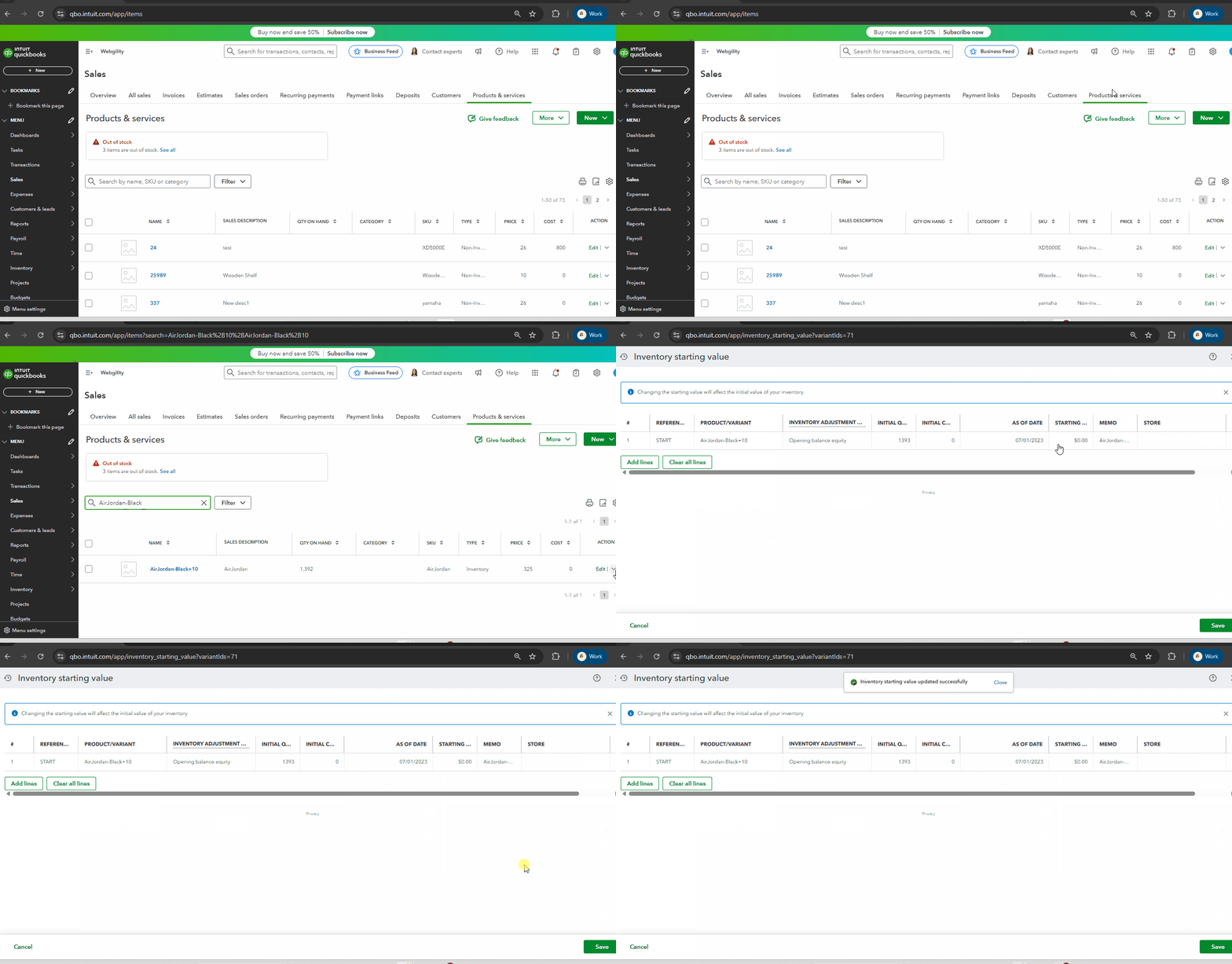
Step 3: Back in Webgility Online, open the blocked orders in the Error tab and re-post them so Webgility rebuilds the consolidated Sales Receipt for that date and payment method.
Step 4: If you prefer not to change the item's inventory start date in QuickBooks, open Products > Products Catalog in Webgility Online. Find the offending SKU and remap it from an Inventory item to a Non-Inventory or Service item (Products Catalog overview).
Step 5: Re-post the orders after remapping. The receipt now posts because non-inventory and service items are not bound by the inventory start-date check (Undo Sync covers how to pull an order back for a repost).
Key RecommendationWhen you add a new inventory item in QuickBooks that will carry historical sales, set its inventory start date to on or before the earliest sale date you expect for it. This keeps Webgility's consolidated posting from being blocked by a timing mismatch between the item and the orders that reference it.
Additional SupportIf the same consolidated Sales Receipt fails after Step 3 or Step 5, write to support@webgility.com with the sale date, the payment method, and the SKU QuickBooks named. Attach a screenshot of the error so support can trace which line is still blocking the receipt.