
Summary
When you post an order from Shopify to QuickBooks Desktop in Webgility Desktop, the post fails with "The name of the list element is already in use." This happens when a Vendor in QuickBooks already has the same name as the customer on the order. Rename the Vendor in QuickBooks Desktop, re-download your QuickBooks data in Webgility, and post the order again.
The error
Webgility Desktop shows this message when you send an order to QuickBooks Desktop:
Post to QuickBooks failed due to The name "XXXX" of the list element is already in use.
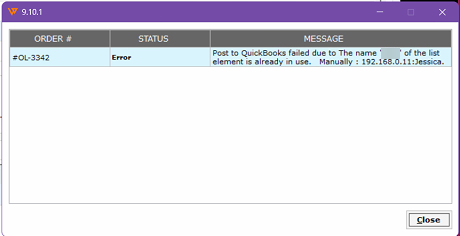
Why it happens
QuickBooks keeps customers, vendors and other names in one shared list, and every name in it must be unique. When an order posts, Webgility creates the order's customer in QuickBooks if it does not exist yet. If a Vendor already uses that name, QuickBooks rejects the new customer and the post fails.
The clash is easy to miss. The name may not exist as a customer, active or inactive, and no other order may be using it, yet the error still appears because the match is on the Vendor list.
How to fix it
- Note the name shown in the error message.
- In QuickBooks Desktop, open the Vendor and the Employee list and search for that exact name.
- Edit the vendor or Employee and change its name so it differs from the customer name on the order, for example by adding a suffix. Save the change.
- In Webgility Desktop, re-download your QuickBooks data so Webgility picks up the renamed vendor.
- Post the order to QuickBooks again. It should now post and create the customer without the error.
If the error continues
Check the other places the same name can be in use in QuickBooks:
- An active or inactive customer with the same name.
- An item or SKU with the same name.
- Another user or an open transaction in QuickBooks that is using the name.
If none of these apply and the error remains, contact Webgility Support with the exact error text and a screenshot.
Tip: Before you post orders for a new customer, check that no vendor in QuickBooks Desktop shares the customer's name. A business that is both a vendor and a customer can trigger this.
If you need any further assistance, please feel free to reach out to the Webgility Support Team. We're always happy to help!