
Overview
When orders are posted in consolidation, group items can cause payout amount mismatches if their posting settings are not configured correctly. This article explains how to update the group item settings, unsync and redownload the affected consolidated order, and verify the posting results.
Resolution Steps1. Update Group Item Posting Settings
- Open Webgility Desktop.
- Navigate to Connections > Accounting/POS/ERP > Posting Settings > Orders > Optional Settings.
- Enable the option to Post group items before individual items.
- Enable the option to Post store group item price same as QuickBooks and adjust the difference amount.
- Select the appropriate adjustment item to record the price difference.
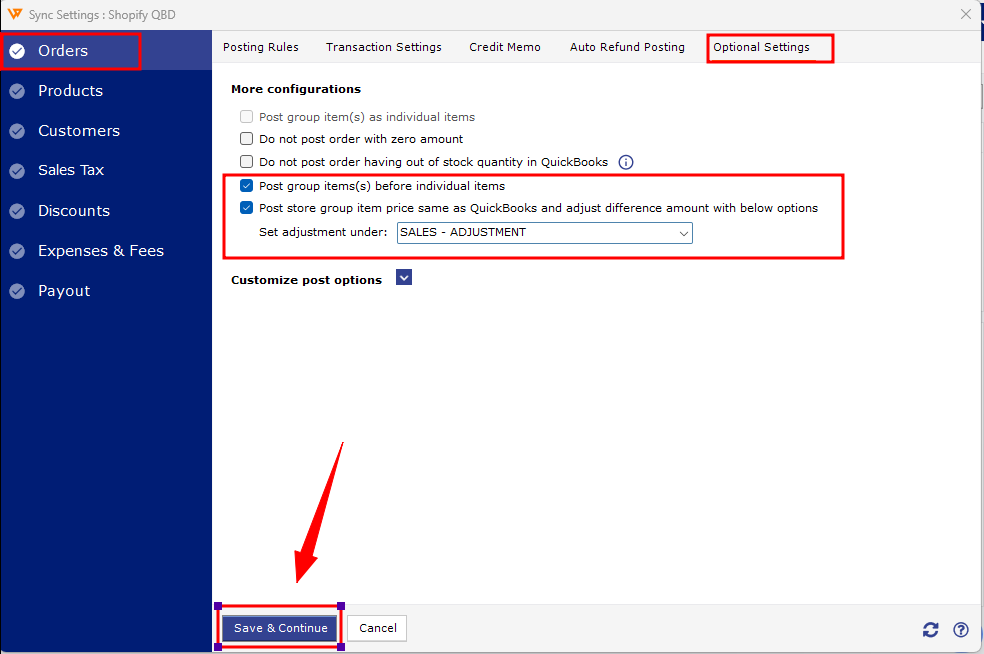
These settings allow Webgility to post group items before individual items and adjust any difference between the store's group item price and the QuickBooks group item price.
2. Unsync and Redownload the Consolidated Order
- Identify the affected consolidated order.
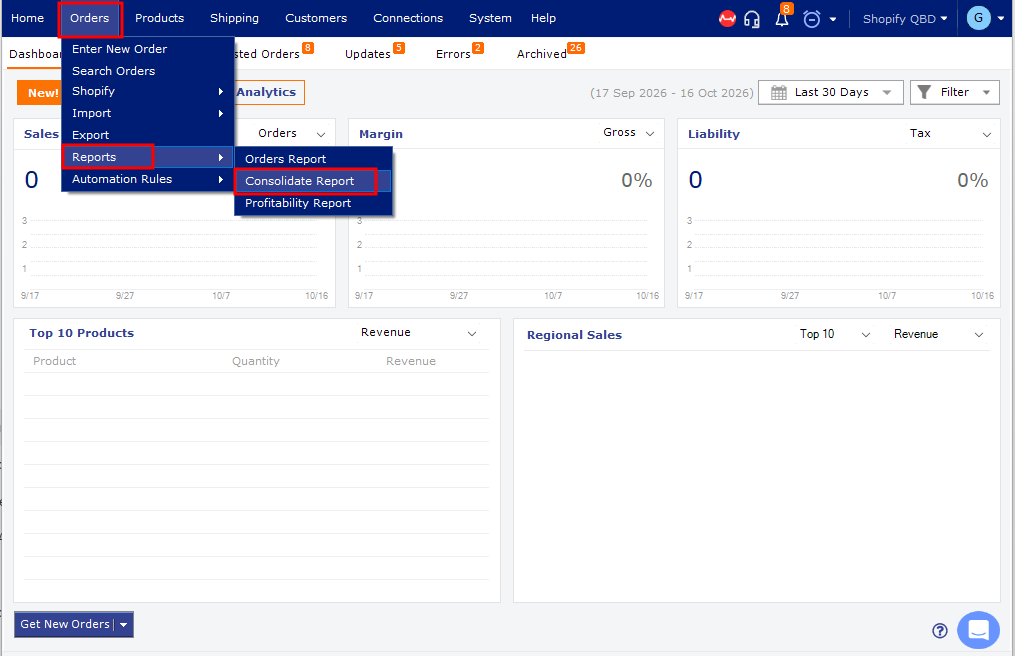
- Unsync the order from QuickBooks using the appropriate Webgility workflow.
- Redownload the consolidated order to refresh its data with the updated group item settings.
Important: Before unsyncing an order, verify its current status in QuickBooks to avoid duplicate transactions or unintended changes to existing accounting records.
3. Repost and Verify the Order
- Post the consolidated order to QuickBooks again.
- Verify that the group items, individual items, and adjustment amounts are recorded correctly.
- Post the associated payout and confirm that the payout amount matches the consolidated order transactions.
If the amounts match and the group item adjustments are recorded correctly, continue processing the remaining transactions.
If You Need More Help
If you have any questions or need more help, please contact our support team at support@webgility.com.