
Overview
In this scenario, an item may continue to behave according to an old mapping after its parent-SKU relationship is changed in the sales channel. This can happen when the item remains both Matched and Mapped in Webgility Desktop.
Matching takes priority over mapping. If the item is correctly matched to the intended QuickBooks item, remove the outdated mapping so only the correct match remains.
Steps to Resolve- In Webgility Desktop, go to Products > All Products and locate the affected item. For details on viewing Matched and Mapped products, see Products Module View in Webgility Desktop.
- Check whether the item appears as both Matched and Mapped.
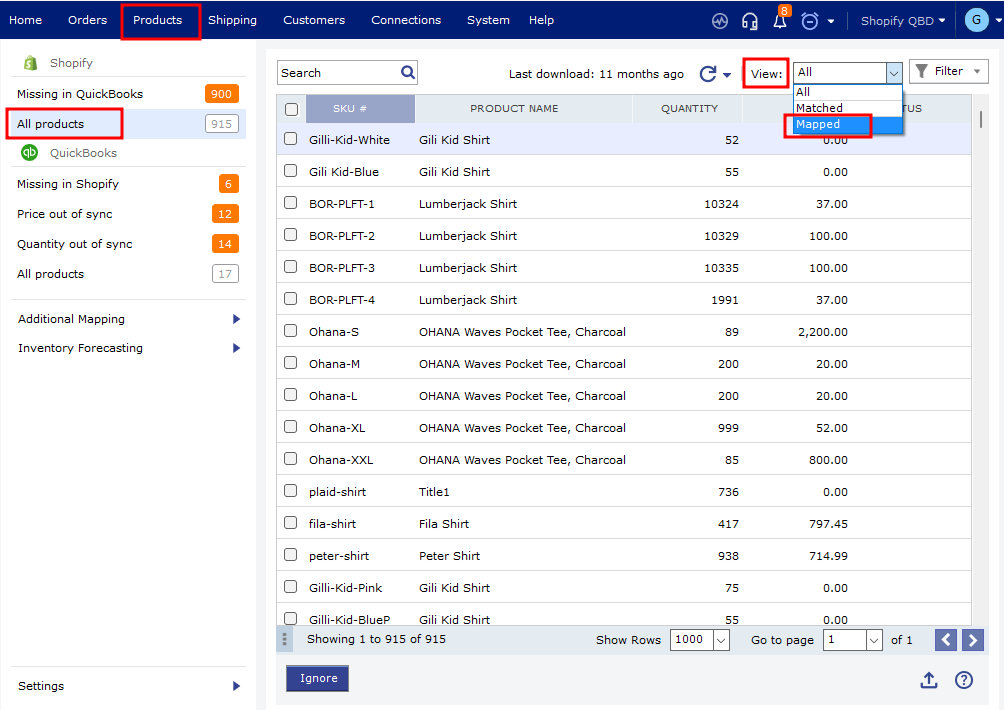
- If the item is correctly matched to the intended QuickBooks item, remove the outdated mapping. Webgility Desktop allows incorrect mappings to be deleted from the Mapped Products view.
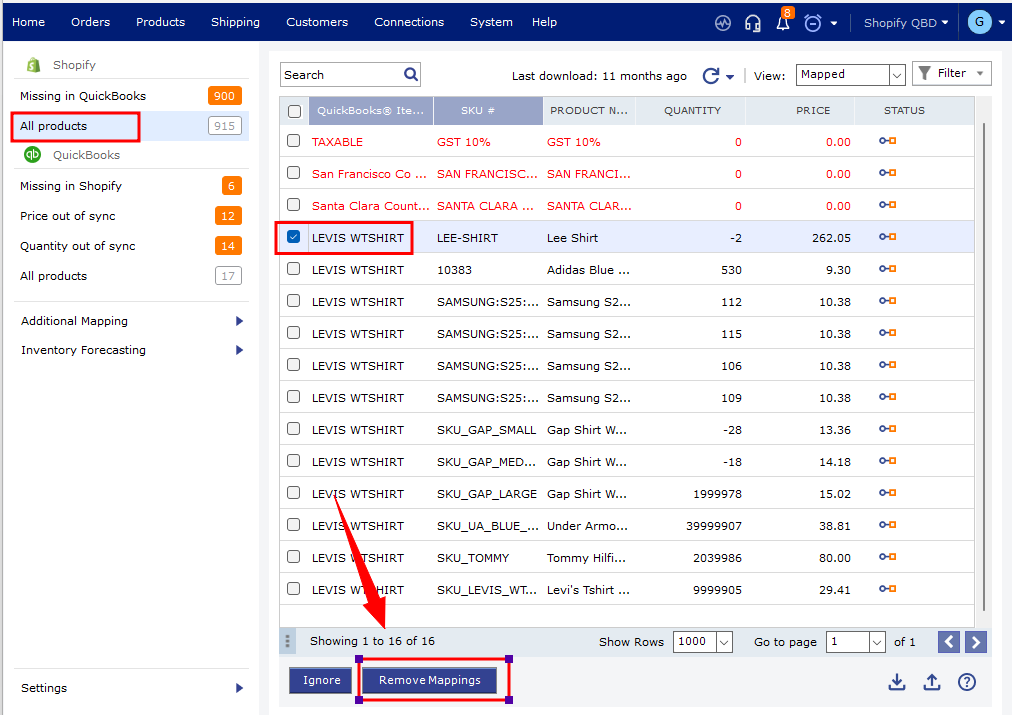
- Refresh the product list and verify that the item remains under Matched and no longer has the outdated mapping.
- Restart the Webgility Scheduler after the cleanup so subsequent automated syncing uses the corrected product relationship.
After changing a parent-SKU relationship in the sales channel, verify the affected item in Products > All Products and remove any outdated mapping if the item is already correctly matched.
If the issue continues after the mapping is removed, contact Webgility Support with the affected SKU and sales channel details.