
Overview
When an Amazon settlement report fails to post with the error “Order have item which not found in QBD,” Webgility Desktop cannot match one of the settlement line items with an item in QuickBooks Desktop.
This usually occurs when an Amazon fee, refund, or overpayment line does not have a corresponding QuickBooks item mapped in Webgility.
Steps to Resolve1. Update Webgility Desktop
Make sure you are using the latest version of Webgility Desktop.
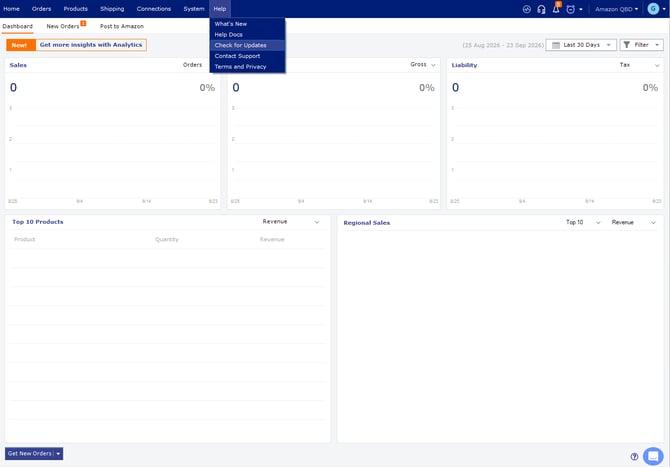
Go to Help > Check for Updates and install any available update.
For detailed instructions, see Update Webgility Desktop Using Check for Updates Option.
2. Search for the Affected Order
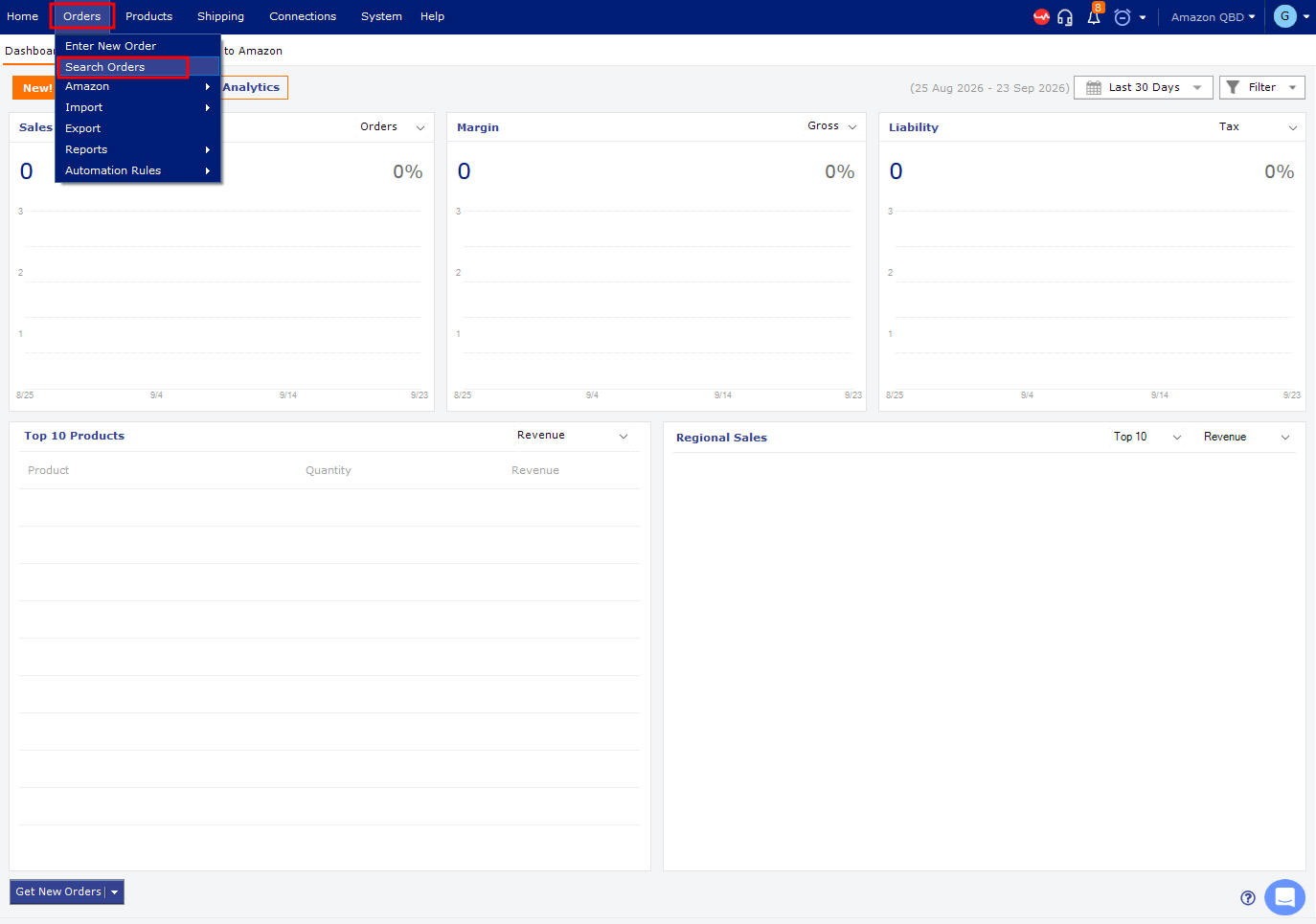
Navigate to Orders > Search Order and search for the order included in the affected Amazon settlement.
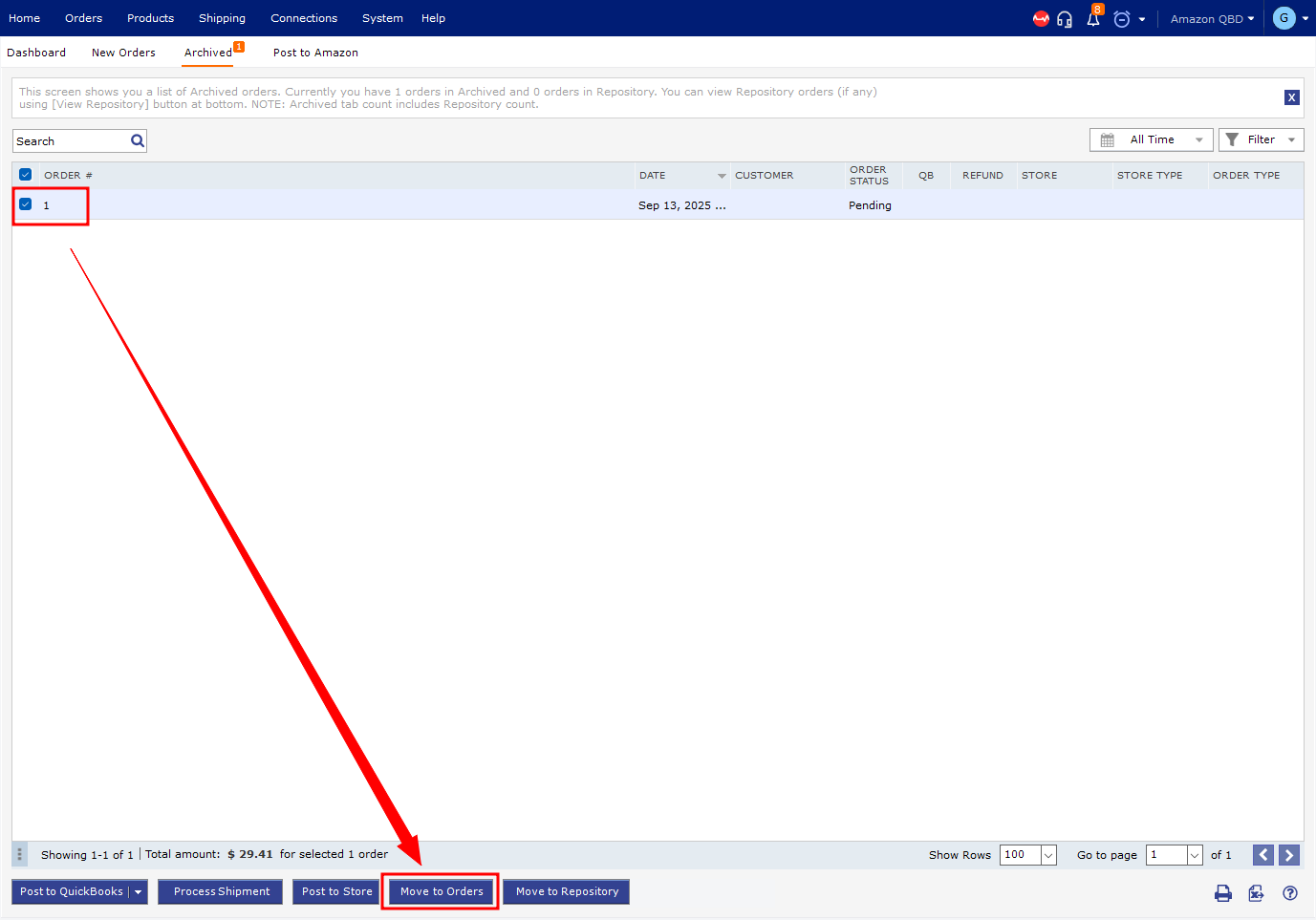
If the order is archived or located in another order queue, move it back to the main Orders section so you can review its details.
3. Check for an Unmapped Item
Open the affected order and review its line items.
Look for an overpayment, refund, or fee line that does not have a QuickBooks item assigned.
4. Map the Item to QuickBooks
Map the affected item to the appropriate QuickBooks Desktop item and account, then save the mapping.
For detailed instructions, see How to Map Products or Inventory in Webgility Desktop.
5. Post the Settlement Again
Return to the affected Amazon settlement report and select Post to QuickBooks.
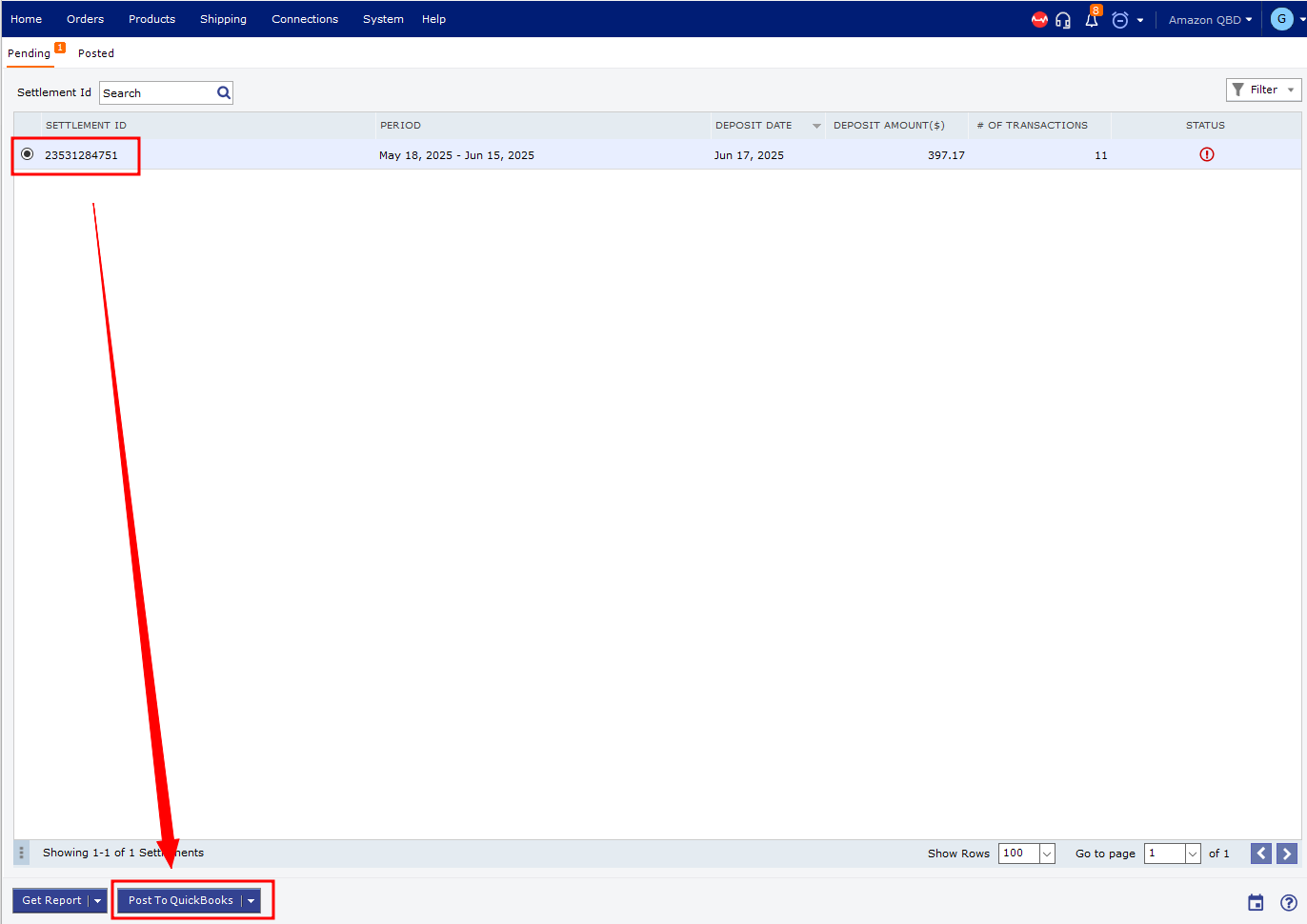
Once the missing item is correctly mapped, the settlement should post successfully.
Important NoteKeep the mapping in place after resolving the issue so future Amazon settlements containing the same item can post successfully.
If the settlement still does not post after correcting the mapping, contact Webgility Support for further assistance.