
Overview
When an Amazon settlement fails to post with the error “Order has item which is not found in QBD,” Webgility Desktop cannot match an order's overpayment, fee, or adjustment item to a QuickBooks Desktop item.
Follow the steps below to map the missing item and post the settlement again.
Steps to Resolve the ErrorStep 1: Find the Affected Order
In Webgility Desktop, navigate to Orders > Search Order and search for the order number shown in the error message.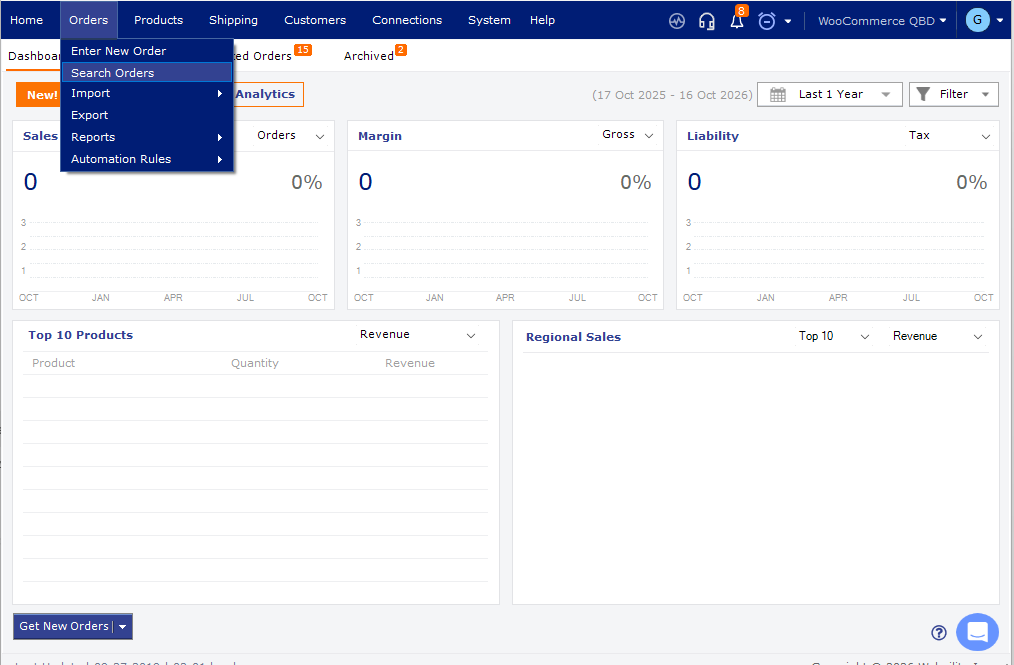
Open the order and identify the overpayment, fee, or adjustment item that is not mapped to QuickBooks.
Step 2: Map the Missing Item
Map the item to the appropriate QuickBooks Desktop item and account.
For detailed instructions, see How to Map Products or Inventory in Webgility Desktop.
If the required item does not exist in QuickBooks, create it first and then map it in Webgility.
How to Create a New Item in QuickBooks Desktop
- Go to Lists > Item List.
- At the bottom of the Item List window, click the Item drop-down menu and select New.
- Select the appropriate item type, such as Service, Inventory Part, Non-inventory Part, or Other Charge.
- Enter the required item details:
- Item Name/Number: Enter the item name or SKU.
- Description: Enter the description to display on transactions.
- Rate/Price: Enter the default rate or price, if applicable.
- Account: Select the appropriate account based on the item type and how it will be used.
- Click OK to save the item.
Step 3: Post the Settlement Again
Navigate to Orders > Amazon > Settlement Report, locate the affected settlement under the Pending tab, and click Post to QuickBooks.
For more details, see Download and Post Amazon Settlement Reports with Webgility Desktop.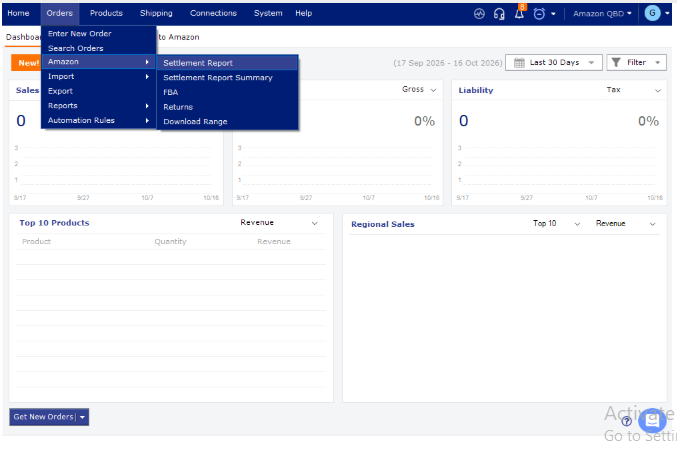
Note: Keep the item mapping in place so future settlements containing the same item can post successfully.
If you have any questions or need more help, please contact our support team.