
Overview
When an order is edited in QuickBooks Online and then resynced through Webgility Online, duplicate payments may appear if a payment was entered manually in QuickBooks. An inactive item on the invoice may also prevent order updates from completing.
Follow the steps below to review and resolve these issues.
Steps to Resolve Duplicate Payments- Open the invoice. In QuickBooks Online, locate and open the invoice for the affected order. Review the payments associated with it.

- Verify the manually recorded payment. Before deleting anything, confirm that the payment was entered outside Webgility Online, applies only to the affected invoice, is not included in a bank deposit, and does not belong to a reconciled period.
- Delete the duplicate payment if safe. If all the conditions above are met, open the payment and select More > Delete. Do not simply remove the payment from the invoice, as this may leave an unapplied credit in QuickBooks.
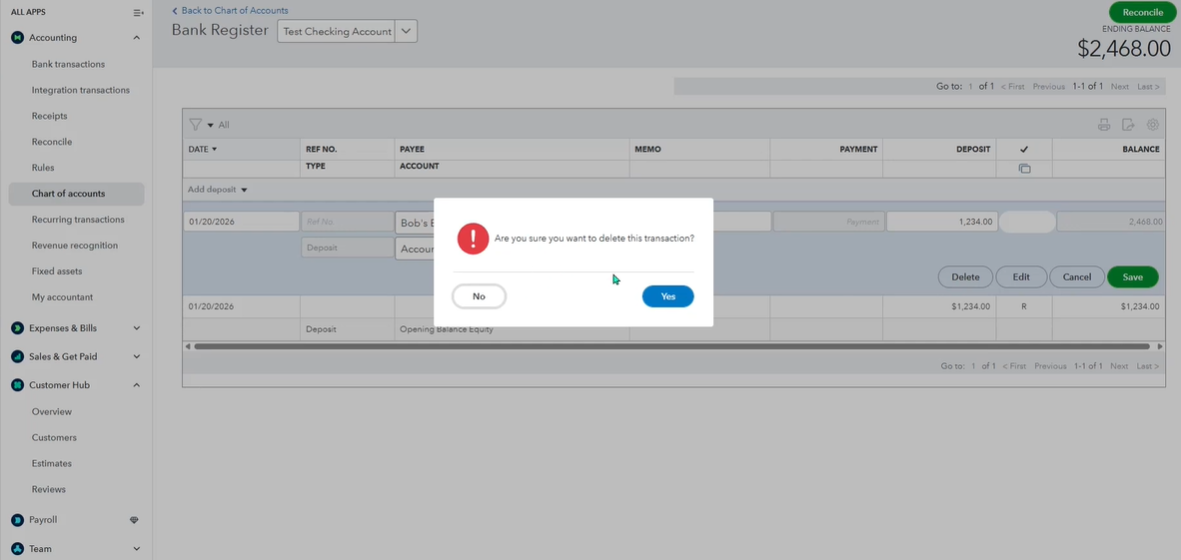
- Reactivate inactive items. In QuickBooks Online, open Products & Services and check whether any item on the invoice is inactive. Reactivate any inactive items so the invoice update can proceed.
- Resync the order. Resync the affected order in Webgility Online so the transaction can be updated correctly.
For more information, see How to Unpost Orders in Webgility Online.
Important Note
Only delete a payment after confirming it was entered manually and is safe to remove. Deleting a payment already recorded by Webgility may cause the invoice to show an outstanding balance. If the payment is part of a deposit or a reconciled period, consult your accountant before making changes.
If you have any questions or need more help, please contact our support team.