
Overview
When you post a settlement report, the Reconciling window can stop at the Post Refunds step with the message "Credit Memo is not created due to item is not found in QuickBooks." Undoing the sync for the affected order, re-downloading it and posting it again clears the error, and the settlement then completes.
This article applies to settlements reconciled in Webgility Desktop where a refund order fails to create its credit memo in QuickBooks.
What you see
The Reconciling window shows "6 out of 10 steps are completed" and stops with a red error on Post Refunds. A second window then lists the order that failed.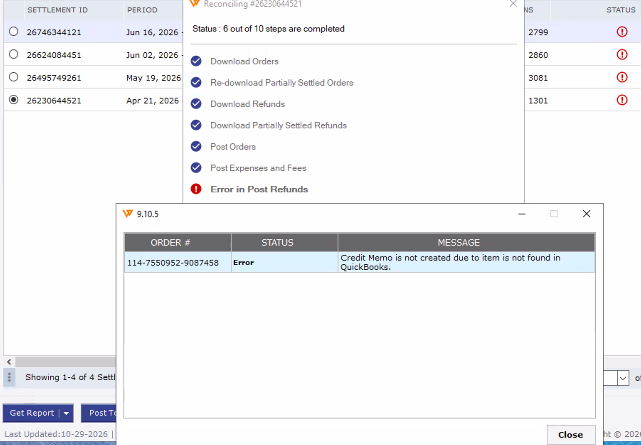
|
Where |
What it shows |
|---|---|
|
Reconciling window |
Steps completed: Download Orders, Re-download Partially Settled Orders, Download Refunds, Download Partially Settled Refunds, Post Orders, Post Expenses and Fees |
|
Reconciling window |
Failed step: Post Refunds |
|
Error window, Status |
Error |
|
Error window, Message |
Credit Memo is not created due to item is not found in QuickBooks. |
The error window also lists the Order # that failed. Note that order number, because it is the one you fix in the steps below.
Cause
The refund on that order needs a credit memo in QuickBooks, and the item on the order could not be found in QuickBooks when the credit memo was created. Without the item, the credit memo is skipped and the Post Refunds step fails.
The order itself stays in the settlement, so only the failed order needs to be reprocessed. The settlement does not need to be restarted.
Resolution
Undo the sync for the failed order, download it again, then post it. Repeat for every order listed in the error window.
- Note the Order # shown in the error window, then click Close.
- Find that order in Webgility Desktop and undo the sync for it, so it is no longer marked as posted to QuickBooks.
- Re-download the order so it is pulled in again from the marketplace.
- Post the order to QuickBooks.
- Go back to the settlement and post the settlement report again.
If more than one order was listed in the error window, repeat steps 2 to 4 for each one before you post the settlement again.
Confirm it worked
After you post the settlement again, the Reconciling window should show all 10 steps as completed, including Post Refunds, and the settlement status should clear. The credit memo for the order should now appear in QuickBooks.
If the same error returns for the same order, confirm the item on that order exists in QuickBooks, then contact Webgility Support with the order number and a screenshot of the error window.
If you require any further assistance, please feel free to reach out to Webgility Support. We'll be happy to help!