
Problem Description
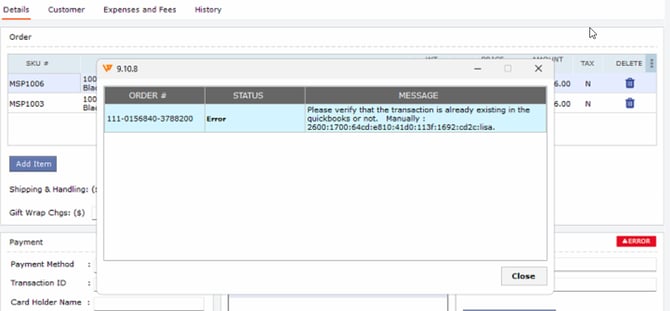
"I'm trying to post my Shopify payouts in Webgility Desktop and getting an error that says Webgility cannot find the transaction in QuickBooks and asks me to check it manually. The order is actually in QuickBooks when I look there, but the payout still refuses to post."
Root Cause
When an order is partially downloaded or re-posted in a different sequence, Webgility Desktop's internal record of the posted transaction can fall out of sync with the matching QuickBooks transaction. The payout step then cannot link the deposit to the invoice or sales receipt, even though the transaction is visible inside QuickBooks.
Solution Steps
-
Step 1: Open Webgility Desktop and go to Connections > Accounting/POS/ERP, confirm that your QuickBooks company file is the one currently open, and that posting is enabled (see the Payout Posting walkthrough for the full field-by-field setup).
-
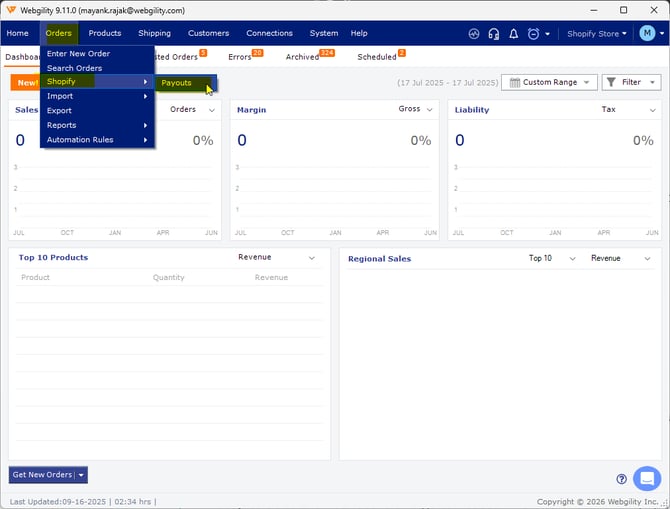
Step 2: Go to Orders, then Shopify,click Payouts open the payout that is failing, and note the order numbers that the error message calls out so you know which transactions to act on.
-
Step 3: Go to the Dashboard and go to Posted/Archive Orders TABS, open, and search for each of the affected order numbers from Step 2.
-
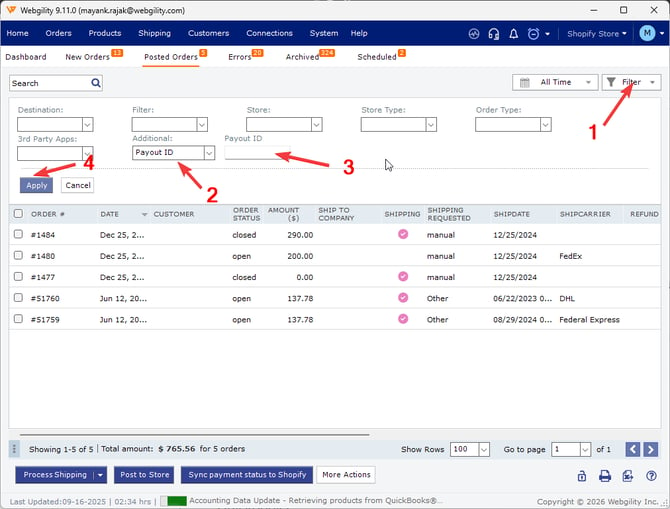
Step 4: Select the affected orders, click Undo Posting, and confirm the prompt so Webgility clears its posted status for those orders.You may also use the Payout ID filter to sort the orders.
-
Step 5: Select the same orders again and right click & undo-sync, once done retry Posting Transactions to Accounting from the New Orders Tab to re-post them into QuickBooks.
-
Step 6: Return to Payouts, open the failing payout, and click Post Payout — Webgility can now locate the re-linked transactions in QuickBooks and the payout posts without the error.
Important Note
Note: If the error persists for a specific order after Step 5, open that order in QuickBooks and confirm every line item has a product match on the Webgility side; an unmapped item will leave the transaction in a half-posted state that the payout cannot resolve. The How to Map Products While Posting Orders article walks through the mapping flow.
Key Recommendation
Post payouts in the order they were received from the sales channel so Webgility and QuickBooks stay in the same sequence; posting a newer payout before an older one is the most common reason this error reappears.
Feel free to reach out to support@webgility.com.