
Your BigCommerce channel used to download orders into Webgility Desktop without issue, and today new BigCommerce orders have stopped arriving. When you click Download Orders, the result is No more Orders found. You have tried reconnecting BigCommerce from Webgility, and the reconnect either finishes without an error but does not pull orders, or opens Internet Explorer on your computer as part of the flow.
Why this happens
Webgility Desktop hands the reconnect handshake off to whichever browser Windows sets as the default for the redirect Webgility opens. On Windows machines where Internet Explorer is still set as the default (or where an older Webgility shortcut is bound to Internet Explorer), the handshake completes against a browser BigCommerce no longer fully supports. The reconnect appears to succeed but the token Webgility receives back is not the one BigCommerce expects for order pulls, so downloads return empty. Running the same handshake in Google Chrome resolves the token exchange cleanly, and the missing orders download on the next sync.
What to do
Step 1: Confirm your computer has Google Chrome installed and set as the default browser. Open Windows Settings > Apps > Default apps, find Web browser, and set it to Google Chrome. Close and re-open Webgility Desktop so the browser change takes effect.
:max_bytes(150000):strip_icc()/007_how-to-change-default-browser-on-windows-11-6823503-ef4894670c794789afff812a9308a432-ba5bb97fa6384b0f8a521087a8fbc34c.jpg)
Step 2: In Webgility Desktop, go to Connections > Sales Channel > Manage Sales Channel. The My Sales Channels window opens with the list of every store you have connected.
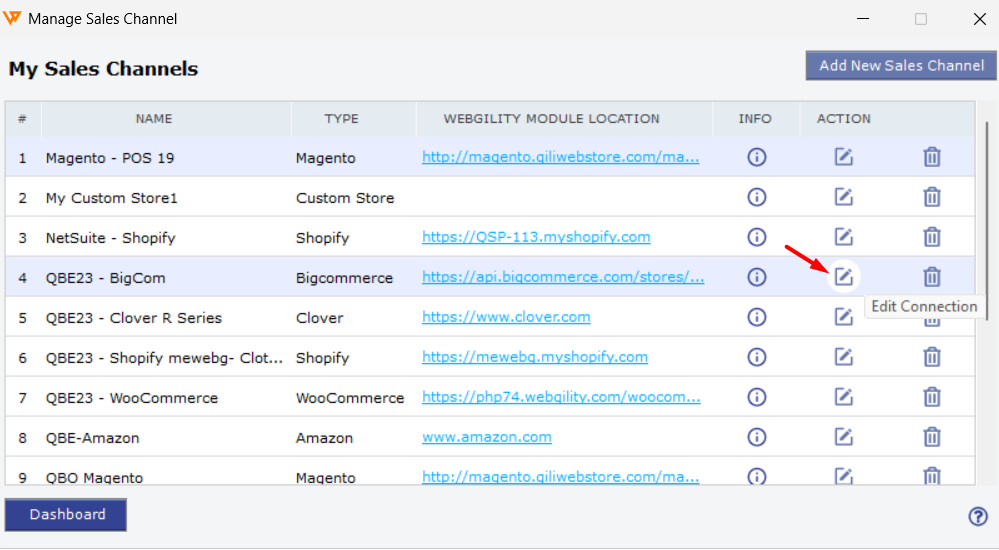 Manage Sales Channel > find BigCommerce in the list > click the pencil icon in the Action column (Edit Connection).
Step 3: Find your BigCommerce store in the list and click the pencil icon in the Action column on that row. Hovering the icon shows the Edit Connection tooltip. The Sales Channel Settings dialog opens with your BigCommerce store's details.
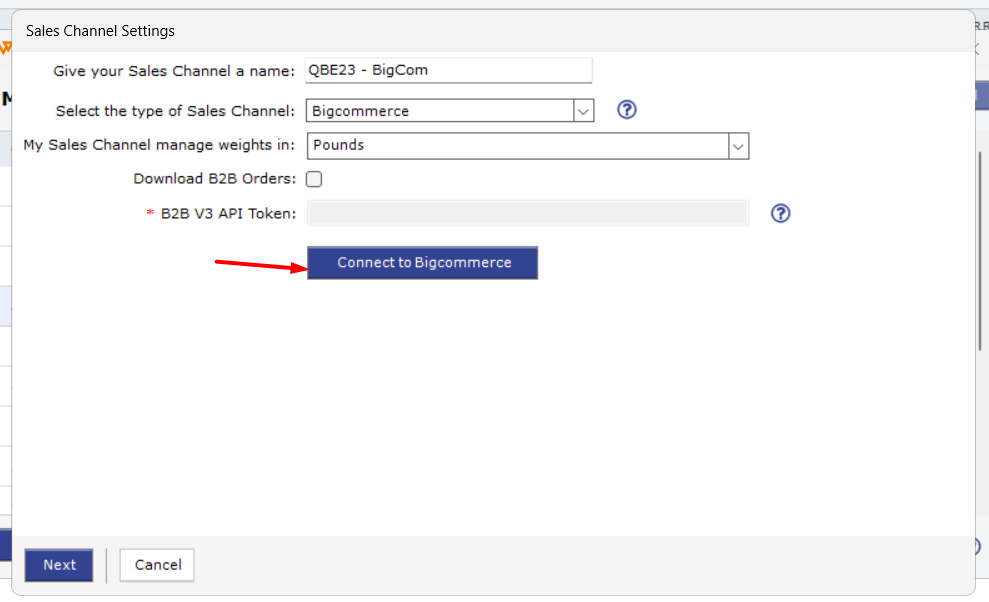 Sales Channel Settings > click Connect to Bigcommerce to re-run the authorization handshake in your default browser (now Google Chrome).
Step 4: Click Connect to Bigcommerce. Webgility now opens the BigCommerce authorization page in Google Chrome. Sign in to your BigCommerce store when prompted, approve the Webgility app, and let the browser return you to Webgility Desktop. A success message confirms the handshake completed. The complete step-by-step BigCommerce connection walk-through, including the exact BigCommerce authorization screens you will see, is in How to Connect Webgility Desktop with BigCommerce.
Step 5: Trigger a fresh order download to pull the backlog. From the Orders view for BigCommerce, click Download Orders. The orders that were missing since the connection broke arrive in Webgility, and future orders come in automatically on your usual schedule.
Step 6: Verify by opening the Orders view again after a few minutes and confirming the most recent BigCommerce order numbers are present. If your channel is on a scheduled sync, wait one scheduler cycle and confirm new orders continue to flow.
Good to know. If Windows keeps switching your default browser back to Internet Explorer after a system update, set Google Chrome as the default one more time and pin its shortcut so future Webgility reconnects use Chrome by default. This fix applies to any Webgility sales channel whose reconnect opens a browser handshake — Shopify, WooCommerce, Wix, and others follow the same pattern from the same Manage Sales Channel screen. Modern browsers (Google Chrome, Microsoft Edge, Firefox) all complete the handshake cleanly; Internet Explorer is the one to avoid.
Still need help?
If BigCommerce orders still do not download after reconnecting through Google Chrome, share the exact date of the last successful download, a screenshot of the No more Orders found result, and one recent BigCommerce order number that should have downloaded with Webgility Support. Support can then check whether the BigCommerce API token Webgility is holding matches what BigCommerce currently accepts and whether the order-date filter on your channel is trimming the missing orders out.