
Overview
If an Amazon order posts to QuickBooks with the wrong product on the invoice or sales receipt, the Amazon SKU may be mapped to the wrong QuickBooks item in Webgility Desktop.
To resolve this, unmap the incorrect match, map the SKU to the correct QuickBooks item, and verify the next order.
When to Use This Guide
Use these steps when:
- A specific Amazon SKU consistently posts to the wrong QuickBooks item.
- You know the Amazon SKU and the correct QuickBooks item name.
- Your Amazon connection and product downloads are working normally.
Steps to Fix the SKU Mapping
Step 1: Select your Amazon profile
In Webgility Desktop, use the sales channel selector in the top-right corner to select your Amazon profile.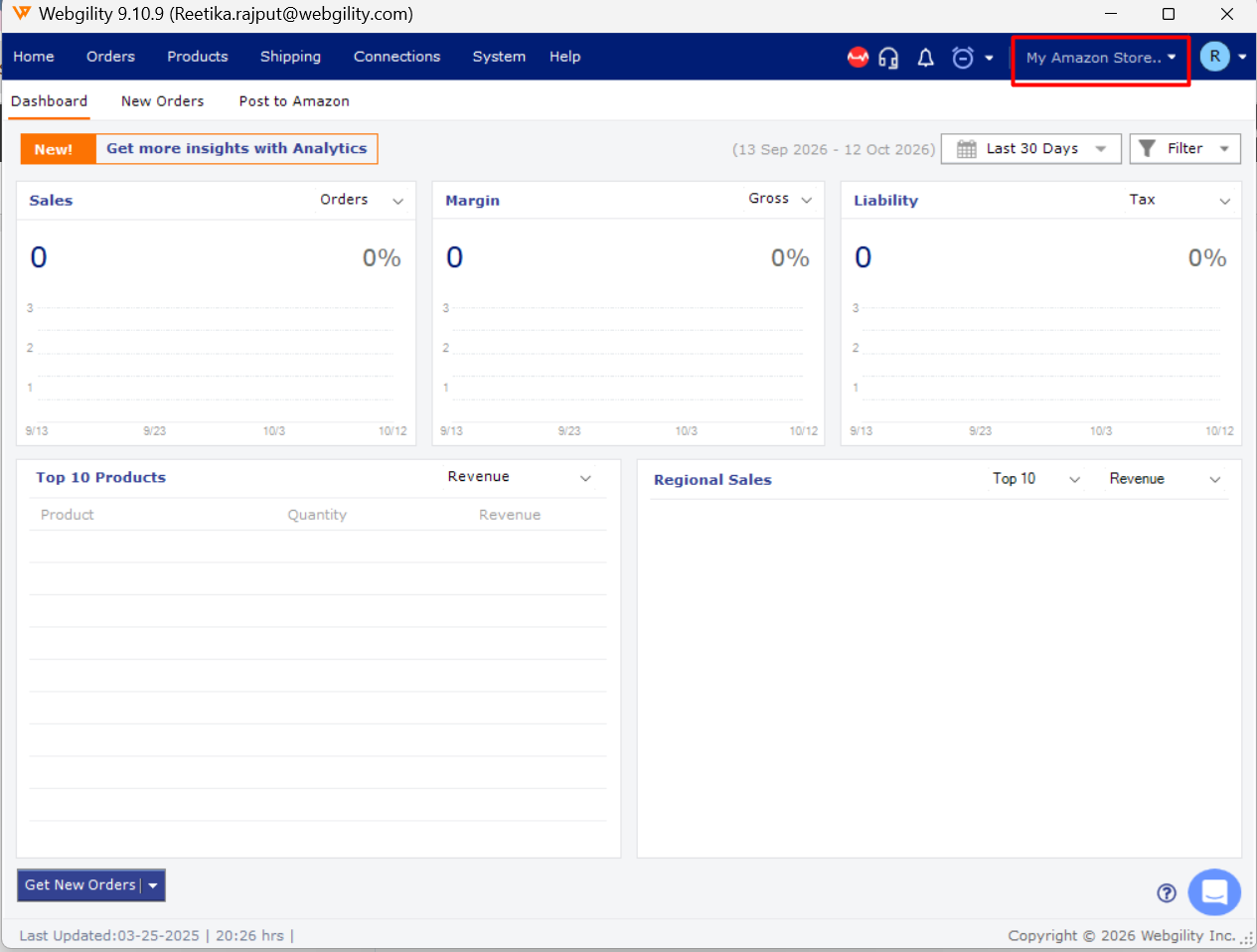
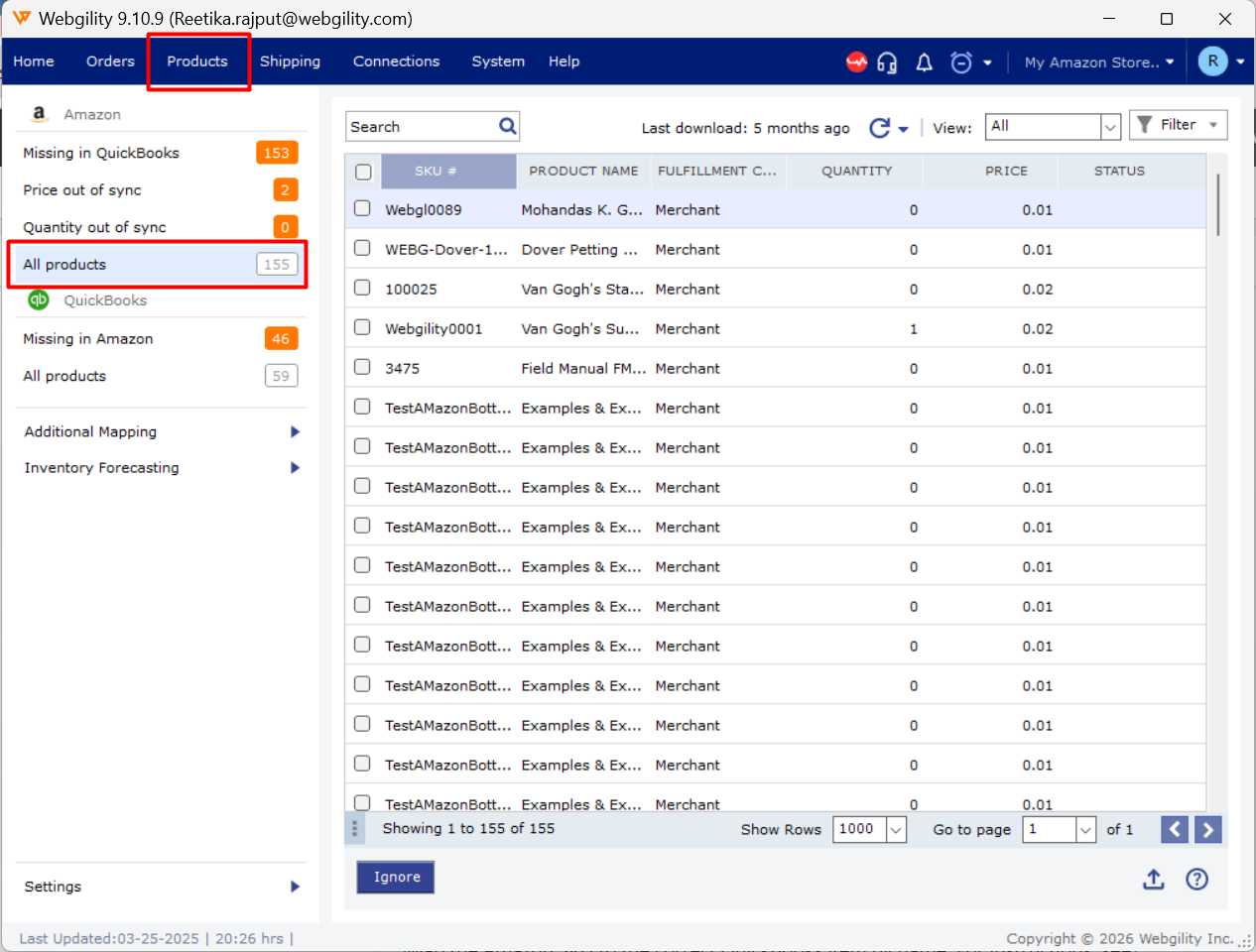
Step 2: Find the SKU
Open the Products module and search for the Amazon SKU that is posting incorrectly.
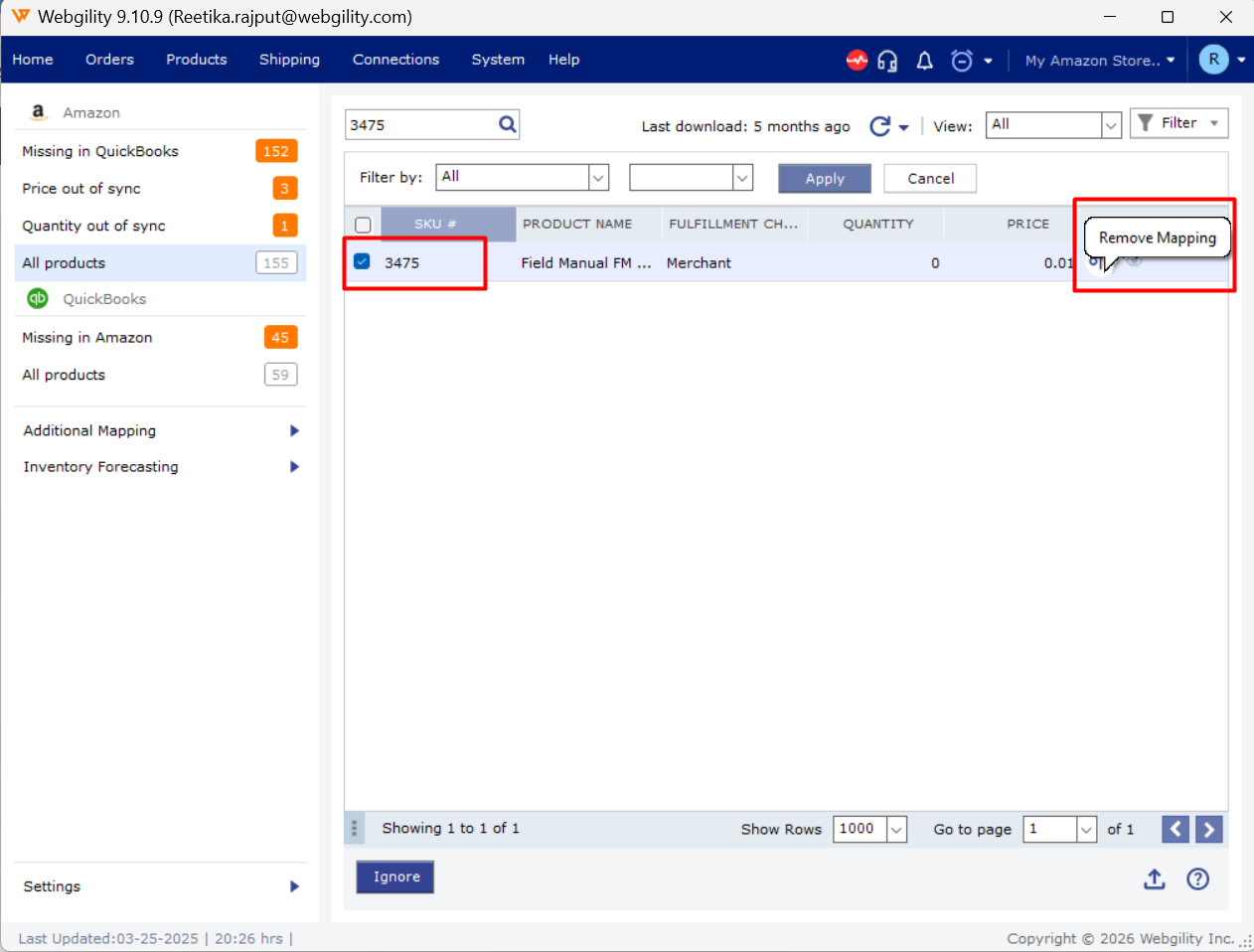
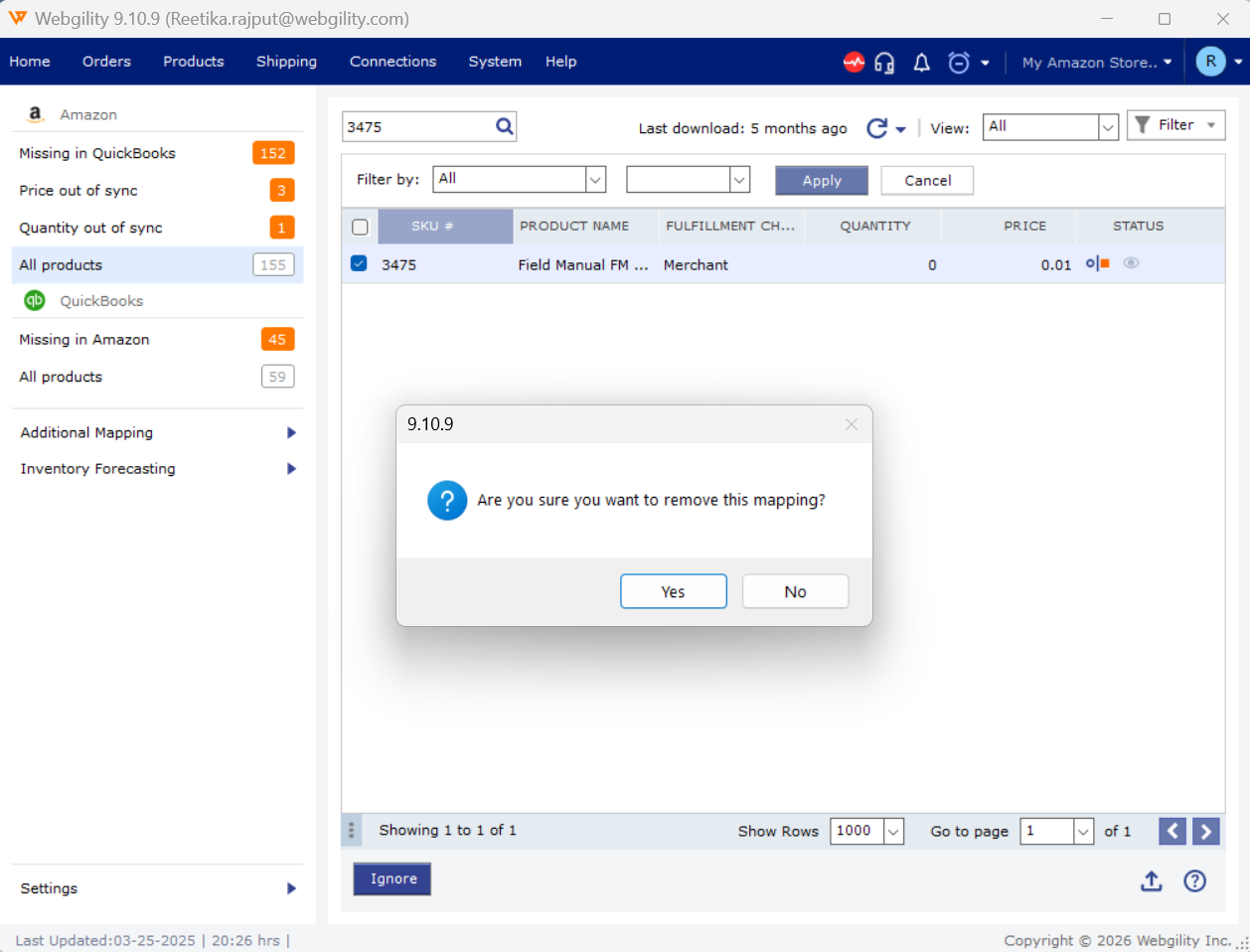
Step 3: Unmap the incorrect item
Remove the existing SKU mapping by following How to Un-map a Product in Webgility Desktop.
Step 4: Map the correct QuickBooks item
Map the Amazon SKU to the correct QuickBooks item by name. For instructions, see How to Map Products While Posting Orders.
For more information about product mapping, see How to Map Products or Inventory in Webgility Desktop.
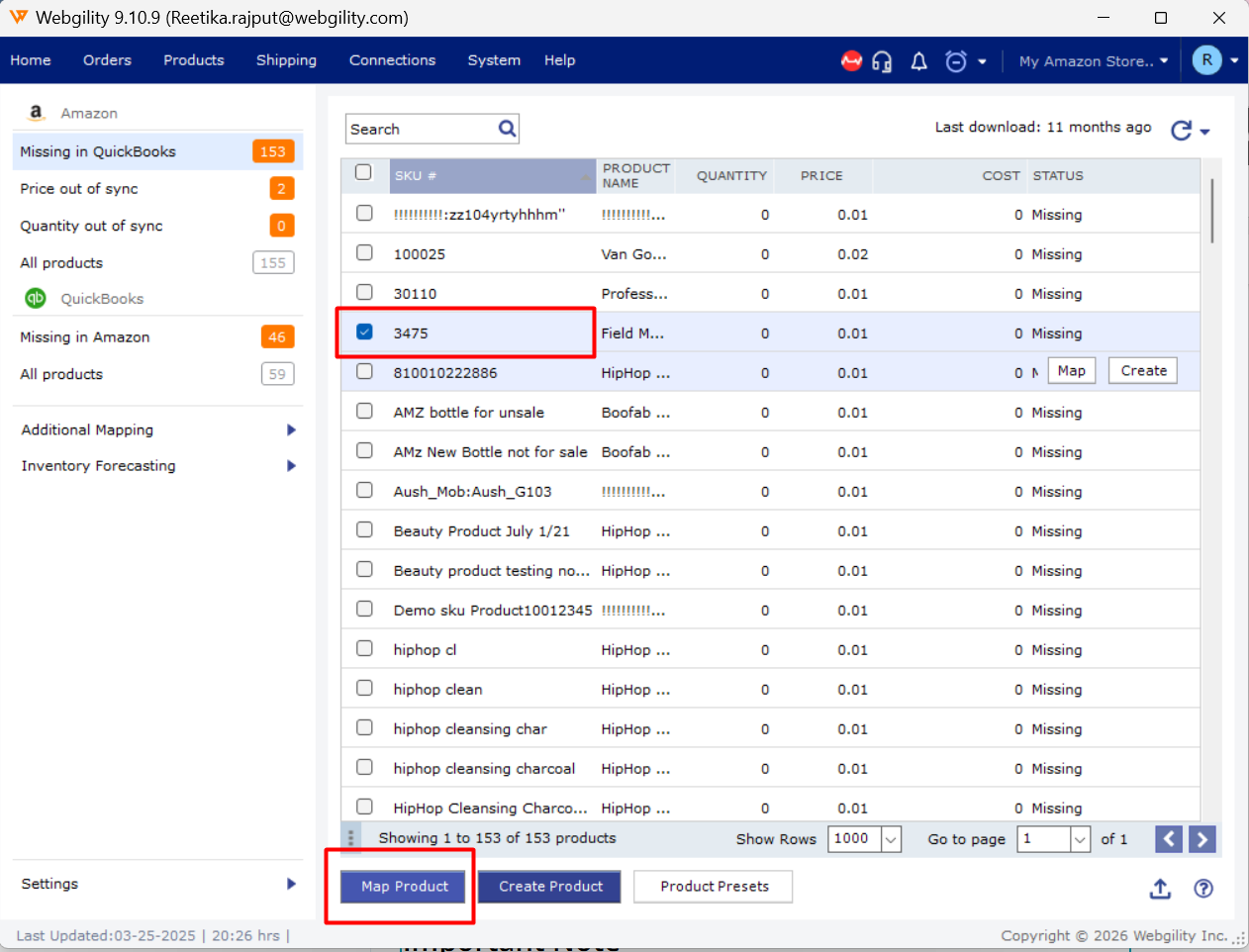
Step 5: Verify the mapping
Download and post the next Amazon order containing the SKU. Open the resulting QuickBooks invoice or sales receipt and confirm that it displays the correct item.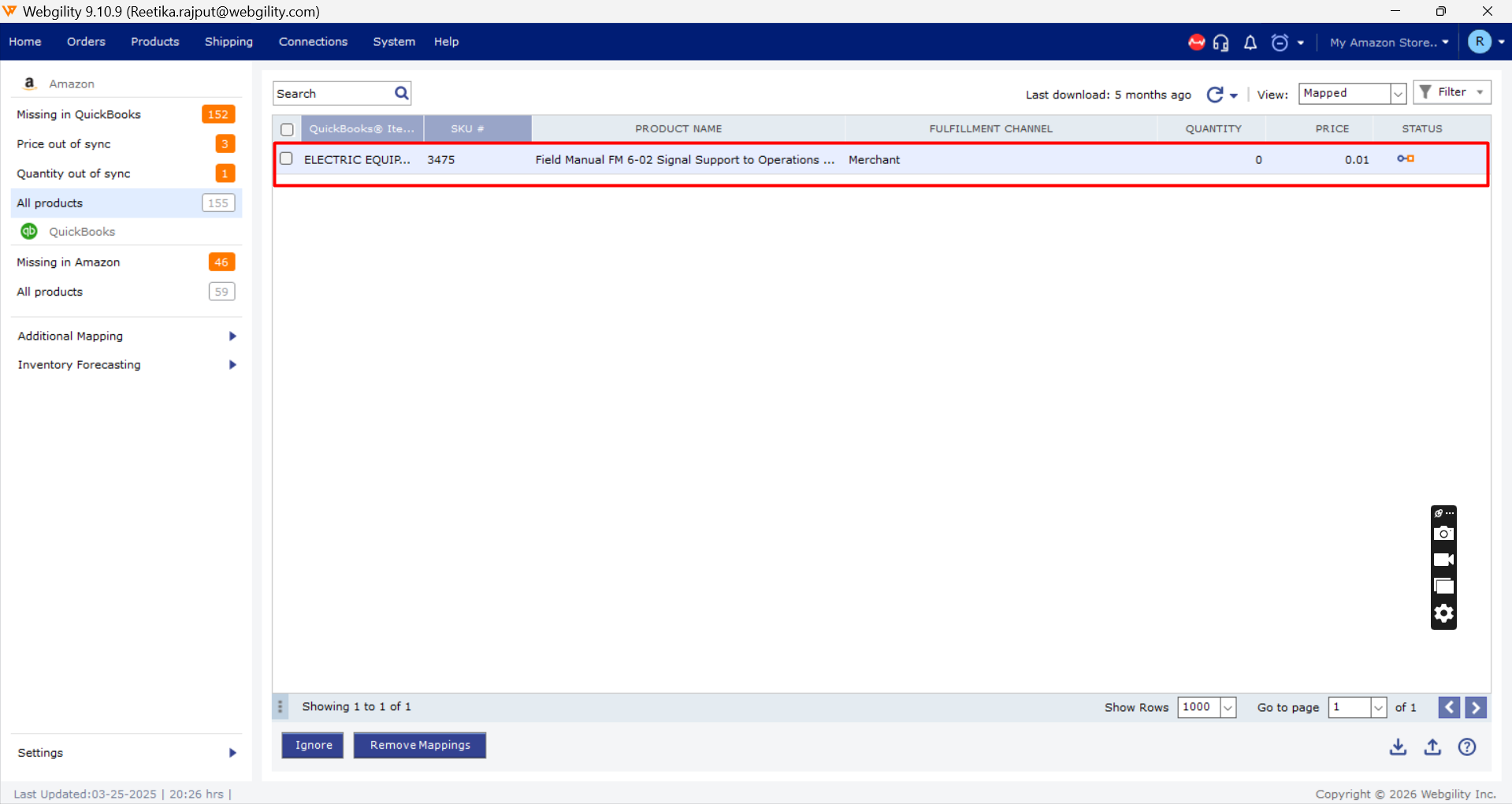
Important Note
If an Amazon SKU is listed in your account but is no longer being sold, leave it unmapped. Only map SKUs that will be used in future orders.
Still Need Help?
If the issue persists after remapping, contact Webgility Support with the following details:
- Amazon SKU
- Correct QuickBooks item name
- Order number of an invoice or sales receipt that posted the wrong item