
Skip to content
  • There are no suggestions because the search field is empty.

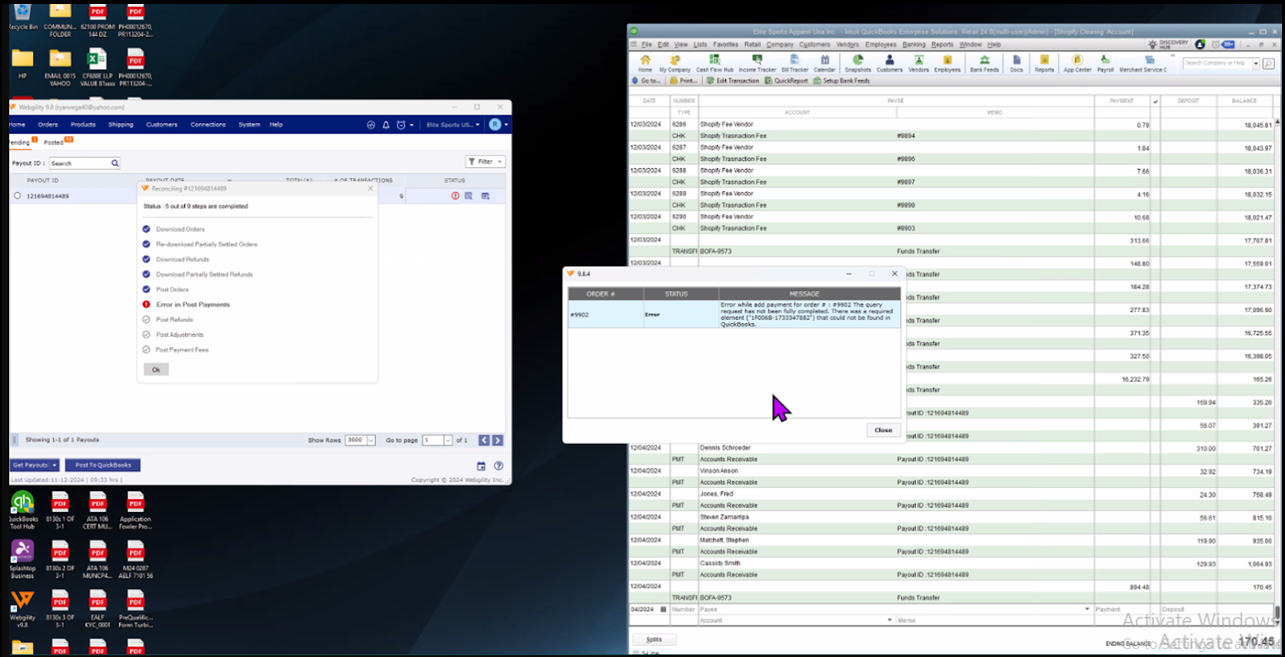
Error while add payment for order. The query request has not been fully completed. There was a required element that could not be found in QuickBooks

This article explains to Webgility Desktop users, why the payment posting error occurs when processing Shopify payouts through Webgility Desktop and how users can resolve it. The error appears when Webgility Desktop attempts to apply a payment to an invoice in QuickBooks Desktop but is unable to complete the request because required invoice details cannot be found. This situation usually arises when QuickBooks Desktop contains multiple orders sharing the same invoice number, often due to duplicated transaction numbers created within QuickBooks. As a result, Webgility cannot correctly identify the invoice needed for applying the payout. This article guides users through identifying the affected orders, undoing the sync to remove duplicates, and re-downloading and reposting the transactions to ensure the payout processes successfully.

Error Message:

Error while add payment for order. The query request has not been fully completed. There was a required element that could not be found in QuickBooks

Overview:

This error typically arises when we attempt to post the Shopify Payout from Webgility Desktop to QuickBooks Desktop, as we are unable to apply the payment to any invoice. This situation occurs because there are multiple orders associated with the same invoice number in QuickBooks Desktop, resulting from the creation of duplicate transaction numbers by QBD.
 

Steps of Troubleshooting;

1). To resolve the error, first identify the order(s) displaying the issue.

2). Next, locate these orders in the ‘Posted tab’ within the Dashboard. Once you find the relevant order, right-click on it and select the option to undo-sync. This action will remove the order from QuickBooks Desktop, causing it to reappear under the new orders section.

3). Now, navigate to the new orders tab, select the specific order, and ‘Re-download’ it before posting it again to QuickBooks Desktop. After completing these steps, attempt to post the payout once more, and it should process correctly this time.