
When Webgility Desktop posts sales tax as a single line item on each order, the tax totals in QuickBooks may not match the tax reports on your sales channel. You can configure Webgility Desktop to use QuickBooks' native tax codes so QuickBooks calculates and records the tax correctly.
Solution
Follow these steps to configure Webgility Desktop to post sales tax using QuickBooks tax codes:
1. Enable Sales Tax
In Webgility Desktop:
- Go to Connections > Accounting/POS/ERP > Sync Settings.
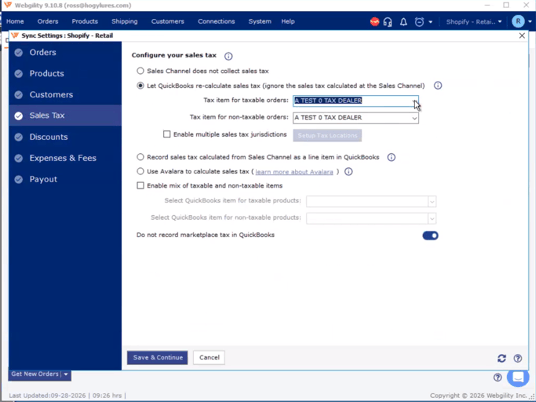
- Open the Sales Tax tab.
- Turn on Enable Sales Tax.
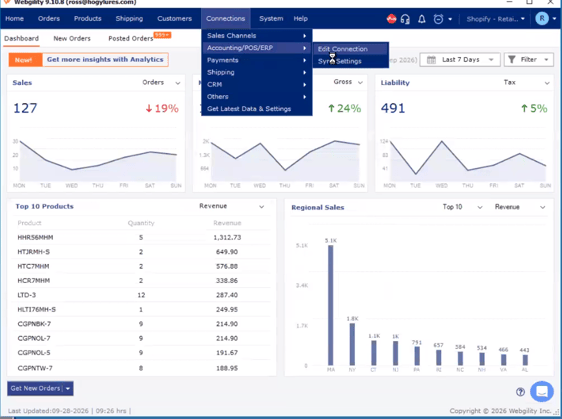
This allows Webgility Desktop to pass tax information to QuickBooks instead of recording tax as a separate subtotal line item.
For recommended configuration details, see Recommended Settings for Sales Tax for Webgility Desktop & QuickBooks Online.
2. Select the Tax Calculation Method
Under the sales tax settings, choose how you want tax to be recorded.
Select Based on Location to have Webgility Desktop select the QuickBooks tax code based on the order's shipping address. This is the setting commonly used by stores that have location-based tax codes configured in QuickBooks.
Click Save to apply the changes.
3. Test the Configuration
Post one test order for a state where you already have a tax code configured in QuickBooks.
For example, if you have a New Jersey tax code configured, post an order with a New Jersey shipping address.
Then open the transaction in QuickBooks and verify that:
- The sales tax appears in the QuickBooks tax field.
- Tax is not recorded as a separate line item.
4. Monitor Future Orders
Once the test order is posting correctly, monitor orders posted over the following week.
Compare the QuickBooks sales tax liability report with the sales tax totals reported by your sales channel to confirm that the amounts are aligning.
Important Note
This setting affects orders posted after the configuration is changed.
Orders that were previously posted with tax as a line item will remain in that format unless you unsync and re-post those orders.
If Tax Totals Still Don't Match
If the tax totals continue to differ after completing these steps, contact Support and provide:
- A specific order number
- The order's shipping state
- A screenshot of the QuickBooks tax line for the order
This information will help Support investigate the tax calculation and mapping.
If you still need assistance, contact Webgility Support at support@webgility.com