
Your Amazon store is connected to Webgility Desktop and posts have been working, but recently new Amazon orders stopped pulling into Webgility on their own. Older orders that are already shipped continue to sync fine, and the connection test on the Amazon channel passes. The gap is only on the fresh, still-to-be-shipped side of your Amazon queue.
Why this happens
Webgility Desktop only pulls Amazon orders whose order status is included in the download filter on your Amazon sales channel. Each Amazon order status (Unshipped, Shipped, Cancelled, and so on) is a separate checkbox. If the Unshipped checkbox is turned off, new Amazon orders that are still awaiting fulfillment stay on Amazon and never appear in Webgility. Turning that checkbox back on lets Webgility catch up with everything Amazon has ready for you, and every future new order comes in automatically.
What to do
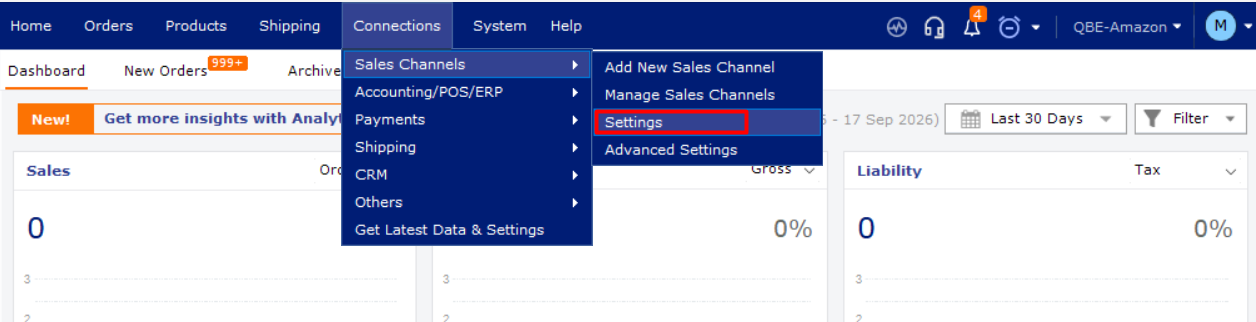
Step 1: Open Webgility Desktop and use the sales channel selector in the top-right corner to switch to your Amazon store. Then go to Connections > Sales Channels > Settings to open the settings for that channel. The full walk-through of the Sales Channel Settings screen is in How to configure the Sales Channel Settings in Webgility Desktop.
Step 2: On the Amazon channel’s Settings screen, look for the order-status filter section. Every Amazon status that Webgility can download is listed there as a checkbox. Turn on the Unshipped checkbox so pending Amazon orders are included in the download.
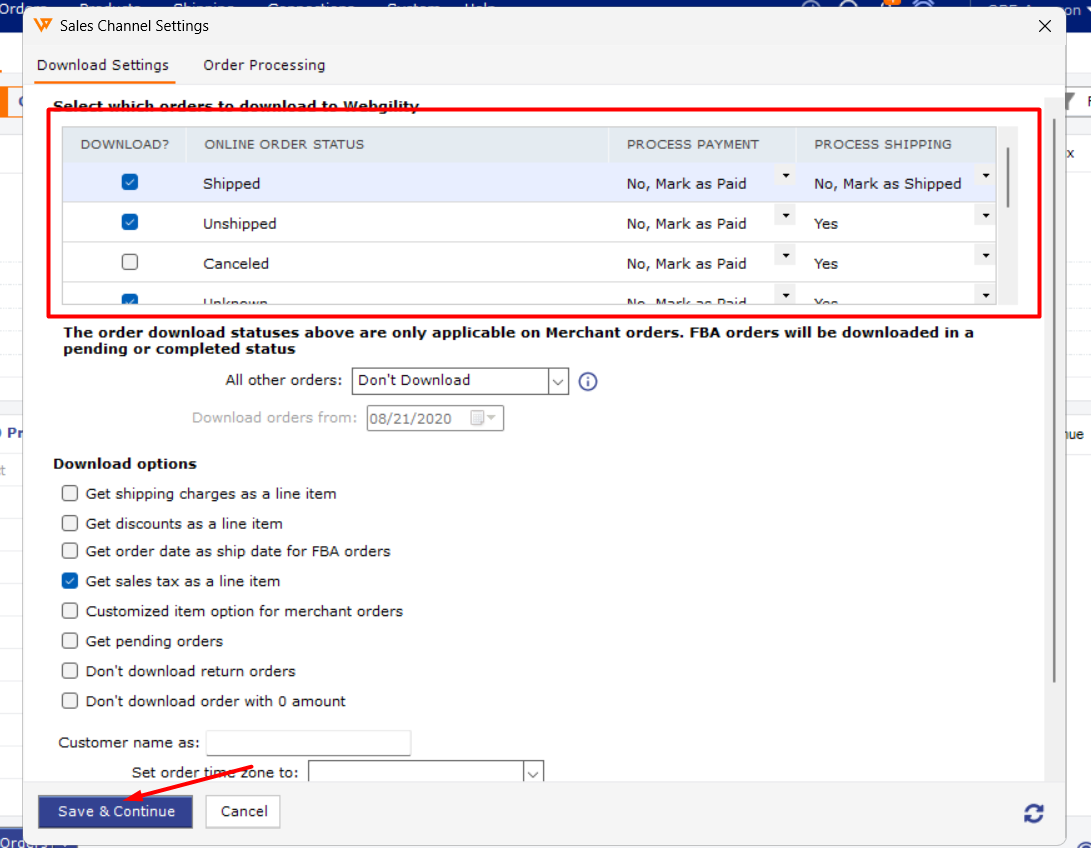
Step 3: Click Save at the bottom of the Settings screen. Webgility confirms the sales channel settings were saved.
Step 4: Trigger a fresh order download to pull the backlog. From the Orders view for your Amazon channel, click Download Orders. Every pending Amazon order that fits your date filter arrives in Webgility, and future new orders come in automatically on your usual schedule.
Step 5: If you were also seeing tracking numbers fail to post back to Amazon on some orders, check the Updates tab first. Pending order updates there can leave rows greyed out under Post to Amazon. Resolve or accept each pending update, then run Post to Amazon again — the tracking numbers post cleanly once the updates queue is clear.
Still need help?
If Unshipped is enabled and saved but new Amazon orders still do not appear after clicking Download Orders, share your Amazon channel’s Settings screenshot and one recent Amazon order number that should have downloaded with Webgility Support. Support can then check whether the missing order is outside the date range your channel is set to pull, or whether Amazon is holding it under a different status than expected.